

If you are using Windows 10 and you don't need an app, you can uninstall it. There are various ways to do it, depending on the type of app. See more details below.

Uninstall an app using the Start menu
If an app was installed using the Microsoft Store, you can quickly uninstall it via the Start menu. To do this, open the “Start” menu and locate the app icon, then right-click on it. In the menu that appears, select “Uninstall.”
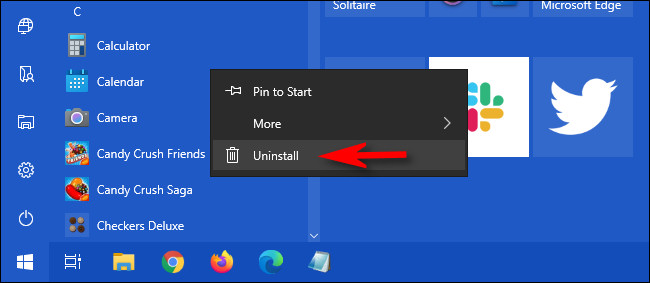
If this is the first time you uninstall a program this way, it will warn you with a small pop‑up dialog. Click again on «Uninstall». The application will be uninstalled without any further action required from you. If you change your mind, you can download it and reinstall it later via the Microsoft Store.
If you right-click on an app that was not installed via the Microsoft Store and select “Uninstall”, the “Programs and Features” window will open. Locate the program in the list, select it and, then click the “Uninstall” button.
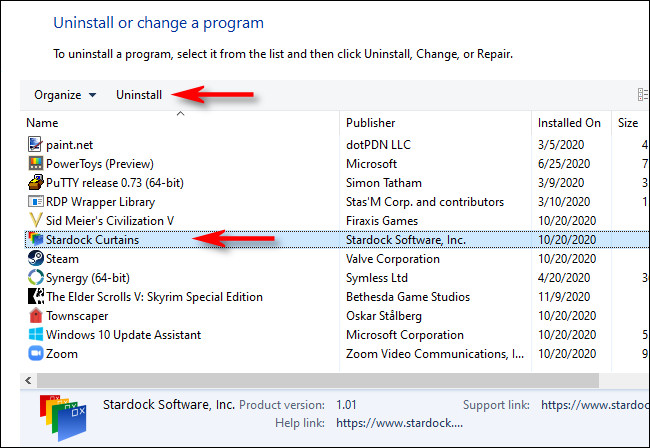
If an uninstall wizard window appears, follow the steps until the program's installation is removed. Then you can close the “Programs and Features” window.
Uninstall an app using Settings
Perhaps the most comprehensive way to uninstall an app on Windows 10 is by using Settings. This is because you can see a list of every installed program on the system and easily choose which one you want to uninstall.
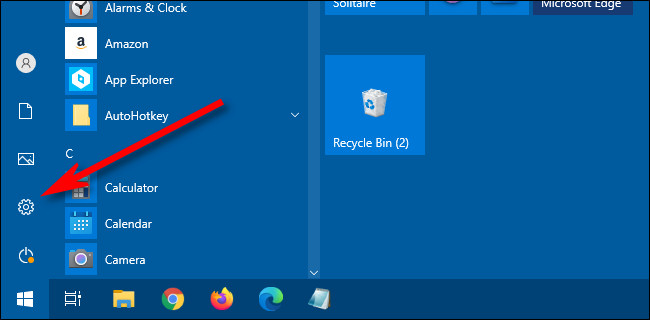
To do this, open the “Settings” by clicking the “Start” menu and selecting the gear icon. (Or you can press Windows+I on your keyboard.)
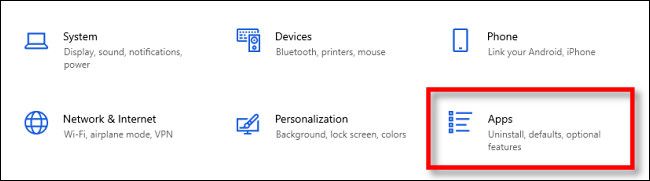
In “Settings”, click on the “Apps” option.
After this, you will see a list of all the apps installed on your system. This includes both apps that have been installed via the Microsoft Store and apps that have been installed through other methods.
Locate the entry for the program you want to uninstall and select it. Then click on “Uninstall”.
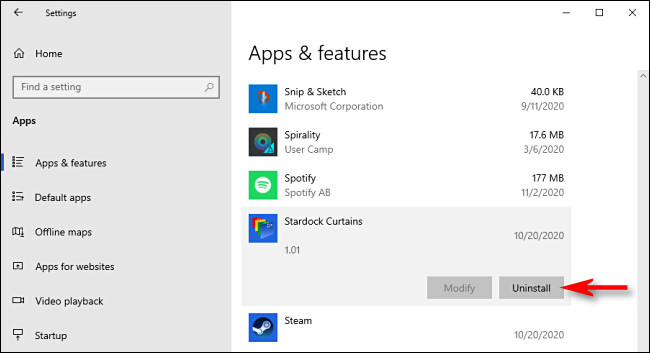
If the application was installed from the Microsoft Store, it will be uninstalled immediately without additional steps.
If it is an application installed by other means, you may see an additional pop‑up dialog. If so, click again on «Uninstall». After that, the program's uninstaller wizard window will start. Follow the wizard steps and the application will be fully uninstalled.
Uninstall an application using the Control Panel
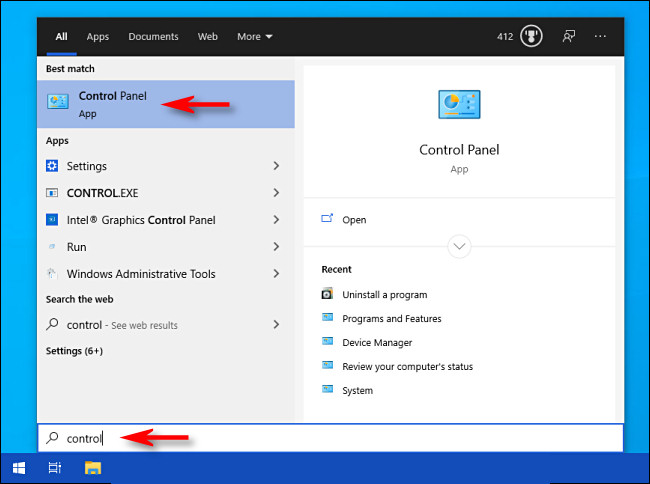
You can also uninstall applications that do not belong to the Microsoft Store using the old Windows Control Panel. To do this, open the “Start” menu and type “control”, and then click the “Control Panel” icon.
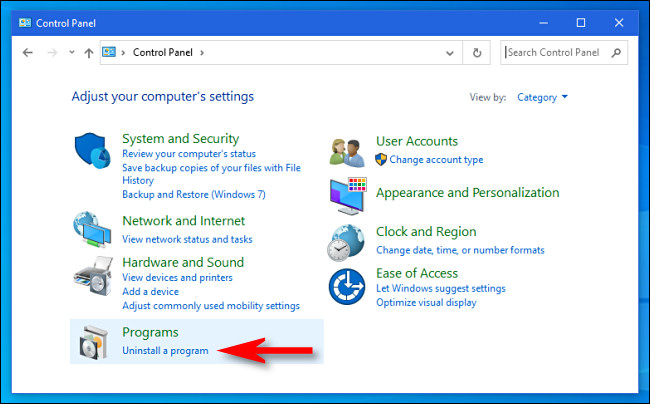
In the “Programs” section, click “Uninstall a program”.
In the Programs and Features window that appears, you'll see a large list of installed applications that you can sort by name, publisher, installation date, size, and version number by clicking on the column headings.
This list does not include applications installed from the Microsoft Store. To uninstall any of them, use the “Settings” window or right‑click and select “Uninstall” in the “Start” menu.
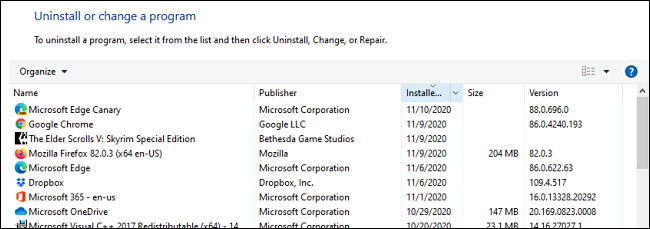
Locate the program you want to uninstall and click on the entry to select it. Then click the “Uninstall” button.
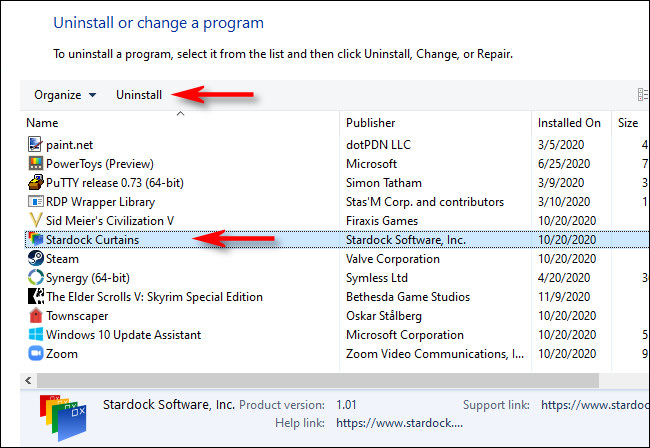
An uninstall wizard will start for the program. Click through the steps until you complete the process.
Information source: howtogeek.com
