

The updated iPhone camera app in iOS 14 has changed some settings or added new ones. If you want to take square photos, here's how you can do it.

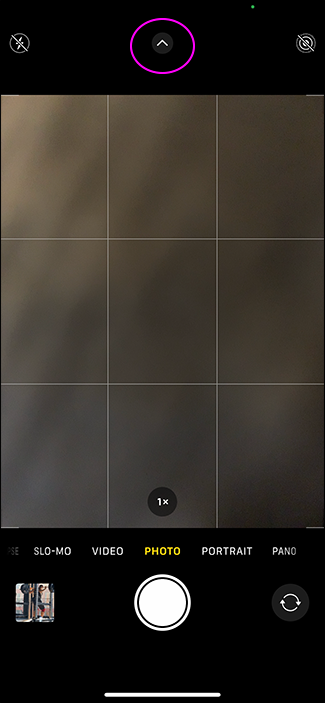
Open the Camera app. Swipe up anywhere on the screen or tap the arrow icon at the top of the screen. This will bring up all the additional options at the bottom of the viewfinder.
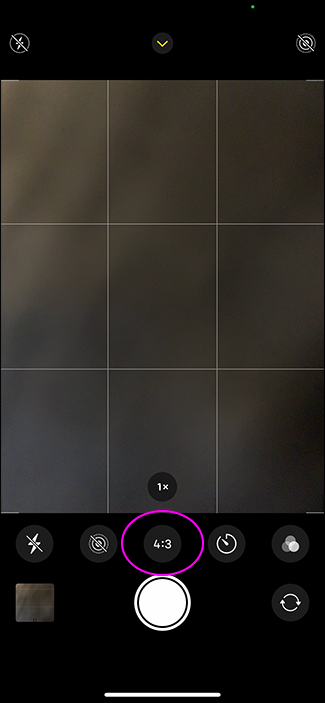
Tap “4:3” (this is the default iPhone camera crop).
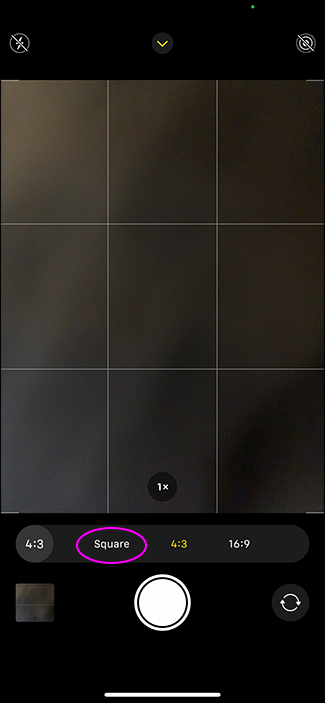
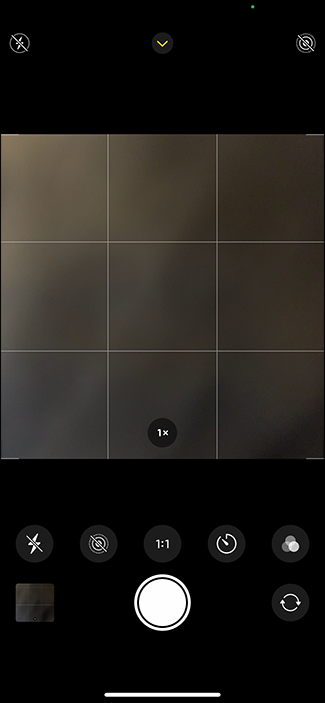
Press “Square” to switch from 4:3 to square.
You're ready! Now you can take square photos.
If you want to capture wider, cinematic 16:9 images, you can select the “16:9” option from the same menu.
Crop photos afterwards
Taking square photos pre-crops your images. Your iPhone still saves the full file, so you can revert to the original 4:3 image at any time. Or you can crop any existing image into a square. Here's how.
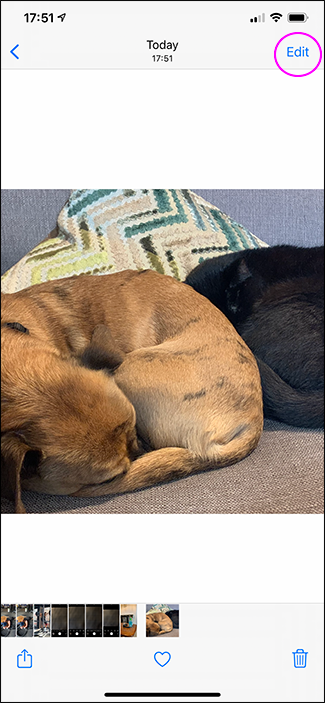
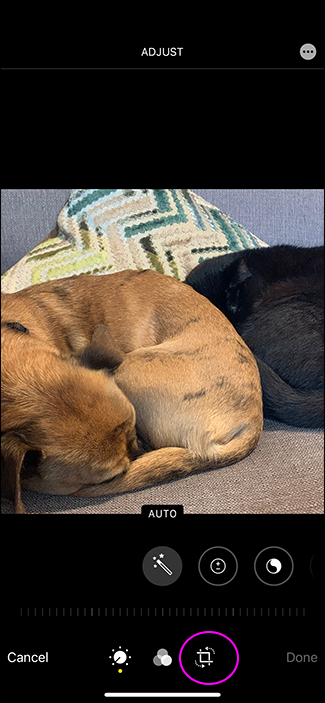
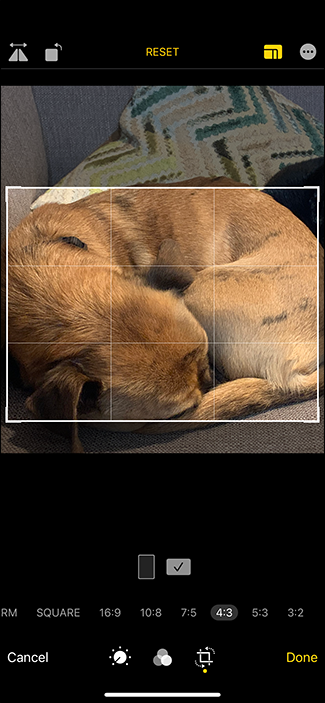
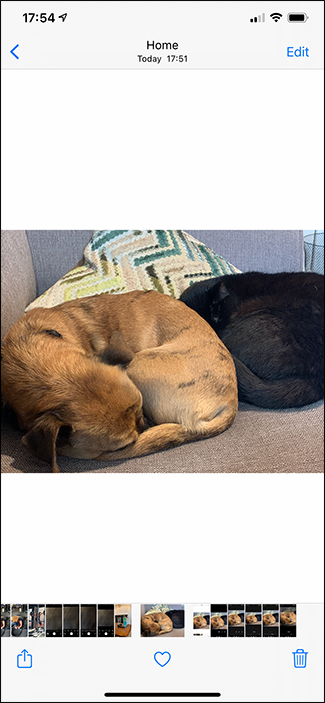
Open the image you want to crop in the Photos app. Tap Edit, then tap the icon .
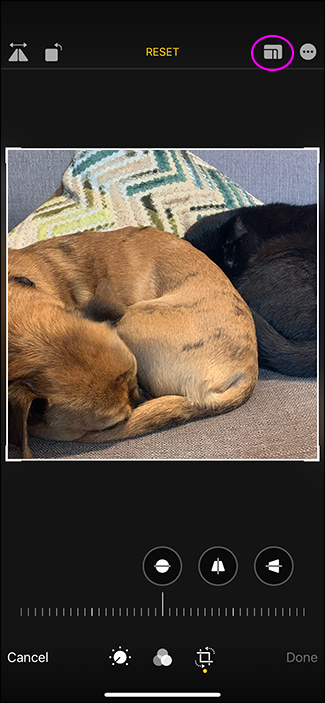
Then, tap the aspect and select the option you want.
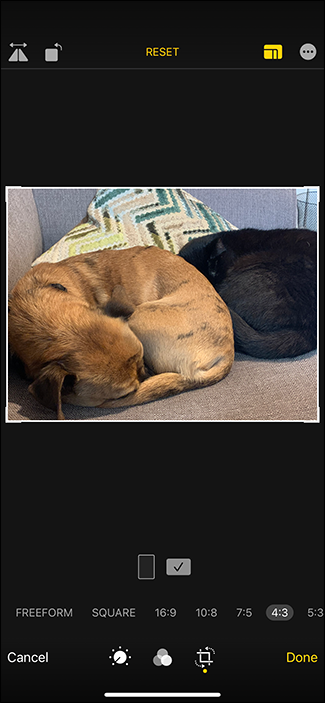
You can drag the edges of the crop to change the framing of your image. When you're happy, tap “Done” to save the results.
The Photos app is packed with post-take photo editing features that you can find by searching the app.
Source: zdnet.com
