

If you use extensions with Mozilla Firefox and want to add or remove some extension icons from the toolbar, you can do so using Mozilla's Customize Firefox feature. Or you can quickly remove an icon with a right-click. See below for how to do it.

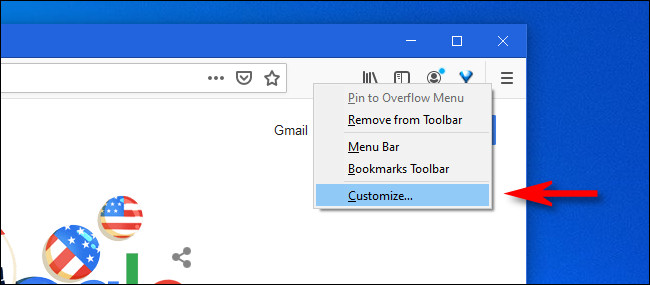
First, open “Firefox.” In any window, right- click on the Firefox toolbar and select “Customize.” (Alternatively, you can click on the menu and select “Customize” from the menu that appears.)
In the “Customize Firefox” tab that opens, you will see a list of items that can be moved to the toolbar. You can also drag items from the toolbar to this list, removing them from the toolbar.
If you want to remove an extension icon from the toolbar, click and drag it to the list area
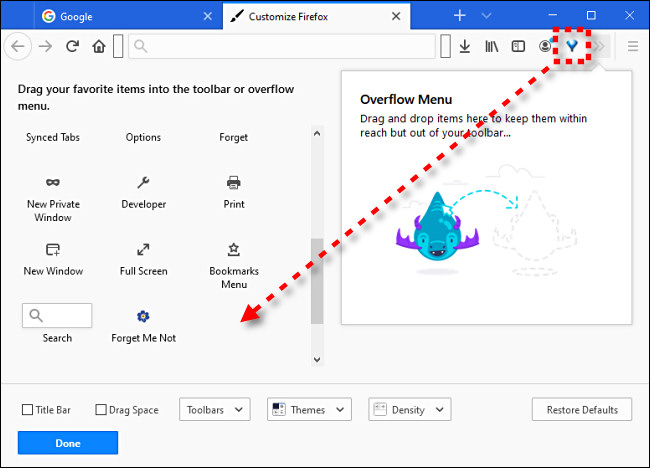
If you want to add an extension icon to the toolbar, locate the icon in the list area and drag it to the toolbar.
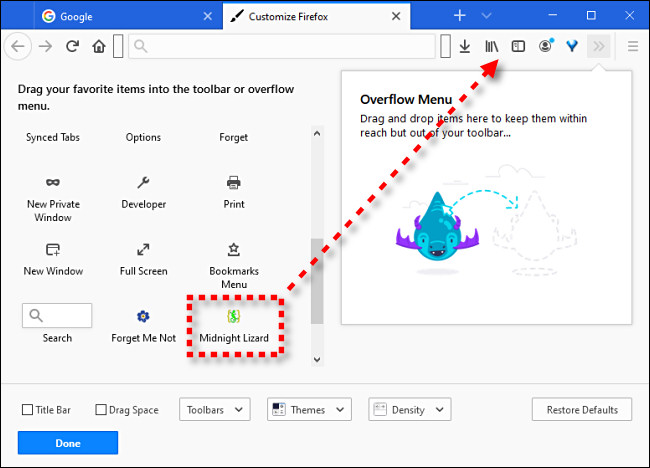
When you are satisfied with the toolbar layout, click “Done,” and the “Customize Firefox” tab will close. Your changes will be saved .
How to quickly remove an extension icon from the Firefox toolbar
To quickly remove an extension from the toolbar in Firefox, right-click the extension's icon in the toolbar and select “Remove from Toolbar”.
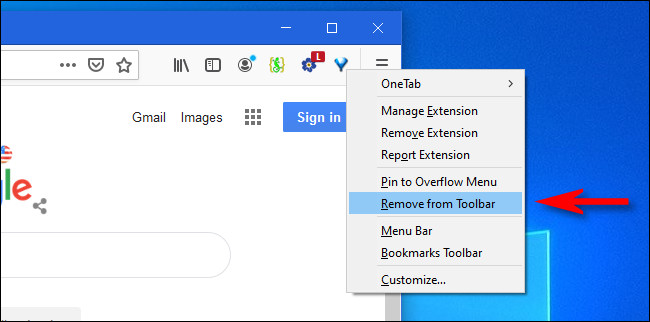
The toolbar icon will disappear. If you want to bring it back, you need to right-click on the toolbar, select “Customize”, and then drag the extension icon from the list to your toolbar.
Source: howtogeek.com
