

Undoubtedly, one of the most popular and ideal applications, especially during the Coronavirus pandemic, is Zoom. Despite the concerns raised regarding privacy protection, hundreds of thousands of people around the world have downloaded and started using the widespread video meeting. Employees use Zoom to communicate with colleagues for video conferences while working remotely. Similarly, teachers use Zoom to teach their students, conducting online lessons, a very important fact as there are no additional charges for both schools and students' families. Teenagers use Zoom, among other things, to communicate and chat via video with their friends, since they do not have the opportunity to socialize and participate in other activities. One thing that most, if not all, users with on Zoom, especially the first time they use it, is the virtual background of the application. Users have the ability to swap their real-life background with an image or video while streaming with friends, family, and colleagues without the need for a green screen.
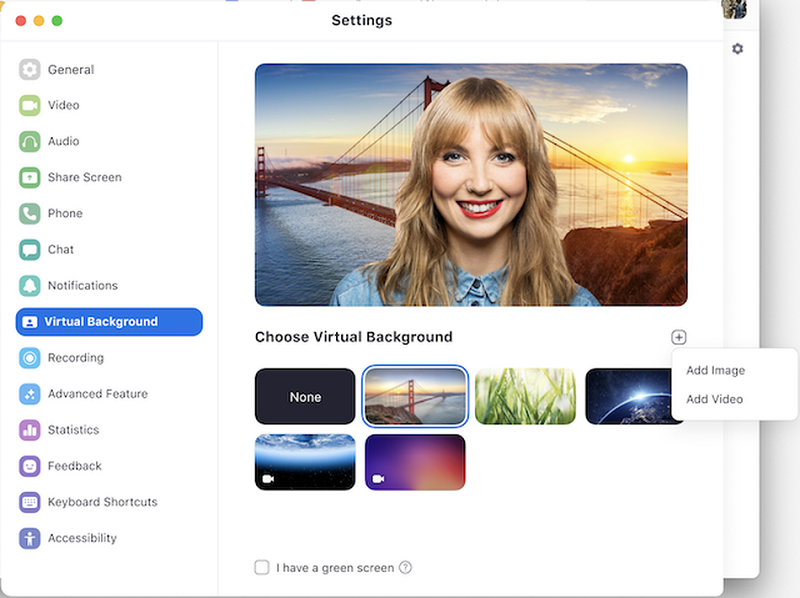
How to use Zoom's virtual background feature
- Download the Zoom Mac or Windows app.
- You open the app, log in, click on your profile picture, which is followed by the “Settings” link in the drop-down menu.
- Go to the “Virtual Background” tab. If you don’t see this tab, you can log in to the Zoom site, go to “Meeting Settings” and make sure the “Virtual Background” icon is enabled in the “Meeting” tab.
- In the “Virtual Background” tab, you can choose one of the pre-installed backgrounds or upload your own photos or videos.
- If you have a green screen setup, select “I have a green screen” so the software can set up your background correctly. If you don’t have a green screen, Zoom recommends streaming from a location with a solid background color.
If you use Zoom from iPhone or iPad, you can also change your background in the iOS

- You choose to join a meeting and then click on the “More” tab while logged into account .
- Click on the “Virtual Background” option.
- Choose a background from the media library or upload your own photos.
If you have an older computer or mobile device and are having trouble launching Zoom's virtual background, check the system requirements on the app's site to see if you can enable the virtual background feature.
Finally, you can decide which exotic locale or classic movie scene to use as the background image. But if you're looking for free options, you can visit Zoom Backgrounds, a site created for just that purpose.
