
Google has been rolling out a major redesign of Gmail since April, after many years. Along with the new interface, the new Gmail also comes with new features, such as nudge.
More than 1.4 billion accounts now have access to the new Gmail look. If you haven't received a notification to try it out or if you did and ignored it, you can upgrade your Gmail by clicking the gear icon in the upper right corner of the screen and selecting "Try the new Gmail." Don't worry if you don't like it, you can always go back to the old layout.
If you upgrade, you will have access to a number of new features for both desktop and mobile. One of these new features is nudge (Nudge for those who have it in English). But what is nudge? How do you turn it on and off?
What is Nudge?
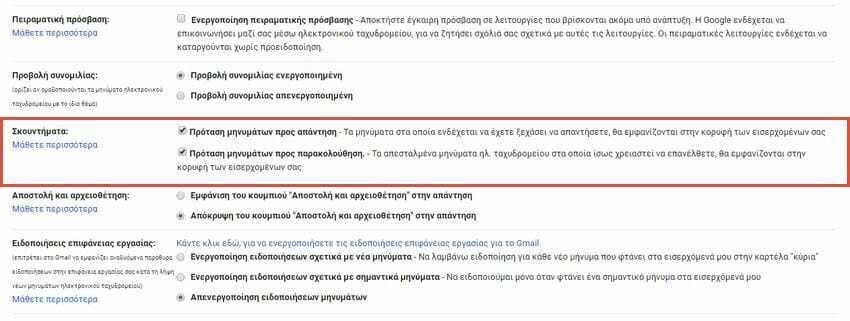
Nudge is a productivity tool aimed at both individuals and businesses. This feature has two purposes:
1. It can remind you to respond to important emails.
2. It can remind you to follow up on emails you have sent that have not been responded to.
While it sounds like a good feature, some users may find it annoying, especially if they keep their inbox light.
How to Enable and Disable the Shake Feature in Gmail
Shake is available in the web app as well as in the corresponding program for Android devices. To disable the shake feature in the web app, follow these instructions:
1. Open Gmail from your favorite browser.
2. Make sure you have upgraded to the new Gmail.
3. Click the gear icon in the upper right corner.
4. In the pop-up menu, select “Settings”.
5. Open the “General” tab.
6. Scroll down to the “Shake” item.
7. Check or uncheck the checkbox next to the two options available to you.
8. Scroll down to the bottom of the page and click “Save Changes”.
Your changes will take effect the next time you return to your inbox.
That's it!
You can also read related information from Gmail help here.
The new Gmail shake-up

📧
Subscribe to the SecNews Newsletter
