

Windows 10 uses memory compression to store more data in your system's memory. If you visit Task Manager and look at your memory usage details, you'll probably see that some of your memory is "compressed." Let's take a look at what that means.
What is memory compression?
Memory compression is a new feature in Windows 10, not available in Windows 7 and 8. However, Linux and Apple's macOS also use memory compression.
Traditionally, if you had 8 GB of RAM and your applications had a total of 9 GB of data to store in that RAM, at least 1 GB would have to be "paged out" and stored in the pagefile on your computer's disk. Accessing data in the pagefile is very slow compared to RAM.
With memory compression, some of that 9 GB of data can be compressed (just like a compressed file or other compressed data can be shrunk to take up less space) and kept in RAM. For example, you might have 6 GB of uncompressed data and 3 GB of files that, if compressed, would take up 1.5 GB in RAM. If you wanted to store all 9 GB of the original data in your 8 GB of RAM, you could do so with the partial compression method, as you would only need 7.5 GB.
Is this method disadvantageous? Well, yes and no. Compressing and decompressing data requires some CPU resources, which is why not all data is stored in compressed form. RAM compression is only performed when Windows thinks it is necessary and useful. Compressing and decompressing data at the expense of some CPU time is an issue, but it is faster than storing and reading data in the pagefile, on the system hard drive. So there is always a dilemma that Windows is trying to solve.
Is memory compression a problem?
Compressing data in memory is much better than the alternative of storing data on disk. It is faster than using the pagefile. Windows will automatically compress data in memory when it needs space.
But memory compression does use up some CPU resources. Your system cannot perform tasks as quickly as it would if it did not have to compress data in memory. If you see a large amount of compressed memory and suspect that it is the reason why your computer is a bit slow, the only solution for this is to install more physical memory (RAM) in your system. If your computer does not have enough physical memory for the applications you are using, memory compression is better than using the pagefile, but more physical memory is still the best solution.
How to view details of your computer's compressed memory
To see information about how much memory is being compressed on your system, you should use the Task Manager. To open it, either right-click on the taskbar and select "Task Manager", or press Ctrl + Shift + Esc, or press Ctrl + Alt + Delete and click "Task Manager".
If you see the simple Task Manager interface, click "More details" at the bottom of the window.
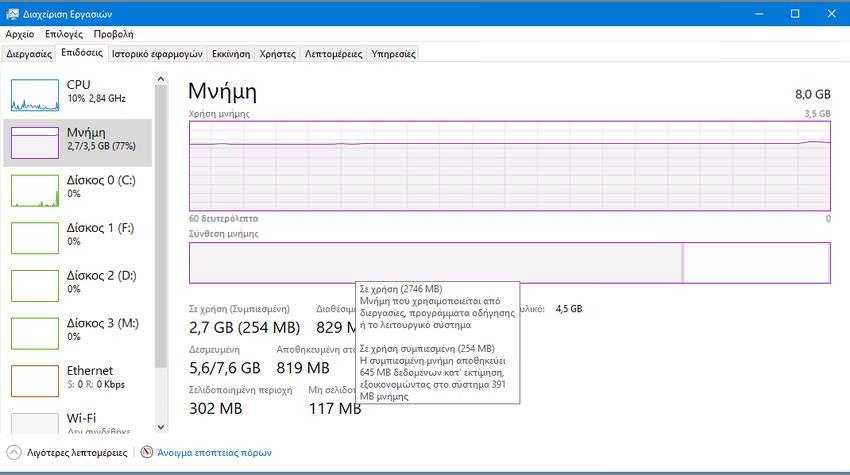
Click the “Performance” tab and select “Memory.” You’ll see how much memory is being compressed under “In Use (Compressed).” For example, in the screenshot below, Task Manager shows that our system is currently using 2.7 GB of its physical memory. 254 MB of that is compressed memory, representing 645 MB that would otherwise be uncompressed and taking up RAM. This saves us 391 MB of memory.
You'll see this number fluctuate over time as applications are opened and closed. There are also fluctuations as system services run in the background, and you can verify this by watching the Task Manager window for a minute.
If you hover your mouse over the left most part of the memory bar, you will see more details about your compressed memory.
Does this make the system process use a lot of memory?
In the original version of Windows 10, the compression store was stored in the system processes, and this was "the reason why the System process seemed to consume more memory than in previous versions," according to Microsoft's blog.
However, at some point, Microsoft changed the way it works. Compressed memory no longer appears as part of the System process in Task Manager (perhaps because it was too confusing for users). Instead, it is visible under the “Performance” tab under the “Memory” item.
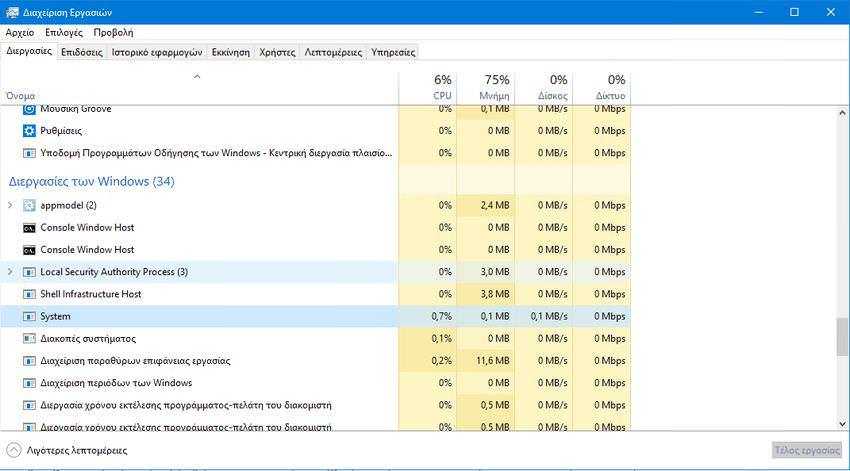
In Windows Creators Update, compressed memory only appears in the Memory item, and the System process remains low even when the system has a lot of compressed memory. This saves confusion, as users won't be wondering why this process is mysteriously using so much memory.
