

Learn how to set Windows 10 to store your Pictures in any location on the disk you want.
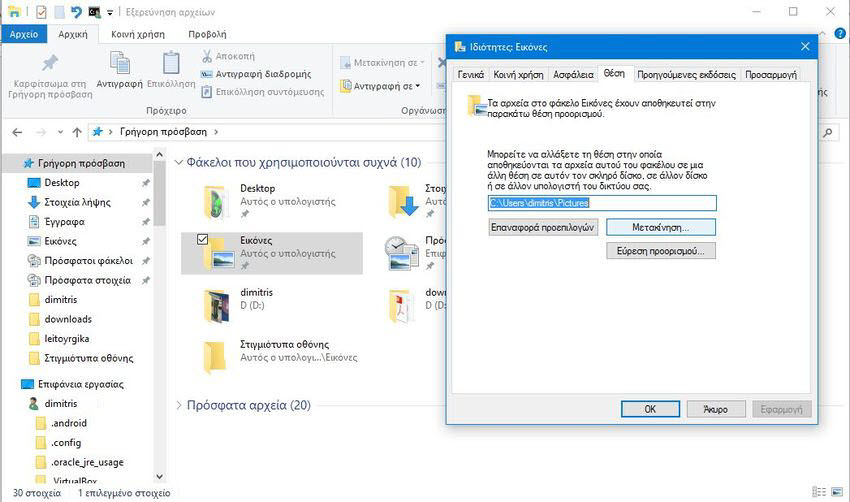
By default, Windows stores your personal “Pictures” folder under your account's %UserProfile% folder (for example: “C:\Users\Dimitris\Pictures”).
You can change this setting so that your photos are stored in a folder that will be called “Pictures” but will be in another location on the hard drive or on another drive, or even on another computer on the network.
Let's see how:
Step 1. Create a new folder named “Pictures” (in English and not in Greek) in the location where you want (e.g. on drive “D”) to move your personal Pictures folder. That is, for our example, we simply created the folder D:\Pictures.
Step 2. Open File Explorer on your PC. For convenience, press the Win + E keys simultaneously, find the “Pictures” folder that is already saved and is logically located under C:\Users\Your_Name. We found it for convenience under the “Quick Access” group.
Step 3. Once you find it, right-click on the “Pictures” folder and then click on “Properties” which is logically at the end of the pop-up list.
Step 4. In the properties window, click to go to the “Position” tab and then click the “Move” button. (See screenshot below)
Step 5. Browse and select the “Pictures” folder in the desired location (e.g. “D:\Pictures”) from step 1, and click “Select Folder”
Step 6. Click the OK button to confirm the change.
Step 7. When Windows asks if you want to move all files to the new location, click “Yes” to move all files from their old location to the new location. (although this is your personal choice)
Step 8. Your personal “Pictures” folder and all its contents should now have been moved to their new location (e.g. “D:\Pictures”) and you will probably see this new location in the “quick access” in file explorer as a folder named “Pictures”
