

On Sunday morning I thought I would try out the new Ubuntu 16.10 Yakkety Yak, not because I like Canonical and its operating system, but because I wanted to see the new Linux Kernel 4.8 in action.

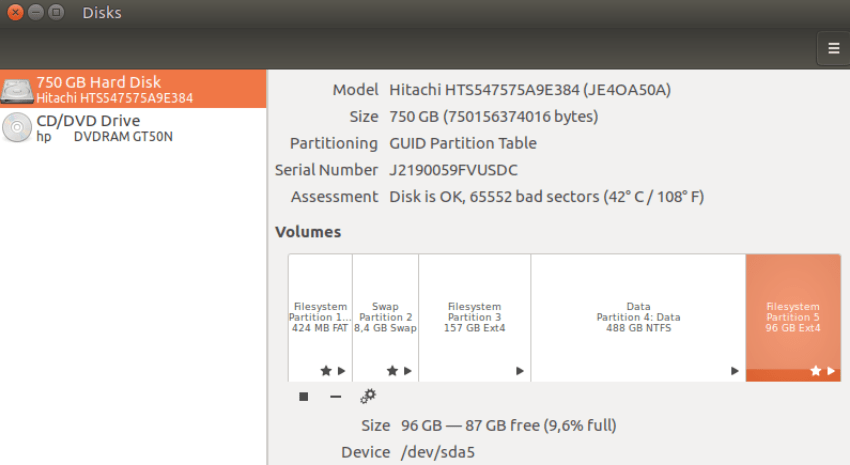
I installed the distribution on a partition of the main disk on my system (Manjaro) and dual booted using the same efi (without formatting) and the same swap partition.
So as you can see below sda5 with 96GB belongs to Ubuntu, sda3 to Manjaro, and the partitions sda1 and sda2 are common to both systems. The NTFS with 488GB is also common storage for both systems.
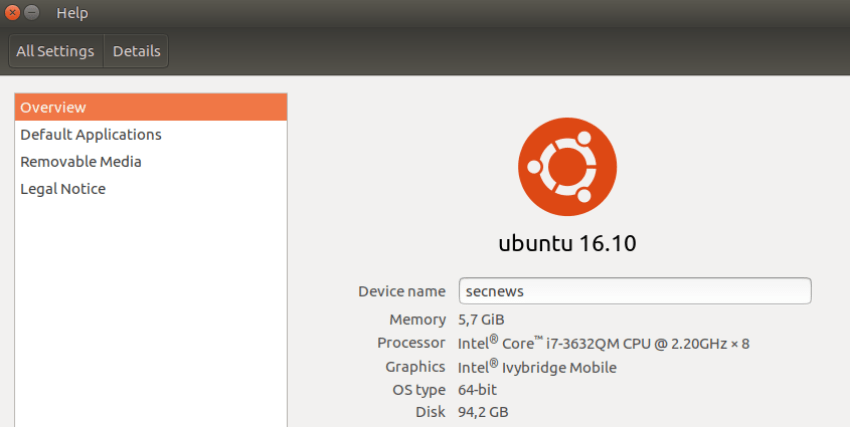
The computer's specifications are listed in the image below. I'm showing the specs as I consider it important to mention that with these specifications the new Unity 8 included in Ubuntu 16.10 Yakkety Yak worked, yes, but with a lot of problems.
The improvements brought by the Linux 4.8 kernel
AMDGPU OverDrive support for overclocking AMD graphic cards
NVIDIA Pascal support
Raspberry Pi 3 SoC support from the mainline kernel
ACPI support Low-Power Idle
HDMI CEC support after years of development
Btrfs ENOSPC improvements
Improved usercopy protection
ASLR for kernel memory sections
Support for Microsoft Surface 3 touch
Intel Virtual Button driver for Skylake laptops
 The system after installing Ubuntu 16.10 Yakkety Yak was quite fast, as we know it with Unity 7, but with several Ubuntu quirks, such as the preinstalled Amazon app, a bunch of games, and the now-famous “I write in caps, and if I change language I have to press Caps Lock again.”
What you can do immediately after installation:
Update your system
sudo apt update sudo apt upgrade
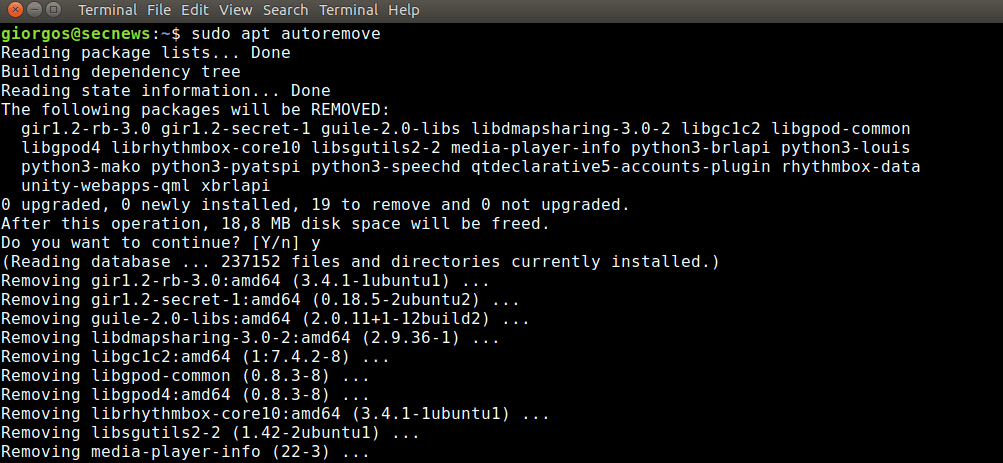
Because I uninstalled several applications that I didn't need, I also had to run the command
sudo apt-get remove
Installing codecs and other useful applications:
sudo apt-get install ubuntu-restricted-extras
or click here for graphical installation
sudo apt install unity-tweak-tool
or click here for graphical installation
Firewall Installation
The simplest firewall for Linux is called UFW. UFW is installed by default but not enabled. To enable UFW, type the following command in your terminal:
sudo ufw enable sudo ufw status
To see it graphically install the UFW GUI 'GUFW'
sudo apt install gufw
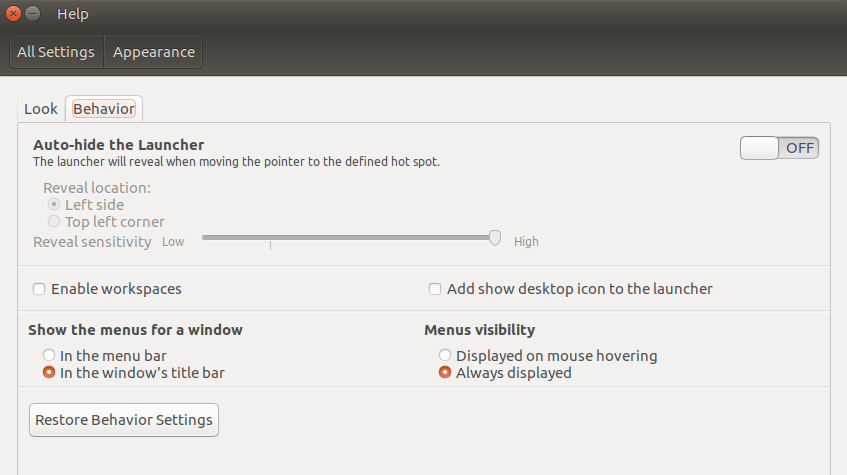
Display of the Menu in the title bar of each window and continuous display of the Menu
Tick In the Window's title bar and Always displayed
Pull down (from the side) the Unity launcher (you can also do it with a graphical interface from the Unity Tweak Tool)
gsettings set com.canonical.Unity.Launcher launcher-position Bottom
More apps from the app center:
- GIMP – Image editor like Photoshop
- Corebird – Twitter client
- Geary — Lightweight email client
- VLC – the well-known media player
- Chromium – Web browser
- Shutter – Screenshots
- Virtualbox — Free virtual machine
Applications not in the App Center (download the deb and double-click on it)
This is for those thinking of trying Ubuntu. We would highly recommend it to Windows users looking for an “easy” Linux to switch to.
It was good but I'll go back to Manjaro.
