

Did you just want an app, but all you got was an error code? Don't worry, there's hope. There are quite a few users who really hate the Windows Store in Windows 10.
So, if you too have recently discovered that your Windows Store is not working as it should, below we present three simple ways that you can try before doing anything else.
Check your Date and Time settings
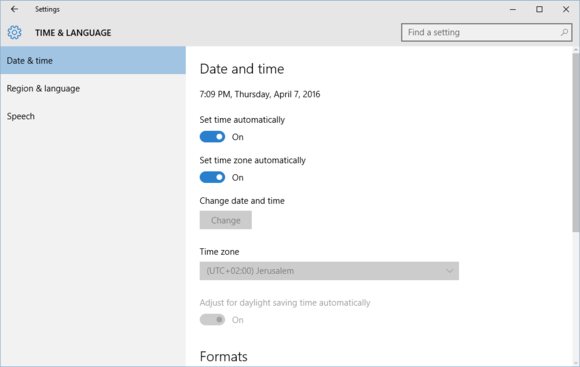
Sometimes the Windows Store doesn't let you know if your date and time settings are incorrect. To make sure they're correct, click the date and time-related option in the lower-right corner of the taskbar. In the panel that appears, select Date and time settings , which will open the Settings app.
Above, you can make sure the time is correct. If it is wrong, make sure you have set Set time automatically and Set time zone automatically to On .
If this does not set the correct time, you can disable both of the above options and set the time manually.
WSReset
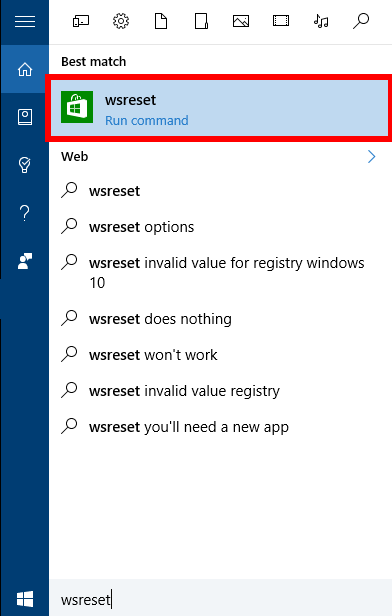
The next thing you can try is a little command called “wsreset.” As its name suggests, this utility will reset the Windows Store cache in Windows 10 (as well as Windows 8). It’s easy to do and can solve a lot of problems.
The easiest way to get to the program is to type wsreset in the Cortana. The first result should look similar to the one shown in the image below. Once you click wseset, a command-line window will open and run the WSReset.exe executable. It may just be sitting there doing nothing. Don't worry! Just leave the reset window there until it closes automatically. You'll know it's finished when the Windows Store app launches.
Once the reset is complete, try to perform the update or any other operation you wanted to do.
Delete some temporary files
Another recommended solution is to delete some files and logs and try downloading and updating again. Basically, what you need to do is delete everything you find in C:\Windows\SoftwareDistribution\DataStore and C:\Windows\SoftwareDistribution\Download.
The Tech Geek and More website has a longer, step-by-step explanation of this process, including advice to stop the Windows Update service before deleting these files.
These were the three most basic repair methods that you should try first.
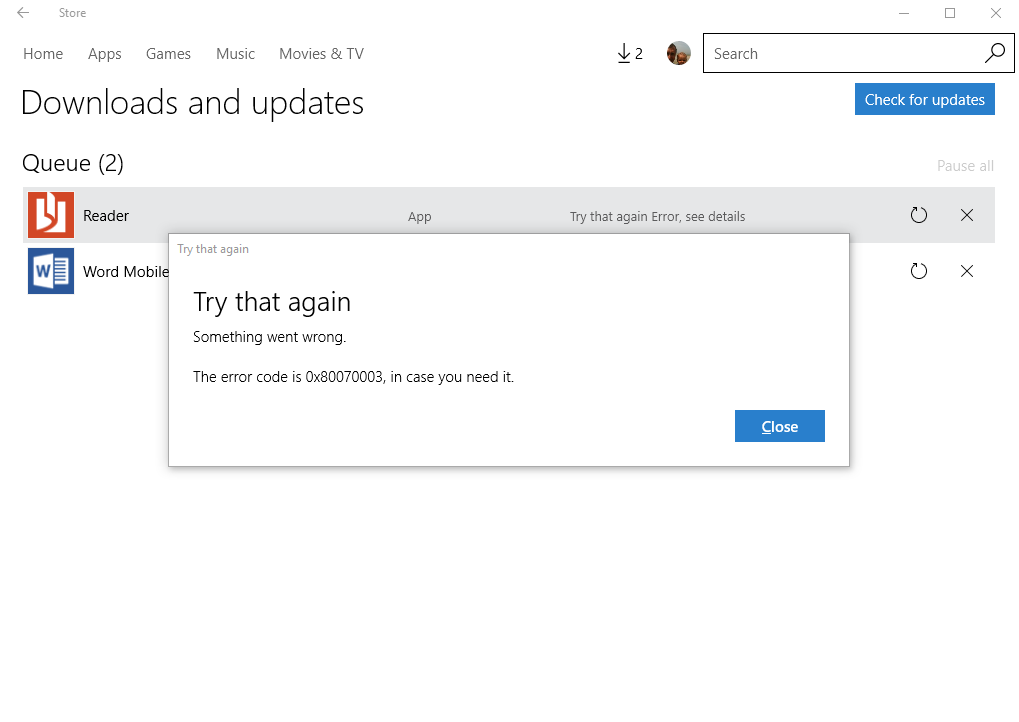
If they don't work, it's time to get serious. Copy the error code you're getting, then search online for possible fixes in various forums.
If you do get to this point, a word of advice: Don't type any commands into the command prompt without understanding them first. Also, resist resetting Windowsif at all possible. Reset is a last resort and should be your last resort.
