

Twitter has the Lists feature with which you can view and filter the tweets you want according to their category.
Twitter , and categorize the tweets they see in their timeline with the help of the Lists . You can subscribe to existing lists created by other Twitter , or create your own custom list of other accounts based on your category, topic, or interest!
With Lists on Twitter, you can stay up to date with the accounts that matter most to you! When you visit timeline , you’ll only see tweets from people on that list. Plus, users can pin their favorite Lists to their main timeline so they never miss important updates. To help you get started with this amazing feature, here’s an easy step-by-step guide:

See also: Twitter: Stock and crypto prices directly in search results
Twitter Lists on desktop
- Open your Twitter account on your computer.
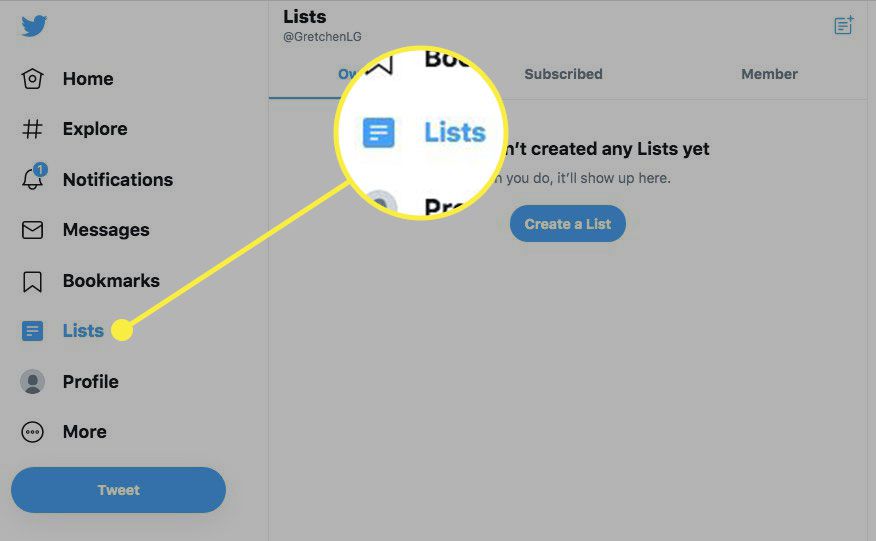
- Click Lists in the left panel of your home screen.
- Select the (+) icon available at the top right.
- Type a short description and the name of your list.
- Check the Make private if you want to make the list private and select Next.
- Once you've made your selection, click on each user's name to add them to the list. Your selections will be highlighted at the top of the page, with a checkmark next to each one!
- Click Done and the list is ready.
- You can modify any list quickly and easily by going to the Lists, selecting the desired list, and then clicking Edit List.
Twitter Lists on mobile
- Open the Twitter on your mobile.
- Go to your Twitter and select Lists from the menu.
- Select the (+) icon available at the top right.
- Enter a short description and name for your list. Check the Make private if you want to make the list private and select Next.
- Select Save or Create on your Android or iOS device respectively.
- You can search for users on iOS and select Add from the menu to add them to the lists.
- When using Twitter on an Android, you'll be returned to the Lists once you're done. To add someone to your list, simply visit their profile and tap the three-dot menu located in the top right of the screen.
- Select Add to List.
- If you have multiple lists, you can choose which ones to put users on.
- Edit a list: You can go back to the Lists to edit your lists at any time. Select the list on iOS, and select Edit List. On Android, select the list, tap the three-dot menu in the top right of the screen, and select Edit List.
See also: Musk: I will step down as Twitter CEO when I find a replacement
How to subscribe to a Twitter List?
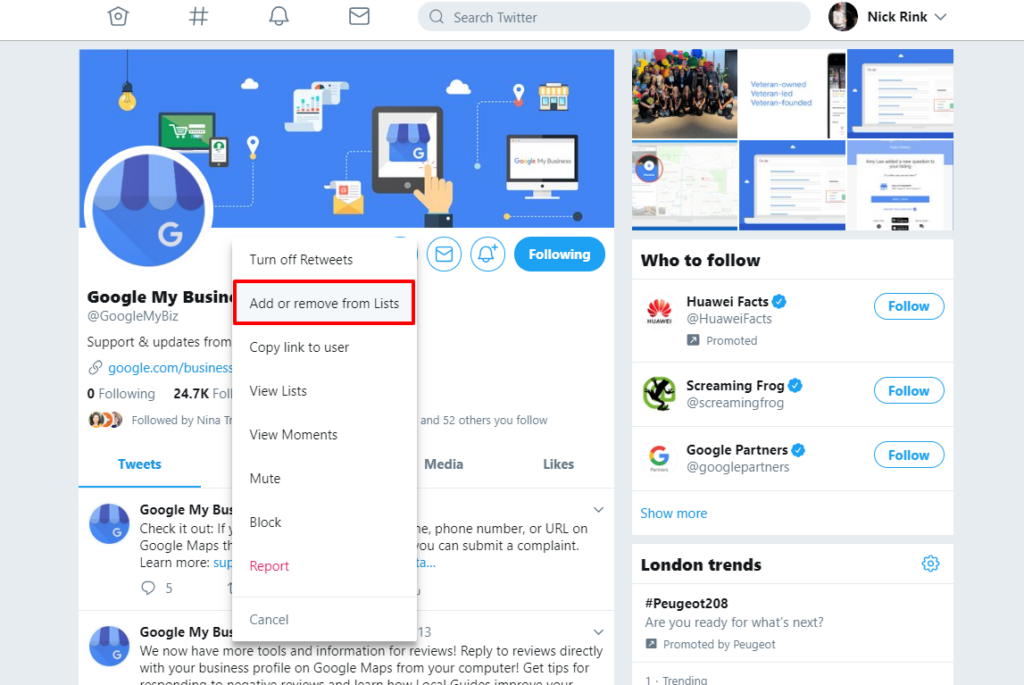
Not sure how to join a Twitter? It’s easy! If the person has made their lists public, all you have to do is tap the three-dot menu button in the top right corner of their profile and select “View Lists.” Then, simply select which list(s) you’d like to join. By following these few steps, you can easily stay informed about important topics from the people who matter most!
Knowing how to create and join Twitter on Android, iPhone , and the web can be extremely beneficial for social media professionals looking for an easy way to categorize their accounts and monitor relevant online conversations quickly and efficiently. Following these steps outlined above should make creating and joining Twitter simple – allowing users to maximize their productivity!
Source: gadgetsnow.com
