

Google Image Search is a powerful tool for finding images on the web. While millions use the service every day, few know that they can use Google's tools to narrow down search results by color. Here's how you can do it.

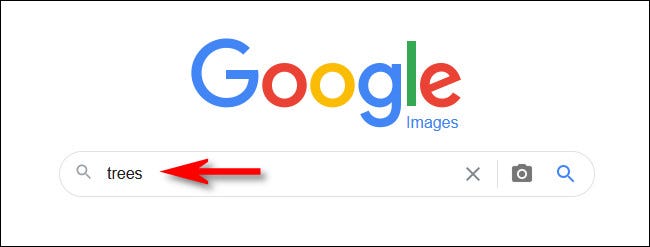
First, open your favorite browser and visit google.com/images and you will be on the Google Image Search page. Type in a search and then press enter. Let’s search for “trees” for example.
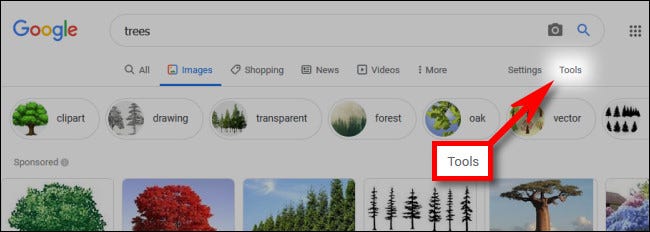
When you see the results, click the “Tools” button in the toolbar just below the search area near the top of the page.
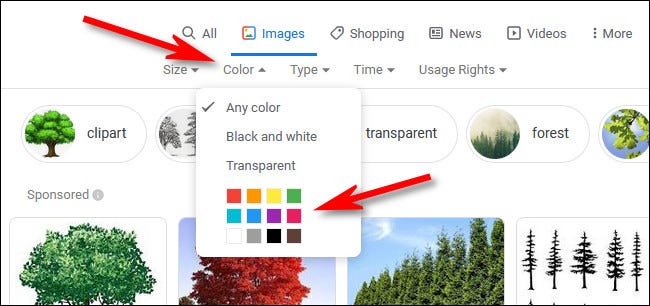
Another small toolbar will appear just below. Click the “Color” menu, then choose a color from the options. You can also choose “Black and white” for black and white photos or “Transparent” to find images with transparent backgrounds.
In our example, we selected blue by clicking on the blue square.
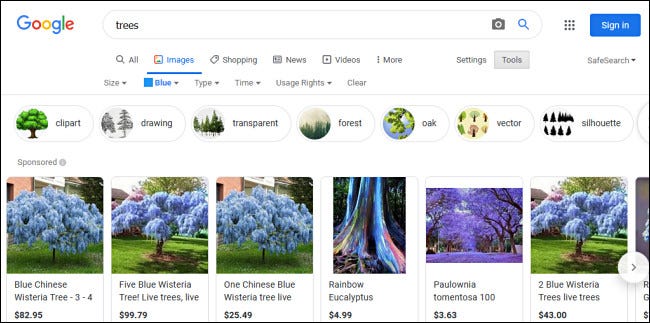
After that, the search results will automatically update to reflect the color you selected. You will see images where the dominant color is the one you selected. For example, here are some blue trees!
If you want to change the color criteria, simply select another color from the menu . To clear the color search, select “Any color” from the “Color” menu.
While you're searching, it's worth exploring the other options that Google Images gives you.
Information source: howtogeek.com
