

Google Assistant (a virtual personal assistant developed by Google and announced at the developer conference in May 2016) is a handy companion you can have on your Android smartphone or tablet . To get the most out of your smart assistant's hands-free capabilities, you should make sure it can work even when your device's screen is locked.
Some of Google Assistant's features are protected behind the lock screen — specifically, anything that requires "personal results," like calendars, contacts, or reminders. This prevents others from accessing your personal data through Assistant when your device is locked.
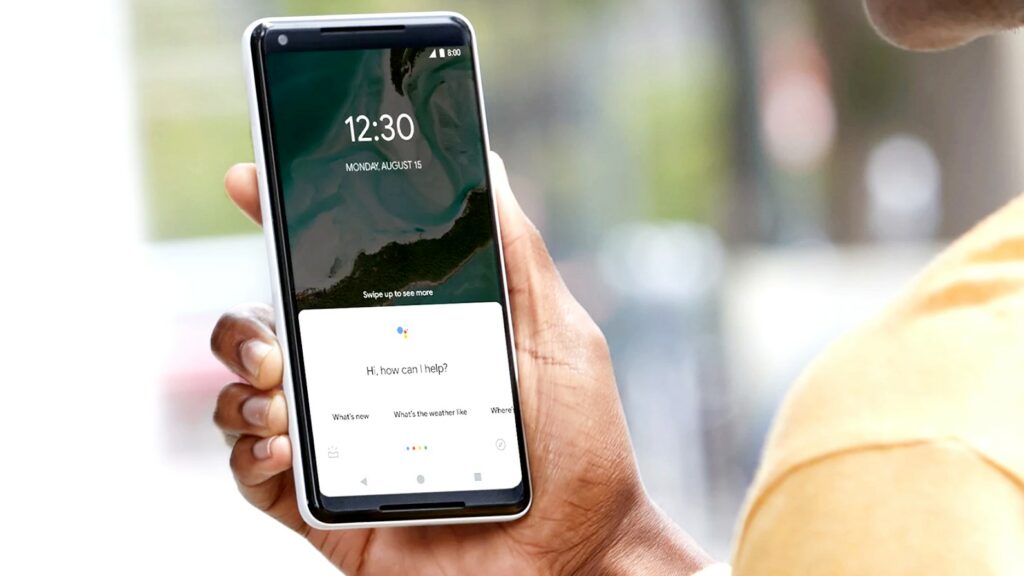
If you're not concerned about this potential privacy, you can allow personal results when your device's screen is locked. This means you won't need to unlock your device to hear or see any responses from your smart assistant.
- To be able to use Google Assistant without having to unlock the screen of your Android smartphone or tablet, open the app by saying “OK, Google” or by swiping in from the bottom left or right corner.

- Then, tap the “Snapshot” in the bottom left corner. The Assistant UI may vary depending on your device.

- Make sure you're signed in to your Google Account . Then tap your profile icon in the top right to open the Assistant's Settings menu

- You'll then be presented with a long list of Google Assistant features. Look for the "Personalization".

- Make sure “Personal Lock Screen Results” is turned on. “Personal Results” must be turned on before you can use this feature.

Now, when you ask Google Assistant about calendar events, reminders, shopping lists, or to send messages hands-free, you won't need to unlock your device's screen first.
Source: howtogeek.com
