

If you have multiple email accounts in Microsoft Outlook, you can change the “From” address in a new email. This is faster than switching to different inboxes and allows you to send emails from different addresses, even if they’re not yours. Here’s how to do it.

Outlook allows you to send email from any account you have set up in the email client, but also from any other email address, even if you haven't set it up. This sounds alarming – and in some cases it is – but there are reasons to use this functionality.
Quickly switch between email addresses
Let's go through the process. To change the “From” address, you need to make the “From” field visible. Open a new email in Microsoft Outlook, and then click Options > From. This will make the “From” field visible.
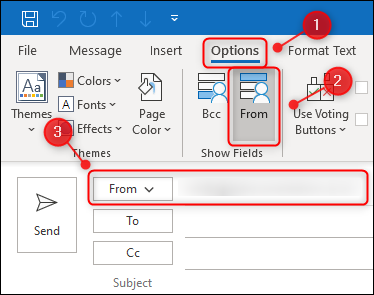
To change the “From” address, click the “From” button and select one of the email you have added to Outlook.
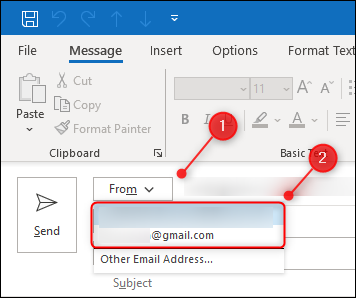
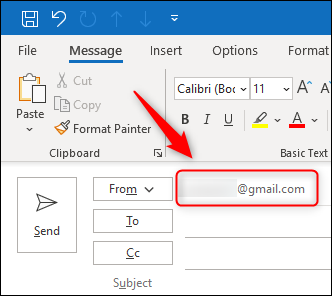
The email address in the “From” field will change and when you send an email, it will be sent from this address.
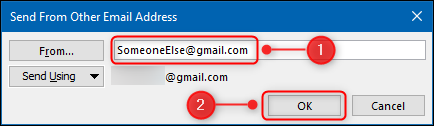
In the panel that opens, enter the address you want to send email from and click “OK”.
Now send the message as usual. Will the email be sent or will you get a delivery failure notification? And if it is sent, will the recipient see it as coming from the email address you used, even if it's not yours?
Both of these answers depend on who your email provider is.
