

The “Settings” app in Windows 10 has replaced the classic Control Panel that was present in Windows 7. Sometimes, however, this utility either does not open or does not close immediately after your command.
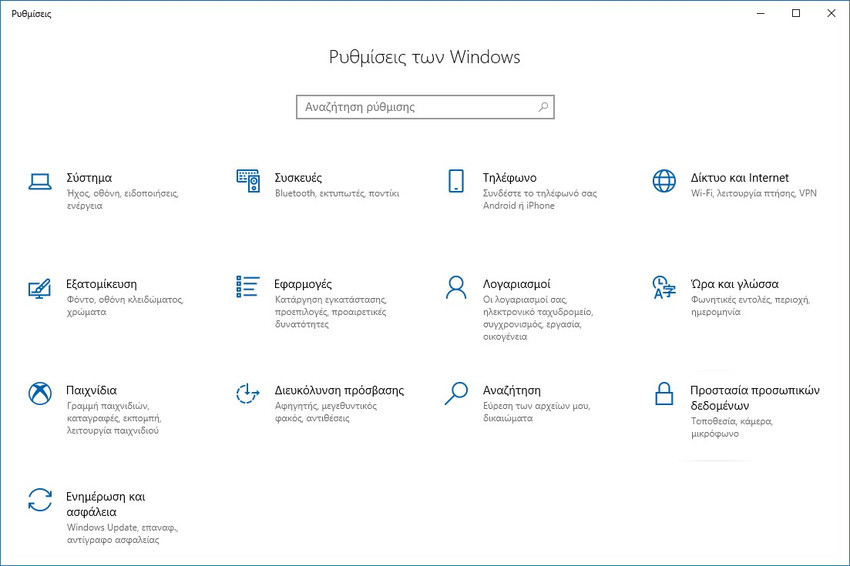
Although you can close it from Task Manager when it is not responding, Windows 10 in general does not provide an easy solution to problems related to the “Settings” app. Of course, we can reinstall it via Windows PowerShell, but many users are not familiar with PowerShell.
It's relatively unknown to most people, but Windows 10 provides an easy way to reset the Settings app. Unfortunately, Microsoft hasn't talked about this nifty feature yet, and because of that, most users aren't aware of it.
For all installed apps, the “Apps & features” page under “Apps” in Windows 10 Settingsoffers an option to reset (modify) each app. However, the Settings app itself is not listed, despite the fact that there is a “hidden” option to reset it!
If the Settings app isn't working properly or won't open, you can reset it from a submenu within it. This reset option is accessible from the Start menu! Let's see how.
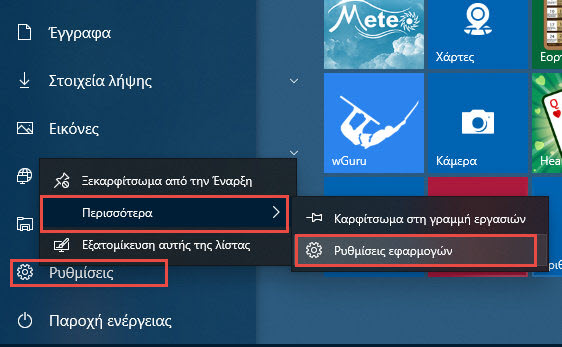
Step 1: Open the Start menu or Start screen. Right-click the settings icon (with the gear icon), click More, and then click “App settings” to open the advanced options page of Windows 10 settings.
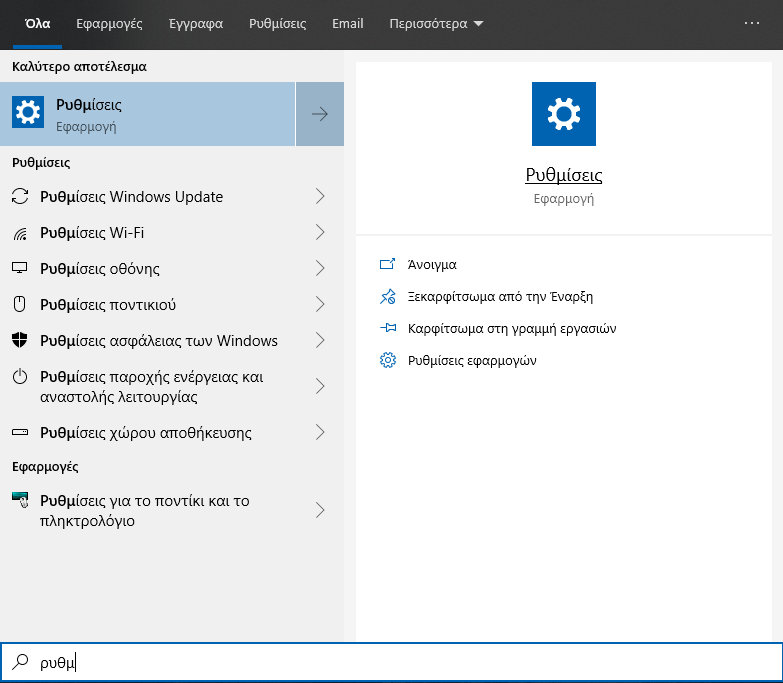
Alternatively, search for “Settings” and then right-click on the “Settings” app that you get as a result of the search. In the submenu that appears, click on “App Settings”.
Step 2: On this page, scroll down to see the “Reset” section.
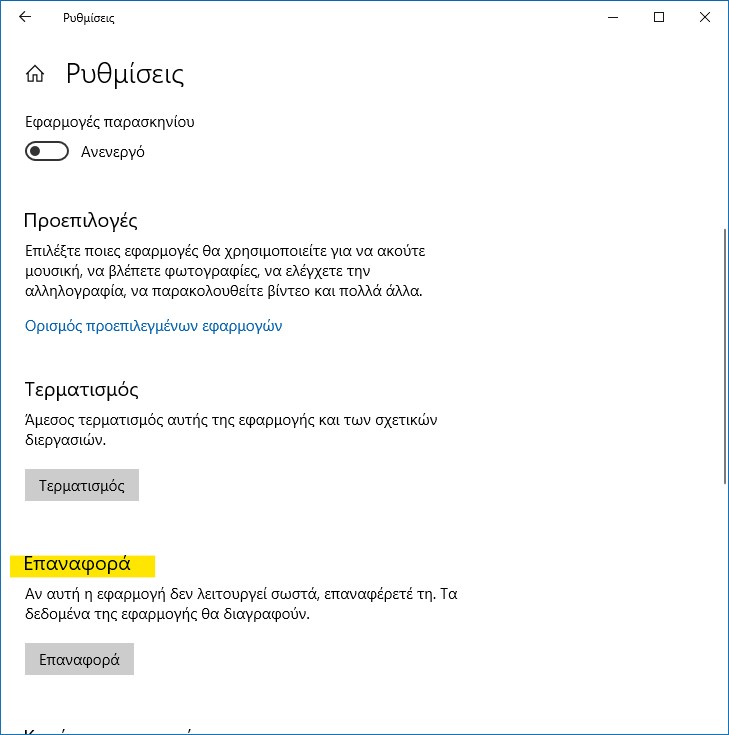
Click the Reset button to see a small pop up. Click the Reset button in the Small pop up window to reset the Settings app.
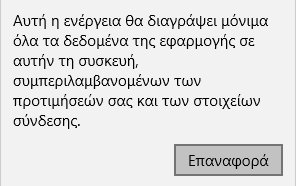
When the reset is complete, the Settings app window will close automatically. You can now relaunch the Settings app.
As you can see in the image above, the same page also offers a Quit option for the “Settings” app.
