

As you already know, Microsoft removed Windows Media Player from its Windows 10 operating system. Of course, there are always some alternatives that you could use, but some of you might prefer the Windows Media Center itself in Windows 10.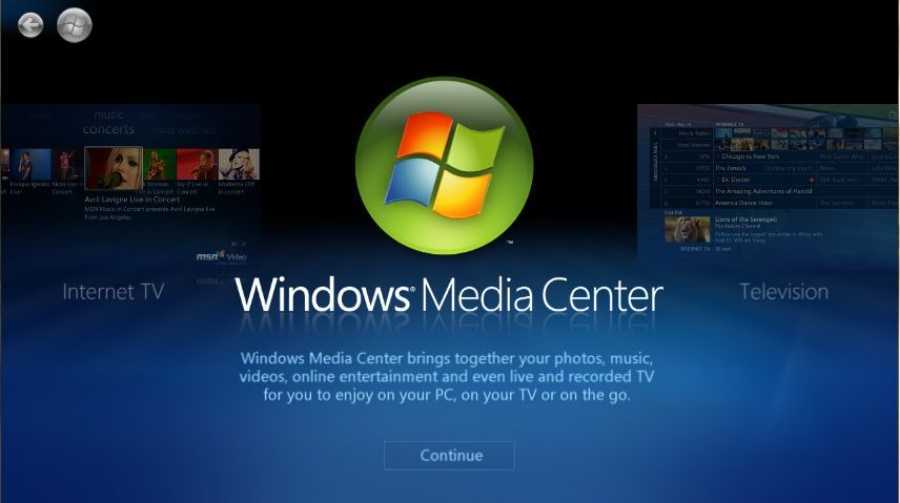
Windows Media Center can be described as the big brother of Windows Media Player. It has playback functions but also additional features such as support for TV, recording and more media management options.
So if you're using Windows 10 you can install an app like Kodi or Plex or a customized version of Windows Media Center that's compatible with Windows 10.
WMC is a customized version of Windows Media Player that is compatible with all versions of the Windows 10 operating system.
Before installing, it is a good idea to create a backup of your system.
WMC will install Windows Media Center on Windows 10. The functionality of the application is more or less similar to the official version of Windows Media Center on previous versions of Windows.
The installation can be done with batch files. Download the latest version of WMC from the developer's page. The page is in French. Here it is translated into English with the Google translation service.
The latest version of WMC is 8.8.2 and you can download it from here.
Run the following batch files.
Right-click _TestRights.cmd and select “run as administrator” to test the permissions.
Right-click InstallerBlue.cmd or InstallerGreen.cmd and select “run as administrator” to install Windows Media Center on the device, if the first file you ran (_TestRights.cmd) did not give you any errors. The InstallerBlue.cmd and InstallerGreen.cmd batch files install the blue or green versions of Windows Media Center.
WMC displays all the installation steps in a command prompt window.
The application also comes with an uninstaller script, which you can run to remove the program from your system. Simply right-click on uninstaller.cmd and select “run as administrator” to remove the program from your system.
Note: Windows updates can remove essential files from the system. So Windows Media Center may not work after a major upgrade. If this happens, simply run the installer again.
_____________________
- Edge disable automatic browser startup
- How to disable private browsing in Firefox
- Windows 10: Tips and tricks for the Recycle Bin
