

PDF files are extremely useful for displaying your work. While there are many free applications for converting to PDF, below we will see how you can quickly create PDFs from other documents in Windows 10 using the tools you already have.
Creating a PDF file in Windows is extremely easy, regardless of whether you want to create a text document, a document with images, or a PDF to display a web page. Let's see how you can do it:
Creating PDF with the built-in PDF printer of Windows 10
Windows 10 has a built-in printer that converts documents to PDF. It’s incredibly easy to use. All you have to do is start a print job as you normally would, but instead of selecting your printer, select Microsoft’s built-in printer.
For example, you want to convert a text document to PDF. Start by selecting the “Print” command in any application you’re using.
Then, you’ll change the printer. Once you’ve selected the Microsoft PDF printer, proceed to print it by pressing Print.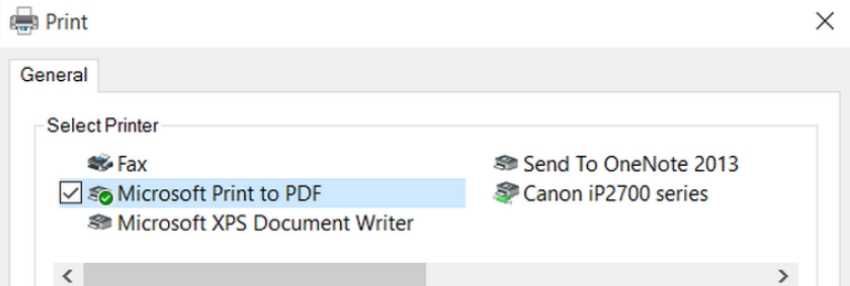
Windows will open a “Save As” window to name and save your new PDF. Give your new file a name, choose a save location, and press “Save.”
Tip: If you have multiple documents that you want to add to create a single PDF, you can do so using File Explorer.
Select all the files you want to add, right-click on any of them, and select the “Print” command.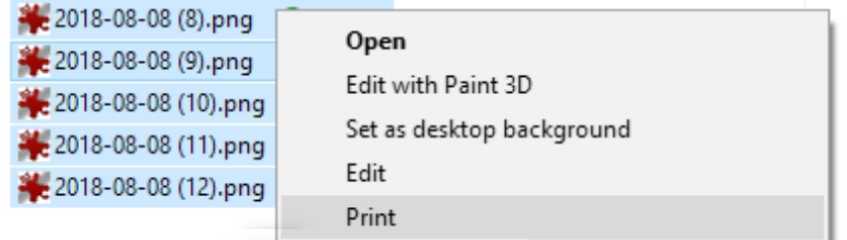
The order of the documents (or images) that appear in File Explorer will be the order they appear in your PDF. If you want them in a different order, rename your files (a good solution would be to name them 1,2,3,4,5 .docx).
What is Portable Document Format
Next, make sure you have selected “Microsoft Print To PDF” from the list of available printers and click “Print” to save the PDF to your hard drive.
___________________________
Create PDF from a Word document
If you currently have a Microsoft Word document and want to convert it to Portable Document Format, you can do so directly from Word, rather than using the built-in Windows PDF printer. Converting a document to PDF with Word produces better results because it preserves the layout and formatting of your document.
Open your Word document and click “File.” Click “Save As.”
Give your file a name, select “PDF” from the drop-down menu, and click the “Save” button. ______________________________
