Laptops are a great use case these days, and thanks to design and technology innovations, they last longer than ever before . However, the battery is still the weakest point of a laptop .
Here's how to tell if your Windows laptop's battery is worn out and needs replacing.

The first and most important sign is that the battery doesn't last as long as it used to. While when you first bought the laptop the battery lasted a full day, now it doesn't "get you through" until noon.
However, this is not enough to justify replacing the battery, as there are many other variables that can affect its lifespan (temperature, software you have running, changes to battery saving settings, updated software , and so on).
Fortunately, Windows 10 (and older versions of Windows) provides a lot of information about a device's battery. But if you're not a Windows user, accessing this data is a bit complicated.
If you want to access this information immediately, you can use some free software.

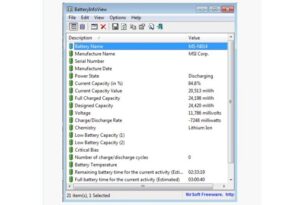
A good option is BatteryViewInfo which works on all versions of Windows from Windows 2000 to Windows 10 and offers access to information such as battery name, manufacturer name, serial number, production date, power status (charging/discharging), current battery capacity, fully charged capacity, voltage, and charge/discharge rate.
There are three parameters you need to consider.
- The number of charge/discharge cycles. The higher this number, the more worn out your battery is.
If this number is greater than 500, the battery is old. If it is over 800, the battery is likely near the end of its life. If it is over 1,000, it needs to be replaced immediately.
- Additionally, we need to consider the Full Charged Capacity number
- and Designed Capacity. The greater the distance between these two numbers, the more worn out the battery is.