

Remo Software: Top Recovery Software for Easy Data Recovery in Windows Environment
Data loss
Data loss is an error condition in computer systems in which information (data) is destroyed by a system error or negligence in storage, transmission, or processing.
Data loss, whether intentional or accidental, is something that happens frequently and is likely to happen to anyone, whether at the level of individual files or even the entire hard drive.
Data recovery
By data recovery we mean the process of restoring data that has been lost, accidentally deleted, corrupted, or rendered inaccessible. Data is typically stored on storage media such as internal or external hard drives (HDDs), solid-state drives (SSDs), USB flash drives , magnetic tapes, CDs, DVDs, RAID subsystems, and other electronic devices.
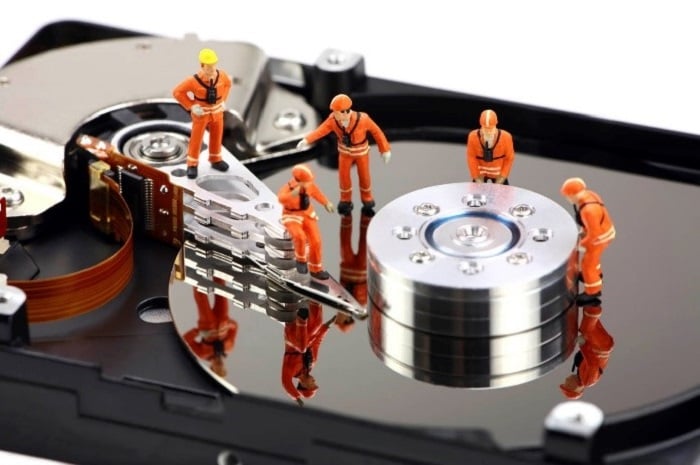
There are two main categories of data loss:
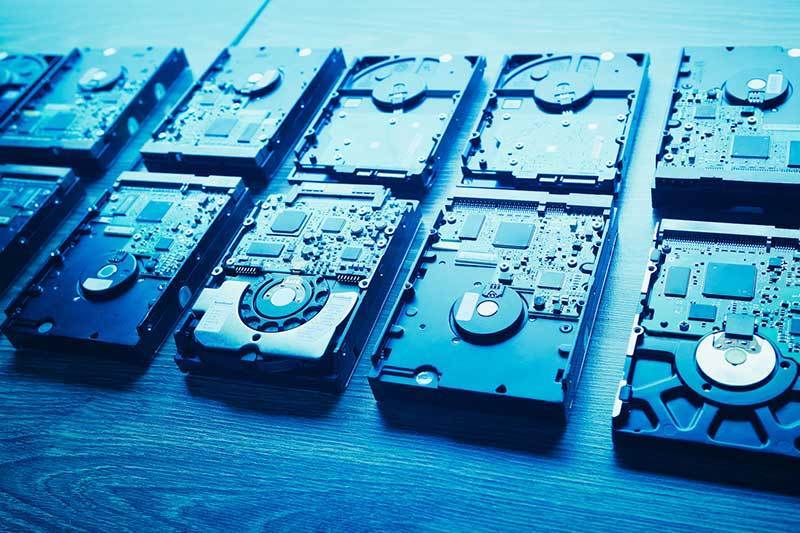
· Physical damage – at the hardware level Data recovery from hardware with physical damage can involve multiple techniques. Some damage can be repaired by replacing parts on the hard drive. This alone may make the drive usable, but logical damage may still be present.
· Logical damage – at the software level. Cases of logical damage are examples such as structured disk partitions and file systems, overwritten data and finally lost or deleted or formatted data.
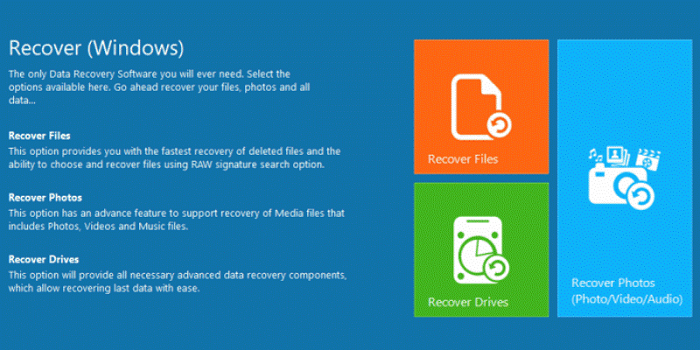
An easy and quick solution is Remo 's software .
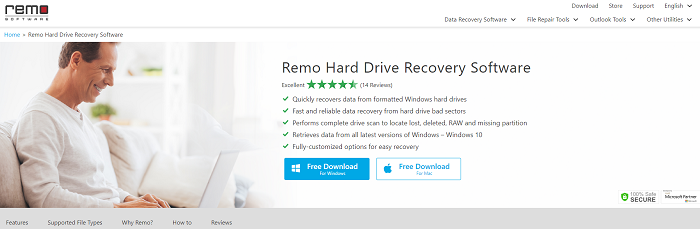
Remo's software is designed to recover data in a Windows easily and quickly. The Pro version has the ability to recover data from hard drives, hard drive partitions, and other removable devices.
It is a powerful data recovery tool that can scan and find deleted or lost files. It is equally effective on disks that have undergone any formatting (full or partial) and is compatible with all Windows operating systems, such as Windows 10 , 8, 7, Vista and XP.
Its main features are:
- Quick scan mode
The software offers two different scanning methods – Normal Scan and Smart Scan. “Normal Scan” option helps in quickly recovering lost or deleted files. “Smart Scan” allows you to deeply scan the hard
drive for bad sectors and restore complete files.
- Recovering disk partitions
The software helps to recover deleted, lost disk partitions. Even when your partition is formatted, marked RAW or inaccessible, the tool allows you to restore your data in simple steps. It also supports data recovery from FAT16, FAT32, NTFS, NTFS5, ExFAT disks on any Windows operating system, including Windows 10.
- Hassle-free recovery
The software is designed with an interactive interface with easy-to-use options that help novice users recover data in an easy way. The “Save Recovery Session” option allows you to save the scanning process and resume it again when required. The entire recovery process is a 3-step process and all your files will be back.
- Create a disk image
Remo Data Recovery software recovers data from hard drives that have bad sectors. To do this, the software will allow you to create an image of the drive and then restore data from it by skipping the bad sectors. These images can also be used as a backup of your data.
- Disk recovery
The tool is designed to recover files lost from formatted drives, corrupt drives or RAW drives in simple steps. It helps in recovering data from external hard drives, internal hard drives, memory cards, USB flash drives, iPods, FireWire drives, etc.
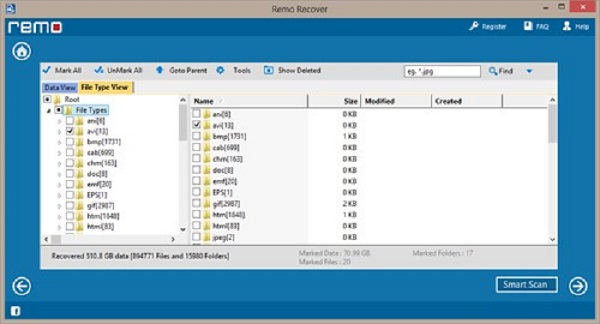
The following features are important and are offered with the software:
- Identify and recover up to 300 different file types
- Easy sorting of recovered files by size, date, name, etc.
- Option to search for a specific file to recover
- Ability to pause and resume the search
- Enables the feature of recovering ADS files from an NTFS disk
- Recovered files can be compressed as a ZIP to save space
By choosing Remo Hard Drive Recovery Software, you gain access to a tool that gives you the ability to recover data in all common data loss scenarios, supports a wide range of storage devices, has a Deep Scan in case some files are not found in the Normal Scan, and finally provides you with easy and safe data recovery.
The most common scenarios where Remo Hard Drive Recovery Software can help are:
- Accidentally deleting a disk partition from Disk Management
- On errors that may occur on the disk during partition creation
- Formatting a wrong disk from the one we originally wanted
- Turning off the computer in an inappropriate manner
- Power outage while working on files
- Disk conversion from basic to dynamic without our will
The easy steps to recover data using Remo Hard Drive Recovery Tool are as follows:
• Step 1: On the main screen you will see 3 options – ‘File Recovery’, ‘Photo Recovery’ & ‘Partition Recovery’ and all available drives
• Step 2: Select ‘Partition Recovery’ option and then click on the drive from which you want to recover data.
• Step 3: At the bottom right corner, you can see the “Scan” button, click on it & the software starts scanning the drive
• Step 4: Once the scan is complete, all recovered files will be displayed in file type or data view
• Step 5: Now, you can click on the above tabs to view the required file types – Images, Videos, Texts etc.
• Step 6: You can use the 'Deep Scan' option if you don't have the required files otherwise click on 'Save'
• Step 7: You will be asked to save the scanning session when you choose the deep scan – just click on “Yes” and provide a safe location
• Step 8: After the deep scan of the drive, you can view all the recovered files and preview them to check the accuracy
• Step 9: If the results are satisfactory you can click on 'Save' and save all the recovered data to any location
