

Windows or even your motherboard could be the culprit. Every computer needs a way to boot into something other than the installed operating system. Removable bootable media (like USB) allows you to repair your Windows installation when Windows itself makes it impossible to boot. They provide a clean environment for scanning for malware and removing it. They also allow you to try out different versions of Linux without having to install any of them.
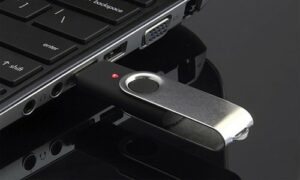
It wasn't that long ago that almost every PC had an optical drive and booting from a CD or DVD was simple. But optical discs are becoming increasingly rare, and the only alternative we have for bootable media is using USB—usually a flash. And that can cause problems.
Today's computers come with increased protection, which is a good thing, but it can also create problems. Somewhere in your BIOS setup screen, you'll almost certainly find a Secure Boot. If you can't boot from a flash drive, disable it.
Another issue: Most of today's motherboards use UEFI instead of the old-fashioned BIOS, and an operating system that doesn't support UEFI won't boot. Most motherboards support legacy boot, but some computers don't have this option.
Finally, most of today's computers boot directly from the internal hard drive or SSD, without looking for a bootable external media. You'll have to do something special to make them see it, and what you need to do depends on your computer.
For example, on the Lenovo X220 laptop, pressing the power button and then repeatedly pressing and releasing F12 brings up the boot menu and allows you to make the appropriate selection. But before you can enter the boot menu like this, you need to enter BIOS-Setup (F1), make sure that UEFI/Legacy Boot is set to Both and that UEFI/Legacy Boot Priority is set to Legacy First.
Every Windows PC has its own unique way of doing essentially the same thing. For example, the ASUS Transformer Book T100 lacks legacy boot capabilities. You can boot from a Windows 10 recovery drive, but not most Linux distributions.
So what should you do? Go to your favorite search engine and search for the name and model of your computer (such as Lenovo X220) and type in either “usb boot” or “flash drive boot” including the quotes.
You will most likely find some useful instructions. I would highly recommend that you do this search and try the instructions when your computer is healthy. Then, save the instructions somewhere where they are easily accessible even when your computer will not be able to start.
