

With the arrival of Windows 8, Microsoft added a new piece of information, which it called Startup Impact, in order to ensure that end users always have control over the applications running on their systems.
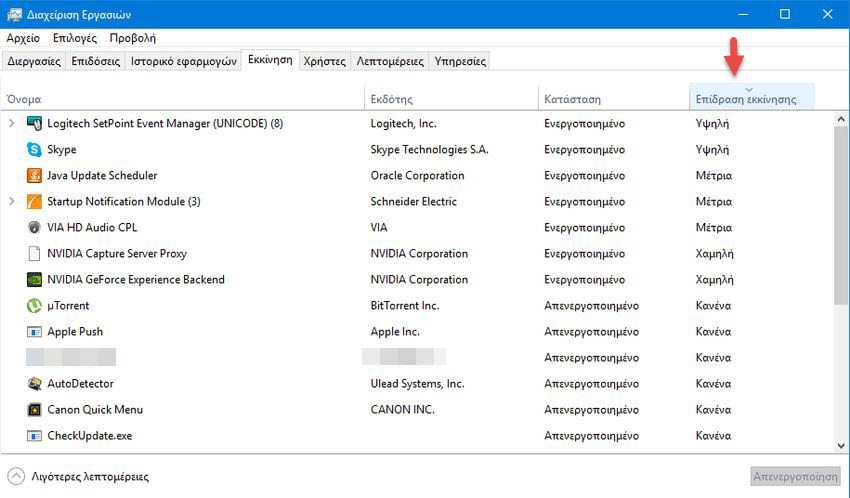
The "Startup" tab in Task Manager displays a new list of startup applications, to help users determine what they should disable at system startup and what not. This list, named Startup Impact, shows a rating of each application's impact during computer boot. The rating is evaluated based on the CPU usage and disk usage consumed by an application during its startup.
But let's see how you can display this list and what the startup impact levels are. The prerequisite for the following steps is of course that you are running a Windows 8 or Windows 10 PC.
1. Open Task Manager and click the “more details” view.
2. Go to the Startup (Startup) tab of Task Manager.
3. You will see the startup impact of the startup applications.
Impact values are determined by the following criteria:
High = Applications that use more than 1 second (1000 ms) of CPU time or more than 3 MB of disk I/O at startup
Medium = Applications that use 300 ms – 1000 ms of CPU time or 300 KB – 3 MB of disk I/O
Low = Applications that use less than 300 ms of CPU time and less than 300 KB of disk I/O
Not measured = Application does not run at startup.
None = Startup application is disabled and does not run at startup.
