We recently published that Opera released a new developer version of its browser that supports virtual private network (VPN) connections for free. 
The new version of Opera protects the privacy of the end user and of course many people started using it.
The browser VPN client is free as mentioned above, imposes no restrictions on bandwidth or user data, and there is no reason not to use it, unless you are already using another VPN.
However, it would be a good idea to not just take what the company tells us. We should make sure that the application VPN does not leak information to remote servers.
If you enable VPN in Opera and check for IP address leaks, you will notice the following:
Common IP checks only reveal the VPN IP address, not the “real” IP of the computer. A check with the WebRTC Leak service reveals the local and remote IP addresses of the computer.
Click to enlarge
To be fair, this isn't just happening in the Opera web browser, as most modern browsers support WebRTC and leak the IP address through the feature, even if there is a VPN enabled on the device.
Some browsers like Firefox allow you to disable WebRTC completely, while others do not offer this option.
Knowing that the WebRTC service can be used by websites to identify you, even with the use of a VPN or proxy server, it would be a good idea to disable the feature especially if you are not using it.
The Opera browser doesn't have built-in options to disable WebRTC, but you can install an extension that handles WebRTC leaks in the browser and improves your privacy while using Opera's VPN or another VPN system.
Download and install the WebRTC Leak Prevent extension in your Opera browser. You will notice that it will immediately block access to your computer's local IP address, but the device's public IP address will still be visible to Opera's WebRTC application.
Let's see what we can do: Open the extension settings from the address:
opera://extensions/
In the list of installed extensions that you will find if you go to the above address, select options in the WebRTC Leak Prevent extension and in the new window that will open, tick the box for Prevent WebRTC from using non-proxied UDP.
In the top drop down that says IP handling policy: select “Disable non-proxied UDP (force proxy)”.
If you missed a lot, look at the image below: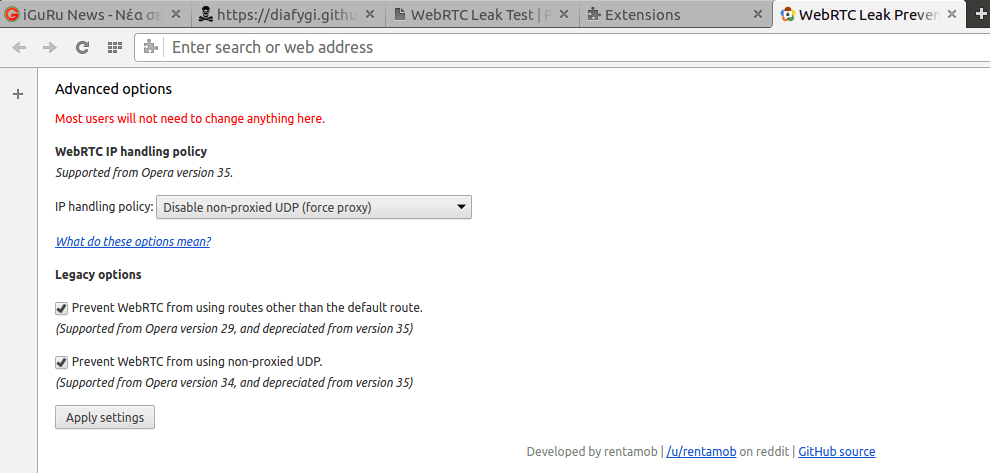
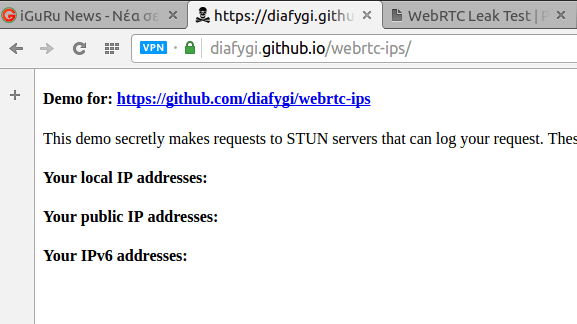
If you now run a new test to find a WebRTC leak, you will see that it is no longer there. Opera will not display either your local or public IP address after installing the extension and the above settings.
and: