

Android phones have long had the ability to take screenshots. This feature was added in Android 4.0, although there were older apps in the Google Play Store that gave you the ability.
To take a screenshot on Android, simply hold down the “power” and “volume down” buttons at the same time. If that combination doesn’t work, hold down the power and “Home” buttons.
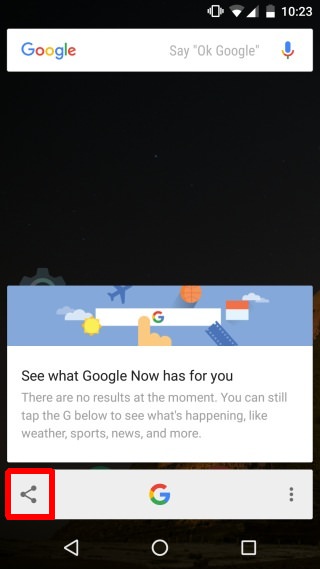
If you're planning to share the screenshot with a friend and your device is running Android Marshmallow, you can instead use the new Google Now share feature at the top. Let's see how.
This feature works for any screen you're on at any given time, so it's just as useful for swapping your home screen as it is for an app's screen.
Go to the screen you want to share and hold down the “Home” button. Wait for Google Now to pop up and you’ll notice that there’s an icon with three dots in the bottom left corner. Tap it and a screenshot should be taken of the current screen. A share menu will appear, showing you every app that can be used to share your screenshot.
If you can't see the share icon in Google Now (the one with the three dots) it may be because you're not running the latest version of Google Apps. Check to make sure you're running v5.7.13 from Google Apps, and that you're on Android 6.0+.
