

Hide files in Windows 10 and beyond: Sometimes, you may want to hide some sensitive files or a folder from Windows File Explorer.
There have been ways to hide files for a long time. These include some classic console commands from the DOS era. However, Windows 10 comes with a newer file hiding tool, with a graphical interface for those who are not comfortable with the command line. 
Let's start with the old method:
Open a command prompt window by searching for cmd. Once the icon appears in the search results, open the dialog box. The method uses the classic DOS command “attrib”.
Typing the following command at the command prompt will hide the file. You can configure which file you want to hide by changing the address:
attrib +h "C:\my-file.txt"
or if it is in a folder add the path:
attrib +h "C:\iguru\my-file.txt"
Once you run the command, your file will disappear from File Explorer.
Now using the same attrib +h command and changing the + to – you can display your file again:
attrib -h "C:\iguru\my-file.txt"
But let's also look at the new way that Windows 10 offers:
Select the required files in File Explorer using your mouse and the Ctrl key.

On the View tab and click the Hide selected items button. Windows 10 will hide the files you selected. 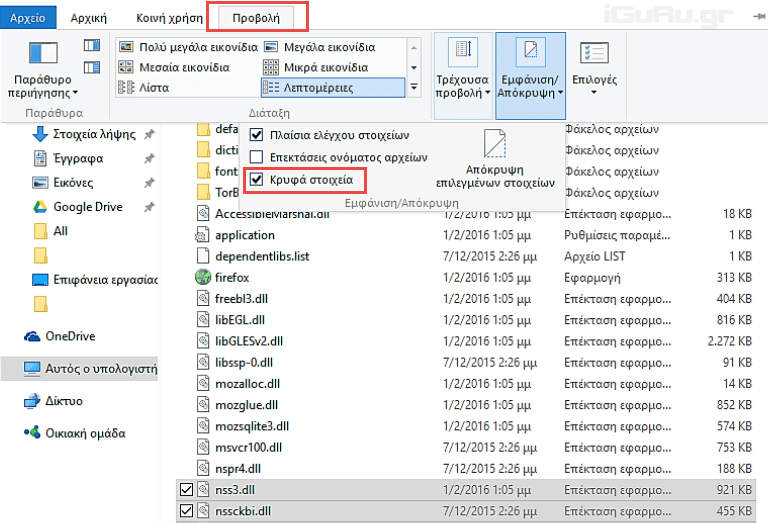
To display the files again, you will need to deselect the Hidden items box from the View tab again.
