

One of the most popular web browsers is Google's Chrome, but despite all the updates and bug fixes, Chrome can sometimes be slow due to some of its extensions, features, or applications.
The good news is that there are various tips and tricks, and hacks that help improve the overall speed and responsiveness of this browser, which can then improve page loading and web browsing speed. In this article, we will look at 10 ways to help your Chrome become faster.

Get rid of what you don't need
Disable various unnecessary and useless Chrome to allow the browser to load web pages faster. These include extensions, plug-ins, and web apps that you don't need.
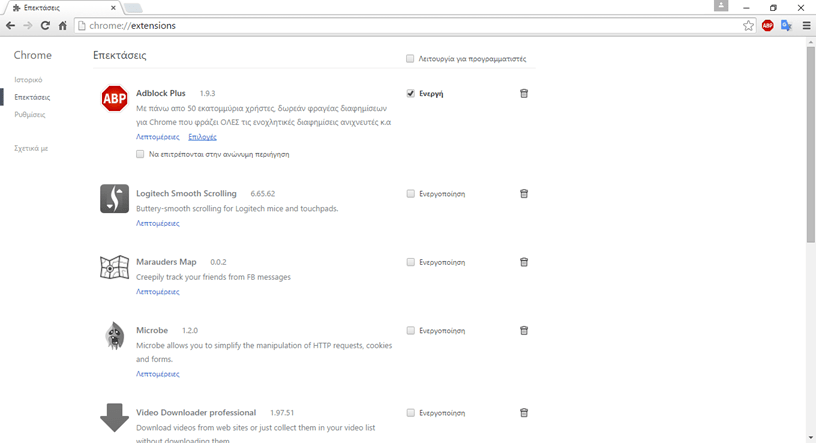
1. Disable Unnecessary Extensions
Extensions are useful tools that extend the functionality of the Chrome browser, but some may actually be less useful than you think. Extensions mostly run in the background, to analyze or filter web pages before they appear on the screen, but also load their own data package from the Internet.
To get the best browsing speed and response times, disable and/or delete extensions that you don't really need.
To disable extensions you don't need:
Type “chrome://extensions” in the Chrome address bar. Alternatively, you can go to Chrome's menu at Settings > Extensions.
Uncheck Enabled for the extensions you want to disable, or click the Trash icon to delete the extension.
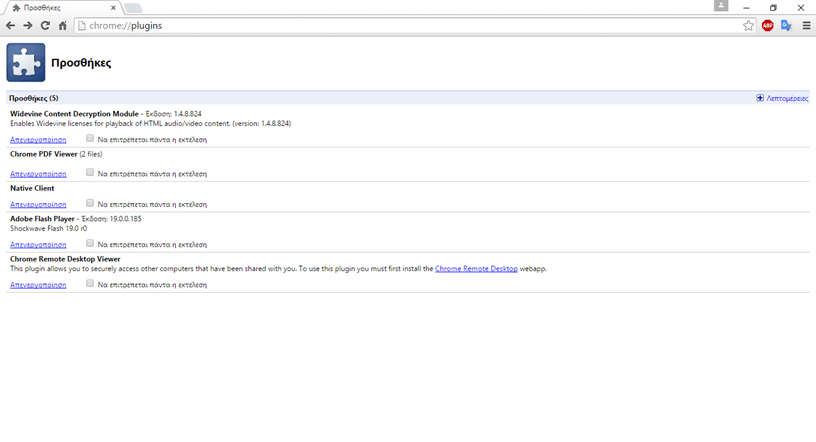
2. Disable Unnecessary Plugins Plugins
are like extensions. They provide additional functionality to the browser. Chrome comes with some built-in plugins provided by Google (such as Chrome PDF Viewer, Native Client, etc.), but you may also have plugins from other software installed on your computer. Plugins, like extensions, can slow down the browser and clog up memory and network resources.
To disable plugins you don't need:
Type “chrome://plugins” in the Chrome address bar.
Click the “Disable” button to disable the plugin you no longer need.
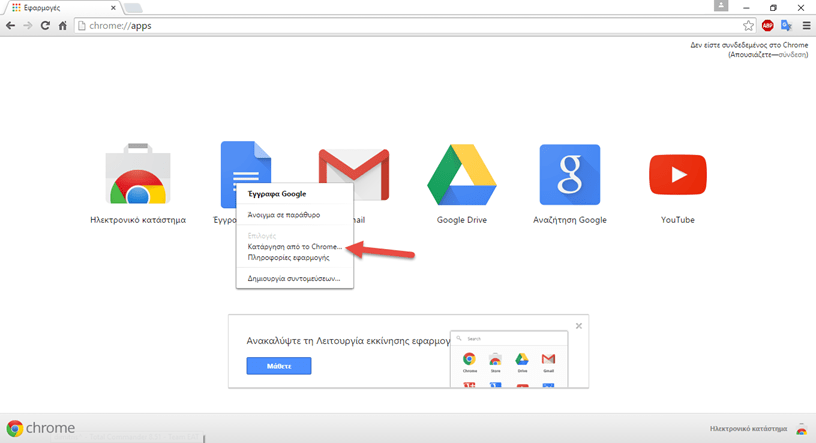
3. Remove Unnecessary Web Apps
Google Chrome is not just a web browser. It is also an application platform for web apps. It can run web apps that are installed locally (on your computer) that are written in HTML5, CSS and JavaScript. While web apps don't load resources like web pages do, if you don't need them, just get rid of them.
To remove unnecessary web applications:
Type “chrome://apps” in your Chrome address bar or click “Apps” in the bookmarks bar
Right-click on the application you want to remove, select “Remove from Chrome” …, and click the “Remove” button to confirm the removal. The 1st “Online Store” application does not give you the right to remove it.
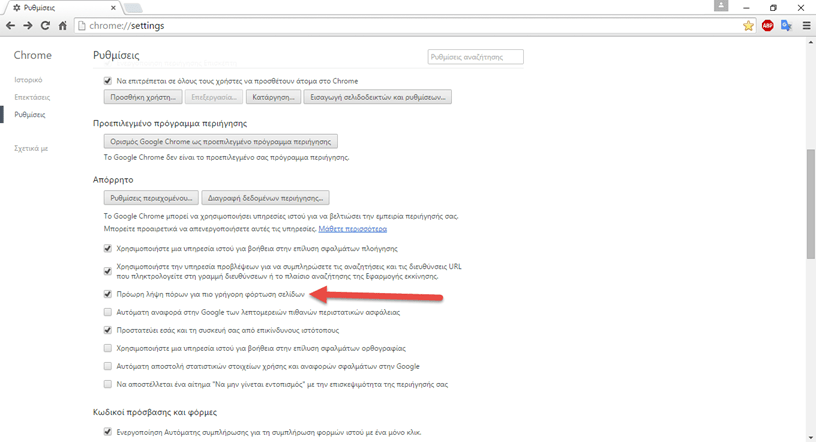
4. Enable Prefetching
Google Chrome comes with many smart features, such as network prediction, spell check, preloader, etc. Pre-fetcher or preloader provides smart suggestions about the pages or links that the user is likely to open in his next step. So pre-fetching loads these pages/links in the background, before the user actually opens them and when the user finally chooses to open them, the response time is reduced dramatically.
To enable early download in the Chrome browser:
At the top and right of the Chrome screen, go to Options > Settings > Show advanced settings ...
In the Privacy section, select the option “Prefetch resources to load pages faster.”
Enabling secret hacks
Google Chrome packs a lot of secret and experimental features under its hood. These are experiments from the Chrome development team – some may not be built for novice users, some may not work on certain devices, and some may not be very good for your computer.
But luckily for us, there are some hacks that are quite useful for boosting a page's loading speed and performance.
Again, some of these may not work for certain devices, and if you find yourself in a situation like this, simply undo the hack to return to normal operation.
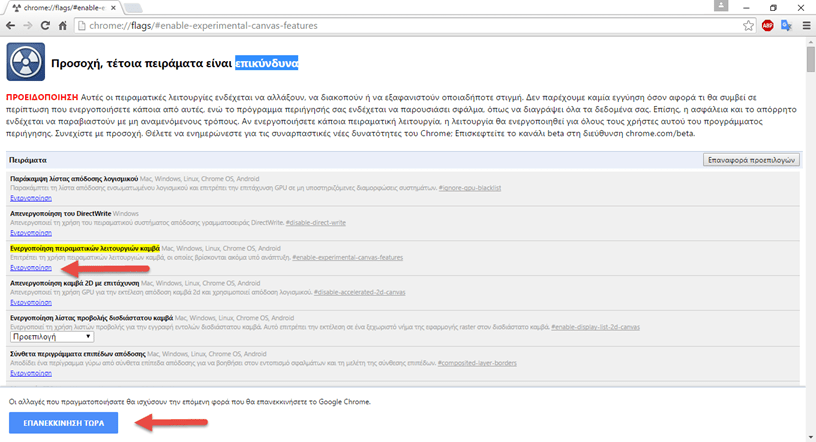
5. Experimental Canvas Modes
Experimental Canvas Modes allow Chrome to make use of opaque canvases to boost load times and improve performance.
To enable experimental canvas features:
Go to “chrome://flags/#enable-experimental-canvas-features”.
Click Enable and then the “Restart Now”
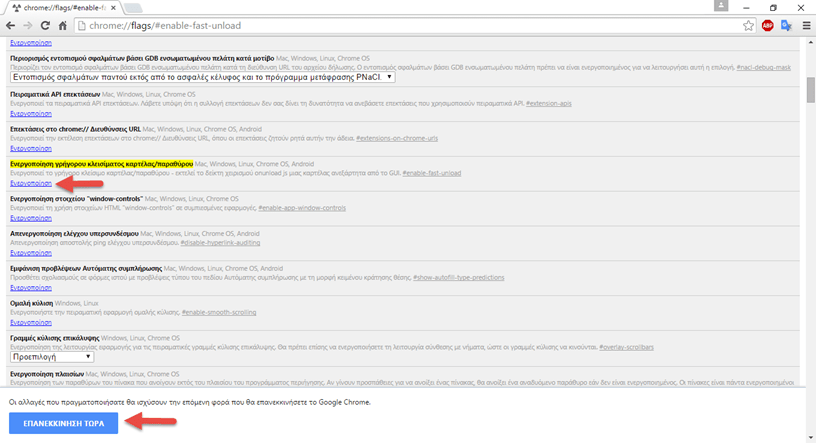
6. Fast Tab/Window Close
The Fast Tab/Window Close option increases the browser's response time when a user tries to close tabs or windows. Enabling this feature runs a tab's onUnload.js independently of the GUI to speed up the closing process.
To enable the fast tab/window closing feature:
Go to “chrome://flags/#enable-fast-unload” from the address bar
Click Enable and then the “Restart Now”
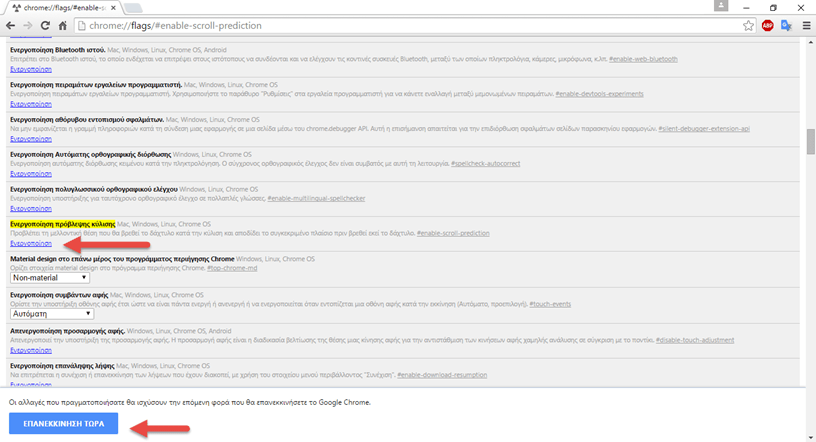
7. Scroll Prediction
The Scroll Prediction feature tells the Chrome browser to predict the future position of the finger during scrolling, allowing Chrome to render the frame before the page scrolls.
To enable Scroll Prediction:
Type “chrome://flags/#enable-scroll-prediction” in the address bar
Click Enable and then Restart Now.
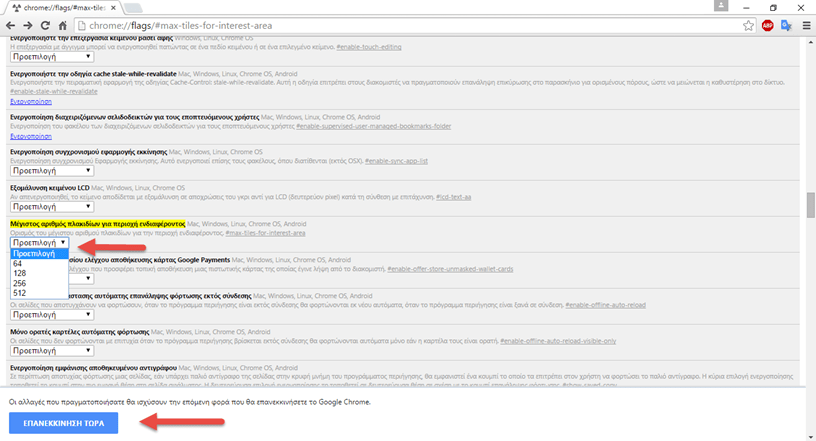
8. Maximum Tiles
Maximum Tiles refers to the number of tiles for the area of interest. Increasing the maximum number of tiles allows Chrome to show more tiles based on your interests or browsing history, which allows you to quickly open a new webpage from the area of interest.
Increase the Maximum Number of Tiles:
Go to “chrome://flags/#max-tiles-for-interest-area” in your browser
Select 512 from the drop-down menu. Click the Restart Now.
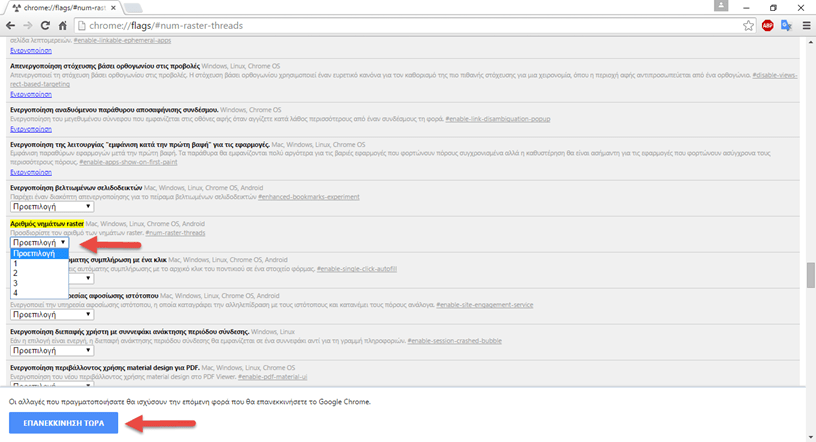
9. Number of Raster Threads
Raster Threads are responsible for rendering images in Chrome. Increasing the number of Raster threads improves image response time and consequently page load time.
To increase the number of raster threads:
Open “chrome://flags/#num-raster-threads” in Chrome.
Select 4 from the drop-down menu and click the Restart Now.
10. Simple Cache for HTTP
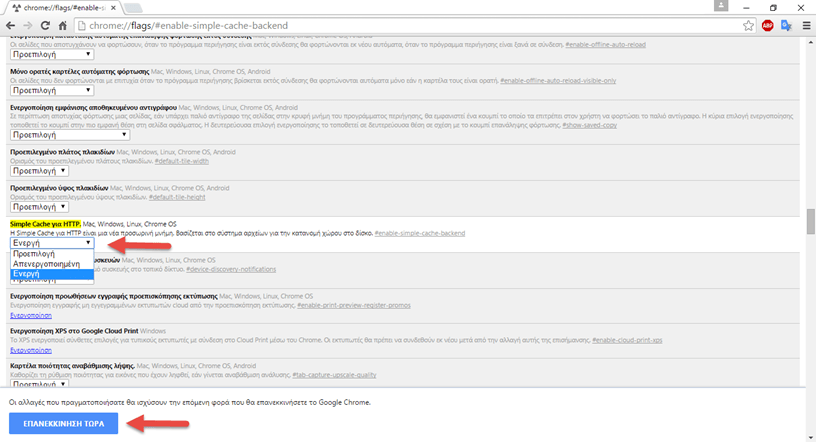
Simple Cache for HTTP is the new caching mechanism for Google Chrome. It works better than the old caching system, relying on the file system for space allocation.
To enable Simple Cache:
Go to “chrome://flags/#enable-simple-cache-backend” in your browser.
Select Enabled from the drop-down menu. Click the Restart Now.
Give us your suggestions
How is the Chrome browser behaving now using our tips and suggestions above? Do you have any suggestions and tricks of your own to speed up Chrome? We would be happy to share them with us.
