

One of the biggest and most promising improvements in iOS 10 is iMessage. It contains multiple apps, drawing and painting tools, and many new effects. But after completing the iOS 10 installation, you may have encountered some problem while working with these effects.
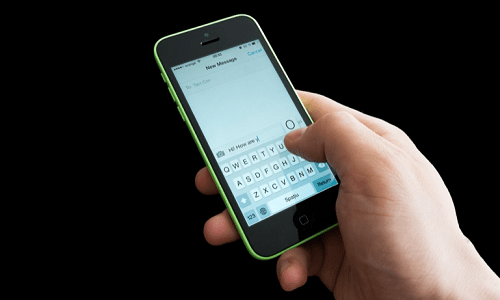
There are two possible issues that could be causing the problem. So, if you find yourself in this situation, fear not. We are going to suggest two solutions that should fix the problem for you. Just make sure you have a friend with whom you can try out the new iMessage effects once you are done with each solution.
Turn off and then turn on iMessage
Specifically, if you're having trouble downloading the new effects, this is a solution you should try. Until now, when you sent messages with effects to your friends, they simply received them as a text message with the effect name in parentheses.
You’ll be surprised at how simple it is to fix this situation. Simply go to your iPhone or iPad’s Settings app . Scroll down and tap on Messages . Then, turn off the first iMessage “switch.” Wait for about 10 seconds or until the service is completely turned off. You won’t lose any of your messages during this process.


Now, open iMessage again and wait for it to activate. It will only take a few seconds. Go back to the Messages and tell someone to send you a message with an effect. If it works, you're done! If not, let's move on to the second solution.
Disabling “Reduce Motion”
In an effort to make your iPhone run faster, you may have turned on the Reduce Motion setting at some point. Either that, or the animations and transitions don't work very well. If the latter is your case, then you'll have to choose which you prefer more: the smoother transitions and animations in iOS 10 or the iMessage effects.
If you prefer to have the effects, you should turn off the Reduce Motion setting. To do this, go back to Settings and tap General this time. Tap Accessibility and now tap Reduce Motion. Notice that at the bottom, Apple says that this setting will “Reduce interface motion, including parallax effects in images.” Turn this setting off.


Now, with iMessage enabled and the Reduce Motion setting turned off, you should be able to send and receive the crazy new effects in the updated iOS 10 Messages app. Have fun!
