

You need a file from your computer, but you forgot to put it in Dropbox? Having a backup plan for remote access can help you.
We've written before that keeping all your files in sync across all your devices is as useful as being able to put the files you need in the right place. When that doesn't happen, it's handy to have a backup plan for accessing critical files remotely.

So let's take a look at two ways you can gain remote access using applications and services that could already be part of your daily routine.
1) Phone to PC
Popular media sharing app, Pushbullet, recently added remote access to its long list of features for sharing files between devices. The new feature, dubbed Remote Files, lets you access your computer's files from your Android device.
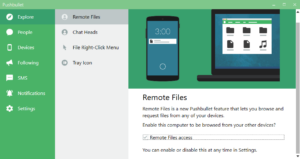
To use Remote Files you need the Pushbullet Android app on your phone, as well as the Pushbullet desktop program – your browser extensions won't work here.
Once you have both applications up and running, open the program on the desktop and select Settings. Then scroll down and check the box next to the “Remote file access”.
After that, give phone to realize that your desktop machine is ready for access. Next, open Pushbullet on your phone, tap the three horizontal lines menu in the top left corner, and select Remote Files from the slide out navigation panel. You should see your computer name listed. Select it, and you now have full access to the files stored in your account. (You can't access system files using Pushbullet.)
The only thing to remember with Pushbullet is that, obviously, your PC needs to be turned on and connected to the Internet for your phone to access files remotely.
The Remote Files is free, but it's limited to transferring files up to 25MB, and the company says you can only use the feature for a limited, as-yet-unspecified number of transfers per month. You can get rid of these limits with a pro account, which costs $40 per year or $5 per month.
2) OneDrive
When Microsoft upgraded Windows 8 to version 8.1, OneDrive file download, also known as remote access, was removed. With Windows 10, this feature has returned. Additionally, Windows 7 users can also get this feature by downloading the OneDrive desktop app.
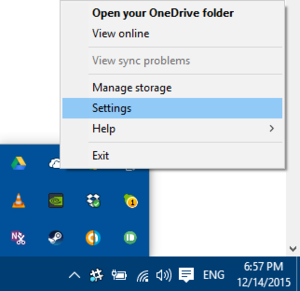
To make file fetching work for Windows 10, all you have to do is click on the upward-facing arrow on the right side of your taskbar, then right-click on the OneDrive and select Settings. A pop-up window will open. Click on the Settings tab and check the box next to “Let me use OneDrive to fetch any of my files on this PC”.
After, open OneDrive.com and in the left navigation column on the left side, click on “PCs”, followed by the computer name. A new tab will open, giving you access to the files on your computer.
Just like with Pushbullet, your computer must be turned on and connected to the Internet to fetch files from OneDrive.
The Remote access option is most likely not something you will need very often, but it is very important for those times when you actually will need it!!
