

Let's face it... We've all had the chance to have the same file/folder somewhere on our computer, duplicated... and sometimes even triplicated... resulting in us using our storage space pointlessly.
If you sympathize with me, and want to get rid of all those useless duplicate files that you probably have on your computer without even realizing it, you're in good hands! Keep reading this article!
https://www.secnews.gr/100610/ethihak-security/btn-large” variation=”btn-success”]The first EthiHak live Contest is an EVENT!!!!! Infocom 2016 – EthiHak Contest – Register TODAY!
There are quite a few good software available that can do the same job. But I personally find “Duplicate Files Finder” lightweight and very fast to use. Duplicate Files Finder is a software that detects duplicate files (which have the same content, but not necessarily the same name). You can delete them manually or create links. The search of this software is very fast compared to other programs of the same nature.
Initially all files are sorted by size since duplicate files will be the same size. Other search software uses hashing algorithms that scan the files in their entirety.
https://www.secnews.gr/101127/secnews-gr-connected-world/btn-large” variation=”btn-success”]See: SecNews.gr at the 8th Connected World!
Let's take a look at its features:
- Byte by byte comparison
- Search is very fast
- Supports symbolic links and hardlinks
- It has a good interface for deleting files and creating links
- Various search options
Let's see the process:
Step 1. First of all you need to download and install Duplicate File Finder setup on your system. You can find it for Windows /Linux here:
Step 2. Open Duplicate Files Finder and you will find the app window as shown in the image. Click on the button highlighted in the image to choose the directory where you will find the duplicate files. Then click OK.
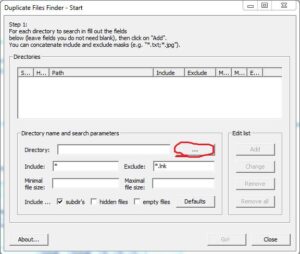
Step 3: Click Add located to the right of the directory option. Duplicate Files Finder allows you to add multiple directories or folders in which you want to search for duplicate files.
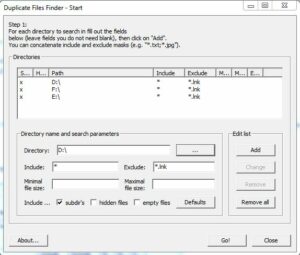
Step 4. After selecting the directories or folders, click Go! Duplicate Files Finder will do a quick search and show you the names of the duplicate files as well as which folder they are located in.
https://www.secnews.gr/101185/%cf%81%cf%89%cf%83%ce%af%ce%b1-%ce%b1%cf%80%ce%b1%ce%b3%cf%8c%cf%81%ce%b5%cf%85%cf%83%ce%b7-windows-%cf%83%cf%84%cf%81%ce%bf%cf%86%ce%ae-%cf%80%cf%81%ce%bf%cf%82-linux/See also: Russia: Windows ban and shift to Linux;;;
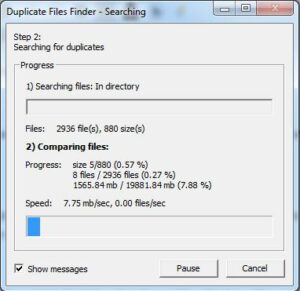
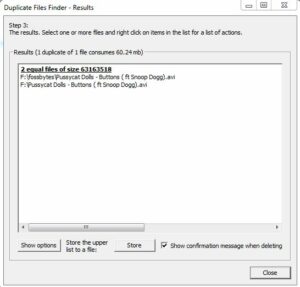
Now you are able to delete duplicate files manually! 🙂
Did you find it interesting? Let us know what you think in the comments below!
