

Google Docs have a feature that automatically capitalizes the first letter of the first word in your sentences (auto capitalization). It is one of the many tools Google offers to simplify writing. If you don’t find the auto capitalization feature useful, you can disable it (and re‑enable it). We’ll show you how.
See also: How to insert a text box in Google Docs

Disable (or enable) auto capitalization in Google Docs
Start by launching Google Docs in your favorite web browser (Chrome, Firefox, Edge , etc.). Then, open one of your documents.
See also: Google Docs now has an easy way to add emoji
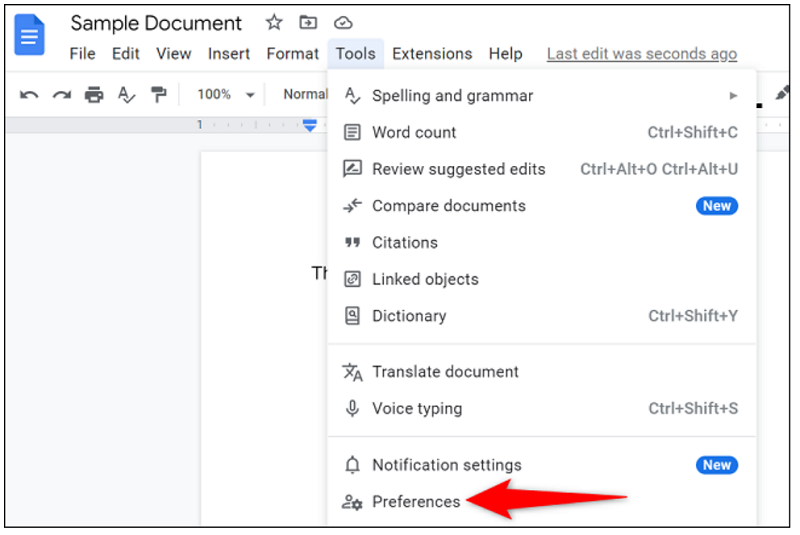
Next, in the menu bar, select Tools > Preferences.
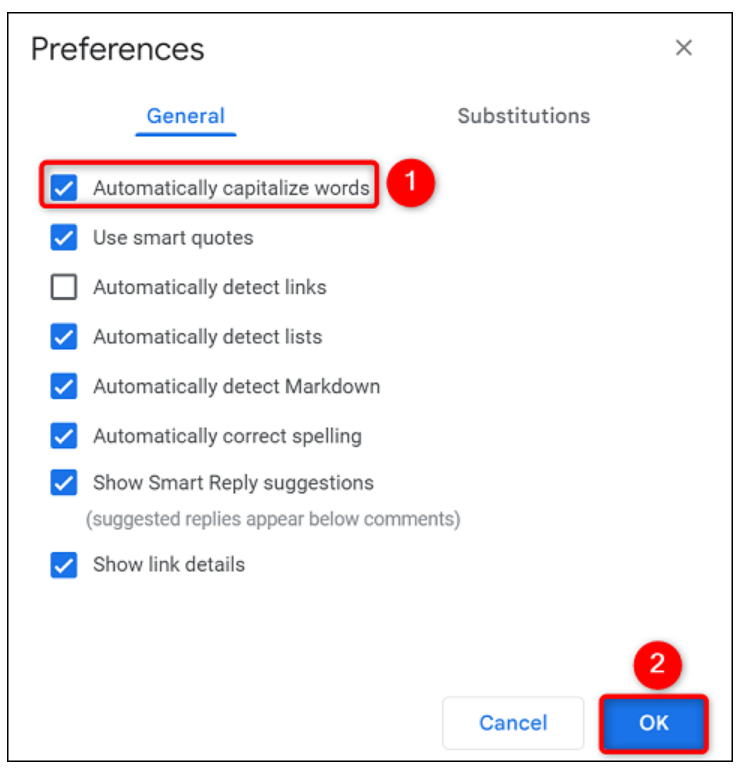
In the “Preferences” window under the “General” section, you will see the “Automatically Capitalize Words” option.
To disable the feature, simply click the blue checkbox to turn it off. To enable the auto-capitalization feature, select the box again.
See also: Google Docs: Getting a major formatting upgrade
Then, save your changes by selecting “OK” at the bottom of the window.
You’re ready! Google Docs will now follow the custom auto-capitalization settings.
Information source: howtogeek.com
