

Out of office replies are a convenient way to let others know that you're away and can't respond to their message. If you use Outlook on the web, you can set up an automatic "Out of Office" reply in just a few minutes.
See also: Microsoft Outlook crashes when reading Uber receipt emails

Like the desktop version of Outlook, the “Out of Office” feature in Outlook.com lets you send the reply automatically during a time frame or only when you enable the feature, giving you flexibility.
See also: Microsoft's new Outlook Lite Android app is coming this month
Create an Out of Office in Outlook for the web
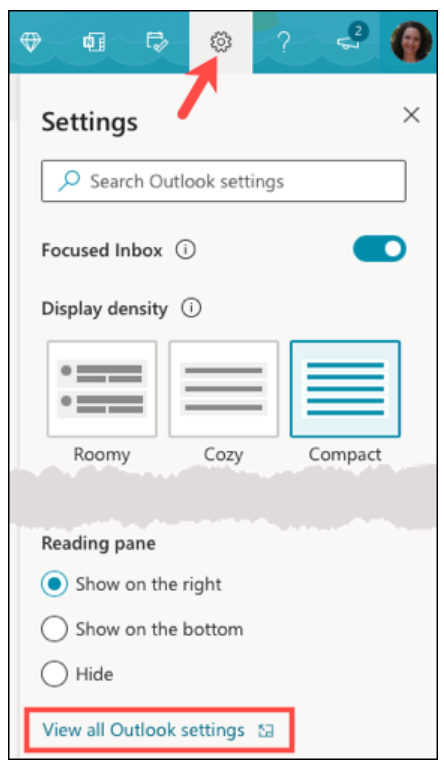
Visit Outlook.com, sign in, and click the gear icon in the top right. At the bottom of the sidebar that appears, select “View All Outlook Settings.”
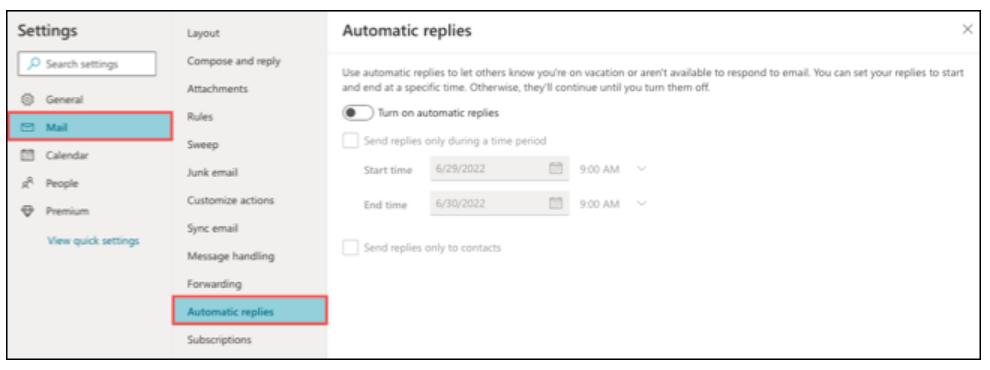
In the pop-up window, select “Mail” on the left and then “Automatic Replies” on the right.
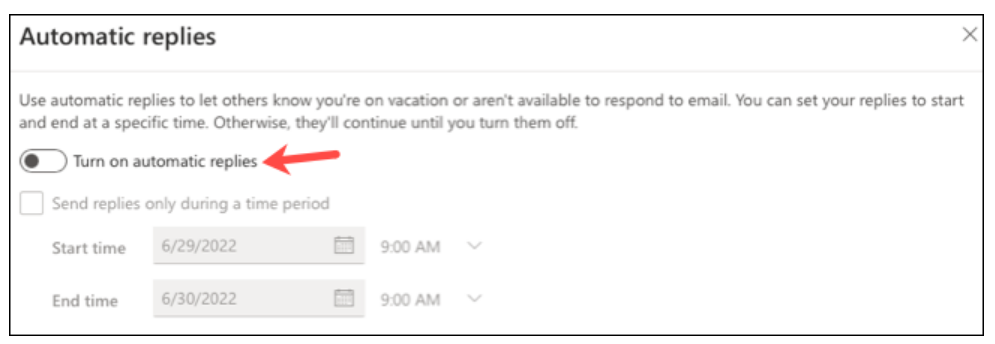
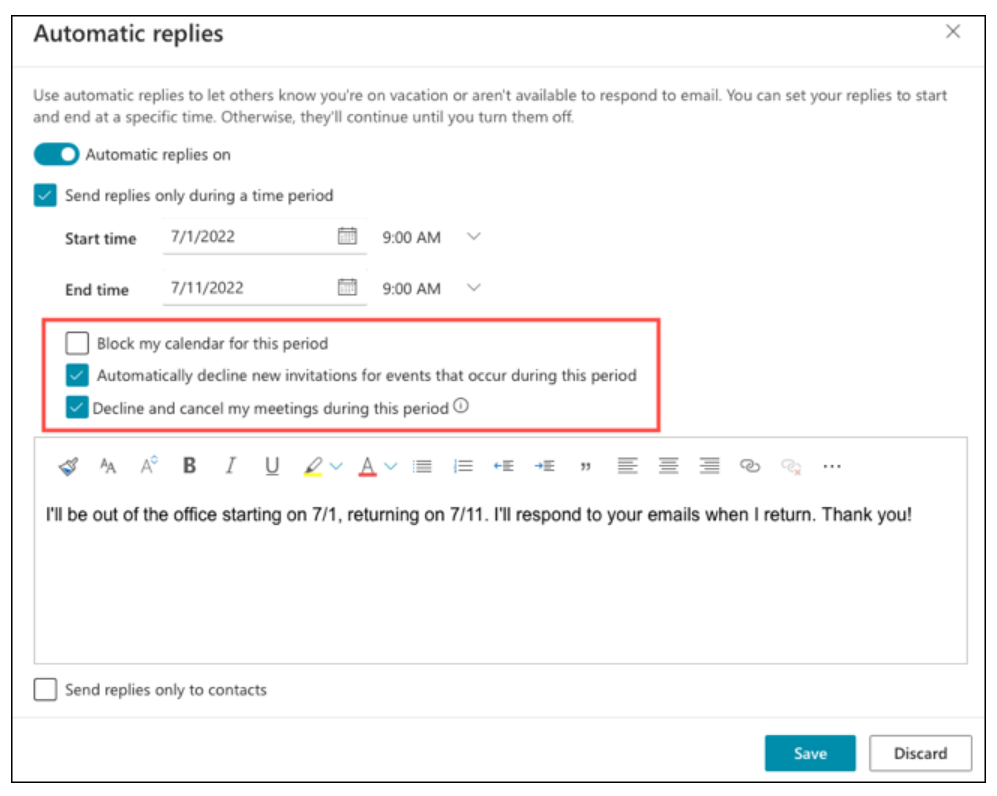
Turn on the toggle at the top to enable automatic replies to enable the feature.
If you want to use a time frame, check the “Send Replies Only During a Time Period” box. Then enter the start and end dates and times. If you choose not to use a time frame, you can turn off replies when you return by turning off the toggle at the top.
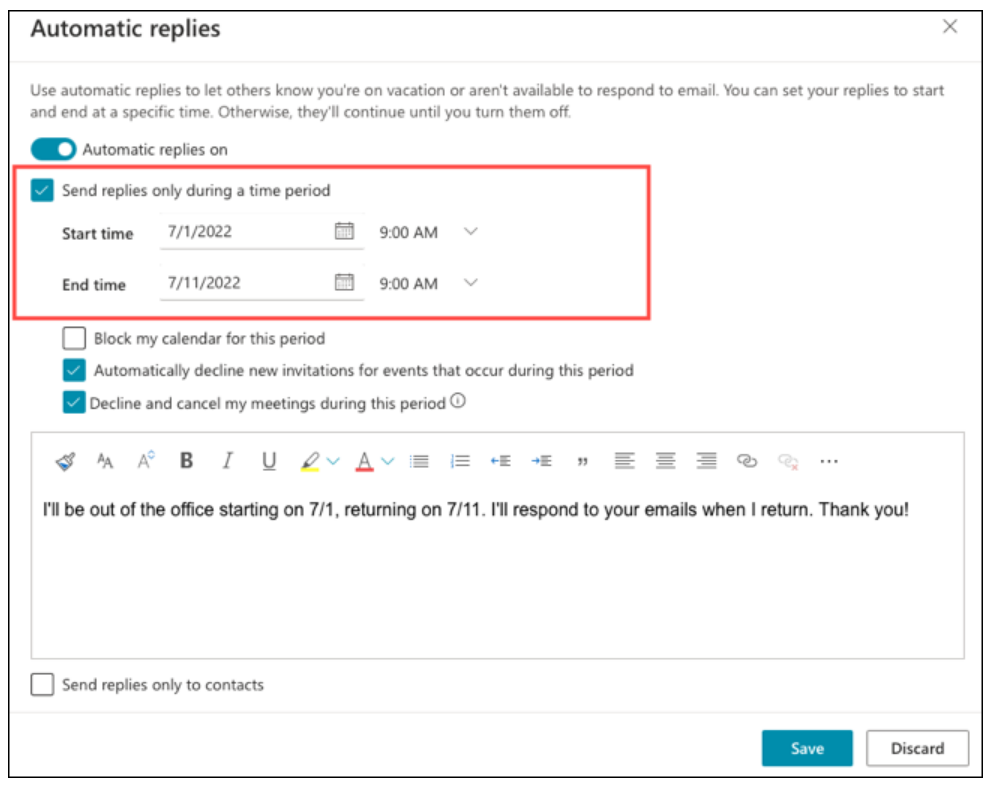
If you enable the time period feature, you'll see additional options. These help you with Outlook Calendar events during your out-of-office time frame. Optionally, check the boxes to block your calendar, automatically decline new invitations, and cancel meetings during that time frame.
Enter your message in the box at the bottom. Then, you can use the toolbar in the editor to format the font, align the text, include a link, and more.
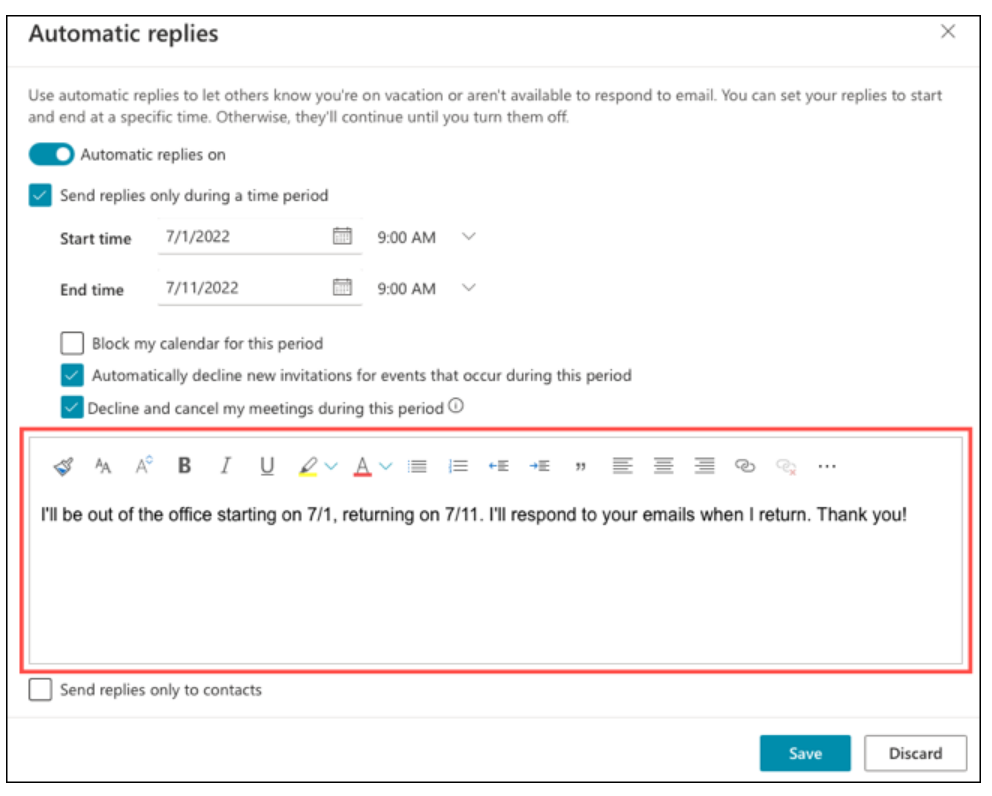
Optionally, check the box at the bottom to send replies only to your contacts. Select “Save” when you’re done and use the X in the top right to close the window.
See also: How to update Microsoft Outlook on desktop, Android, iOS?
Letting others know you're out of the office is polite for both business and personal emails.
Information source: howtogeek.com
