

Are you tired of accidentally opening Voice Control while pressing and holding the Side or Home button on your iPhone? If so, it's easy to disable the feature and make the button do nothing. Here's how.
See also: How to turn off notifications for the Shortcuts app on iPhone

See also: How to run iPhone and iPad apps on Mac devices
On your iPhone, you can make the Home (or Side) button launch Siri, Voice Control, or do nothing. In this article, you'll learn how to set the button to do nothing. Later, if you change your mind, you can turn Voice Control back on.
Turn off Voice Control on iPhone
To remove Voice Control, first open the Settings app on your iPhone.

In Settings, tap Accessibility. If you don't see this option, tap General, then tap Accessibility.
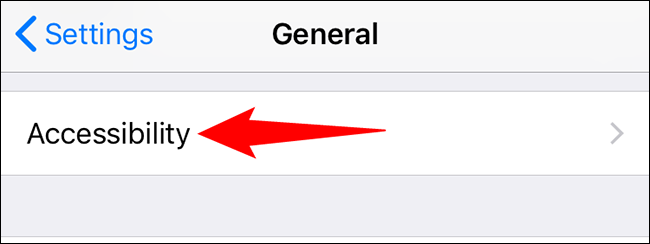
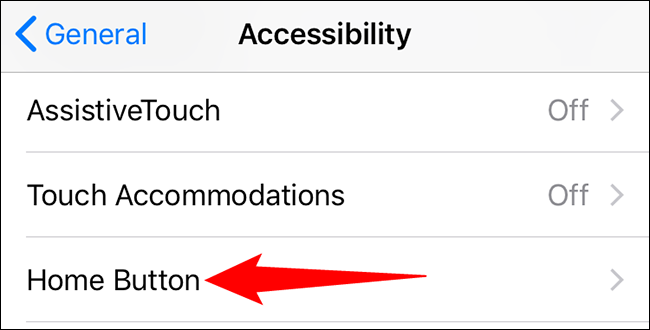
The “Accessibility” screen offers different options depending on whether your iPhone has a Home button or not.
See also: iPhone: How to block notifications from messages from strangers
If your iPhone doesn't have a home button, tap the “Side Button” option. If your iPhone offers a physical Home button, tap the “Home Button” option.
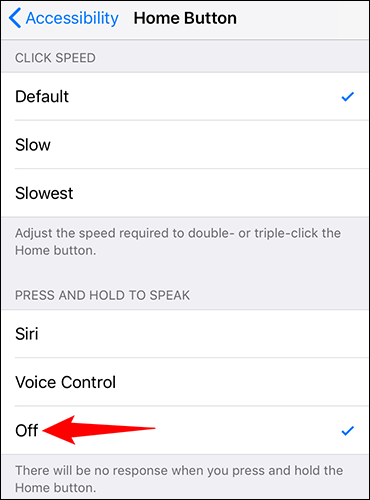
On the screen that opens, under “Press and Hold to Speak,” select the “Off” option. This prevents Voice Control from launching when you press and hold the Home or Side button.
And you're done! You won't be bothered by this unwanted feature anymore. Enjoy a little more hassle-free life with your iPhone!
Information source: howtogeek.com
