

If your Windows 11 has an Internet connection (via Ethernet, cellular modem, Wi-Fi), you can share that connection as a mobile hotspot, wirelessly via Wi-Fi or Bluetooth. See below for how to share your connection with other devices.
First, open Windows Settings by pressing Windows+i on your keyboard or by clicking on the Start menu . Find “Settings.”
See also: Firefox overrides Windows 11 default browser settings
After opening Settings, click on “Network & Internet.” Then, click on “Mobile Hotspot” (ignore the on/off switch for now).
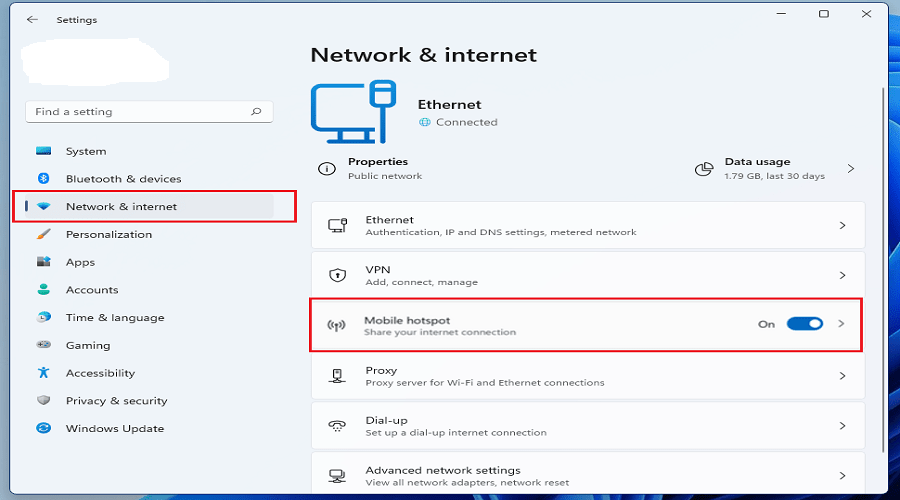
In the Hotspot settings, you will find many options.
Before you enable “Mobile Hotspot”, it’s best to set up how it works. First, click on the drop-down menu labeled “Share my Internet connection”. Select the source from which you will share your connection. Some examples are “Ethernet” and “Wi-Fi”.
Then, click on the menu labeled “Share Over” and select the method you want to use to share the connection with other devices. Typically, you can select “Wi-Fi” or “Bluetooth.”
See also: Windows 11: How to change your screen brightness?
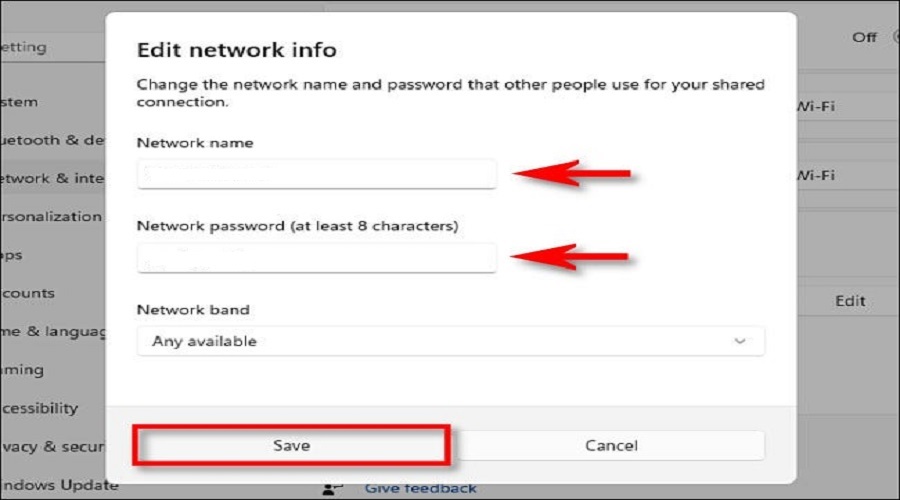
In the “Properties” section at the bottom, click “Edit” and an “Edit Network Information” window will appear. Using this window, you can set the network name, the password that users will use to connect to your hotspot, and the Network Band (2.4 GHz, 5 GHz, or “Any Available”) when sharing over Wi-Fi. When you are finished configuring, click “Save”.
Finally, return to the top of the Mobile Hotspot settings window and click the “switch” to turn on the Hotspot.
After that, other devices will be able to connect to the internet using your connection.
See also: Windows 11: How to manually set time and date
If you change your mind, you can simply go back to Windows 11 Settings and turn off Mobile Hotspot.
Windows 11: Connecting other devices to Mobile Hotspot
Connecting to the new mobile hotspot in Windows 11 is easy, especially if you're using Wi-Fi. Turn on your device's Wi-Fi and connect to the network with the name you set in the section above. When connecting, enter the password and connect. You can also connect via Bluetooth in a similar way.
Source: How-to-geek
