


Want to control Android phone via your PC? There is a way!
Below, you can see how this can be easily done:
1. Control your Android phone from Windows 10
If you're using Windows, you already have a basic way to access your Android phone from your PC. You can do this through the Your Phone app in Windows 10.It's an app that lets you view your 25 most recent photos, send and receive text messages, and manage calls from your PC. Microsoft also provides a screen-mirroring feature, which supports a limited number of devices.
See also: BIOPASS malware: Shows the victim's PC screen in live stream
To set up Your Phone, follow these steps:
- Update the Your Phone app on Windows and install Your Phone Companion on Android.
- Sign in to Microsoft account on both devices.
- Open the app on your phone and computer, then follow the on-screen instructions to connect them together.
- You may have a little trouble with the setup process, but it's worth it if you want to control your Android phone through your Windows PC.
2. Access your Android phone from a PC with AirDroid
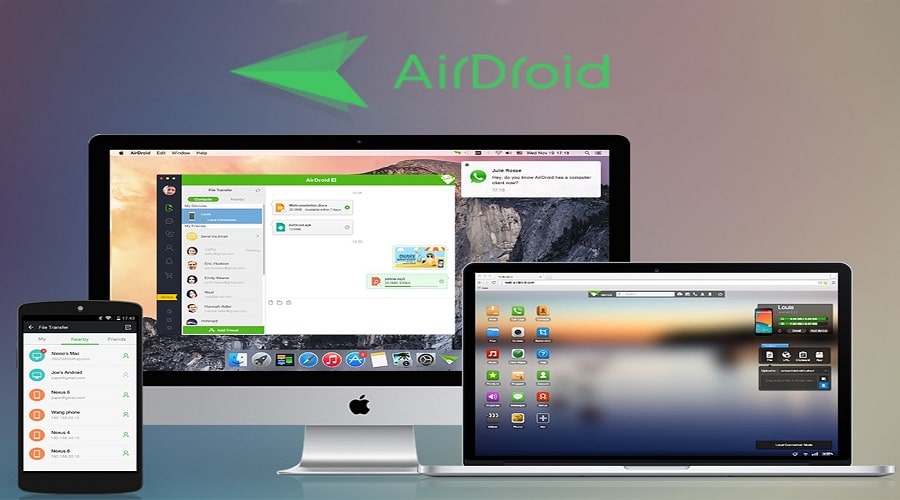
AirDroid is like a more powerful version of the Your Phone app. It gives you desktop access to most of the important features of your Android phone. The most important thing is that you don't even need to create an account to use it. There is a free version of AirDroid, but you can also subscribe to the premium version to get even more features.
See also: PS5 Controller: How to connect it to your Android phone
The service offers desktop apps for Windows and Mac, but they aren't necessary since it works in any major web browser, on any platform.
AirDroid allows you to control your Android phone from a PC over the Internet or Wi-Fi, if both devices are connected to the same network.
Follow the steps below to control your Android phone with AirDroid:
- Install AirDroid on your phone.
- Open a browser on your desktop or laptop and go to web.airdroid.com. A page will load showing a QR code.
- Open AirDroid on your phone and tap the Scan at the top of the screen, next to AirDroid Web.
- Scan the QR code.
- Click Sign In (even if you haven't created an account).
- You are now logged in. You can access your phone's features through your PC's browser.
You can see your available apps and features on the left. Tools and information about your phone are on the right. At the top is a panel that you can use to search for apps, make calls, set notifications, and more.
AirDroid doesn't work with third-party apps, so you can't use Snapchat on your laptop. But that's the only major limitation.
You can make calls, as well as send and read text messages. There is also access to your phone's photos and videos, as well as stored music.
Additionally, there are many tools that connect your phone and desktop. You can wirelessly move data from your computer to your phone, enter a URL on your desktop and open the web page on your phone, and install APK files remotely.
3. Remotely access your Android phone from PC, with AirDroid Cast
For greater control, you can use AirDroid Cast, which lets you control your phone from your desktop.
To get started, you need to download AirDroid Cast for Windows or Mac, as well as the Android AirDroid Cast app on your phone.
- Open the apps on both devices.
- In the desktop app, you'll see a QR code. Tap the Scan, scan the code, then tap Start Casting.
- After that, you'll be logged in. AirDroid Cast only allows basic mirroring in the free version, but if you want full control via your Windows PC or Mac, you can upgrade for $3.49 per month.
Useful information: Android security: 4 easy ways to protect your Android smartphone
Unlike AirDroid, you can work with third-party apps on Cast , and you can also move files to and from your phone. Since the app mirrors your phone's screen, you need to keep the screen on to use it.
4. Control an Android phone from a PC, with Vysor
Vysor works in a similar way to AirDroid Cast. It is available for Windows, Mac, Linux , and Chrome OS. There is a free version and a subscription version. The free version is pretty good but has limitations.
Enable USB Debugging, install Vysor on your computer, and connect your phone. Everything happens automatically.
An app is being pushed to your Android device. If you want to uninstall it, you can do so by going to Settings > Apps & notifications.
Once the installation is complete, you will see your phone screen in a window on your PC desktop.
Anything that runs on your phone will be usable on the desktop.
Other ways to control your Android phone from PC
There are other apps that allow you to control your Android phone from your PC, such as MightyText, Pushbullet, ApowerMirror , and Scrcpy.
Source: MakeUseOf
