

Have you ever received an important SMS that you accidentally deleted while trying to archive it? You would definitely wish you hadn't done that. However, there is a way to recover deleted messages. One way is to use a phone data recovery software or create backups of all your SMS on Android to avoid the hassle. To do this, you can either use the default Google backup, or choose a third-party SMS backup and restore tool.
In this article, we will see how you can backup your SMS and restore them to your Android device.
Read also: How to send audio messages with Google Assistant?
- Back up SMS using Google Backup
Google offers an in-house SMS backup and restore feature . However, it comes with several limitations – for example, it’s not available on all Android devices , and you can’t control when Google should perform the automatic SMS backup, and the backup expires after 57 days .
However, it is the best option if you are concerned about privacy , as it does not involve the use of a third-party tool to backup and restore SMS.
See also: How to schedule text messages on an Android device?
How to backup messages to Google Drive?
- Go to Android settings.
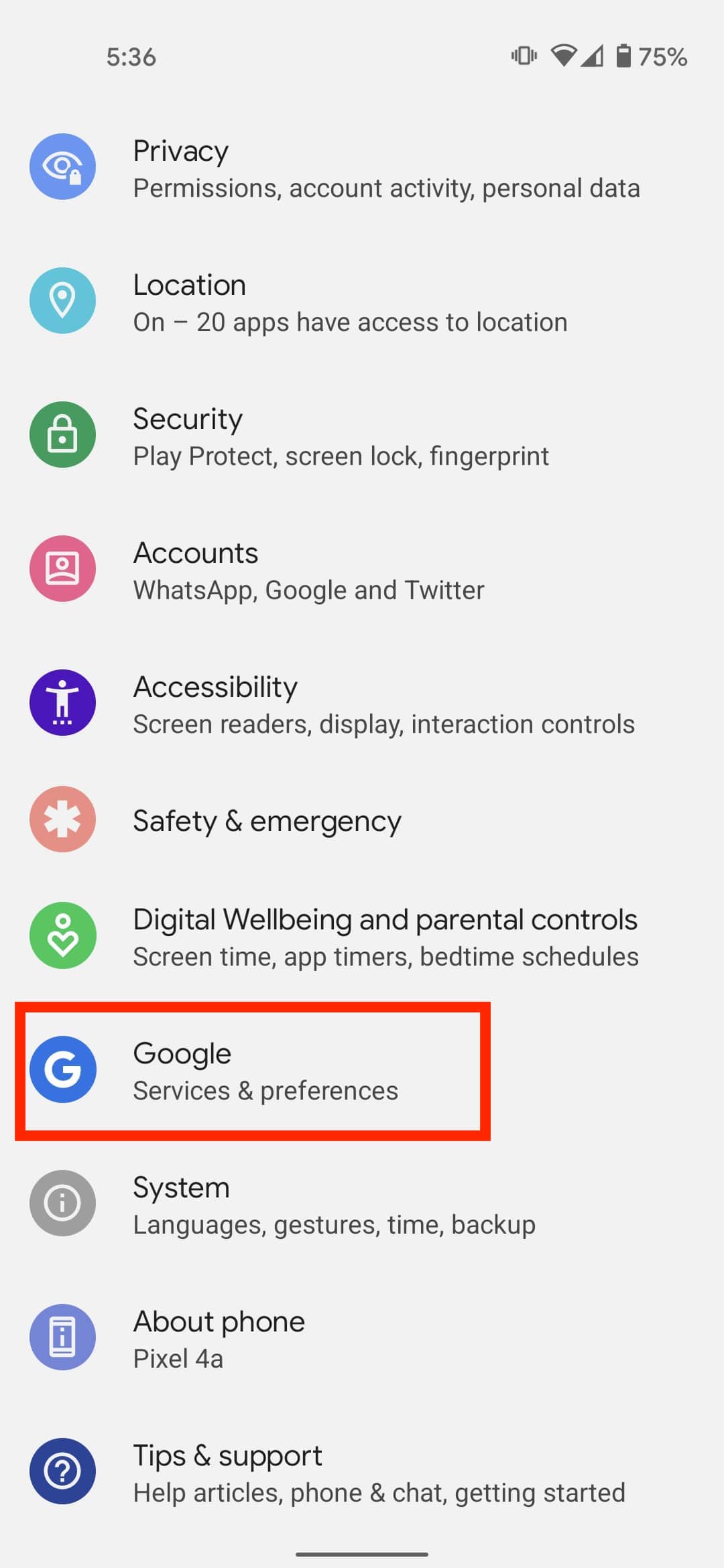
- Select Google > Backup.
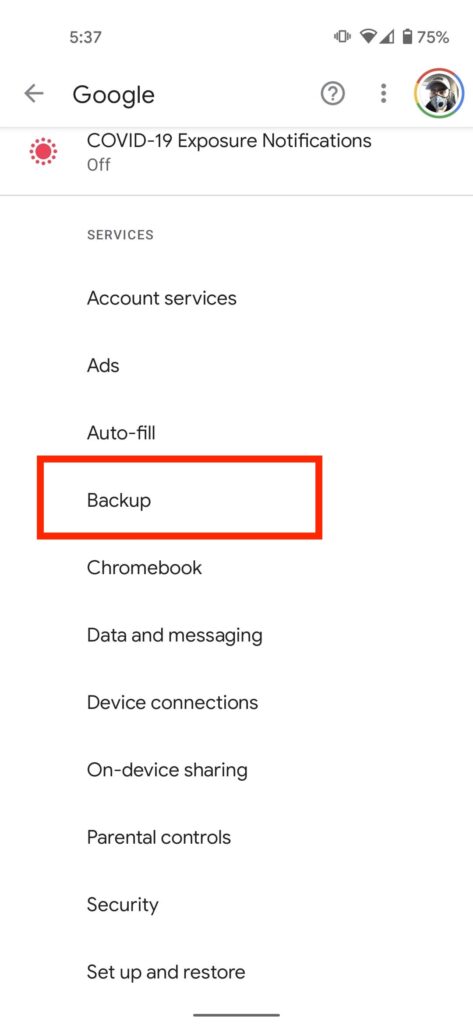
- Click on your device name and see if the backup includes “SMS Messages”.
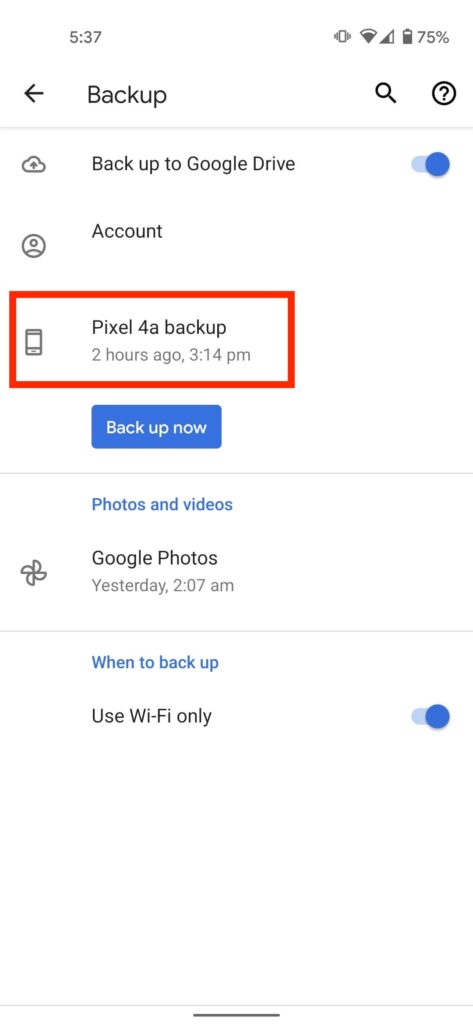
- Go back and click “Back up Now”.
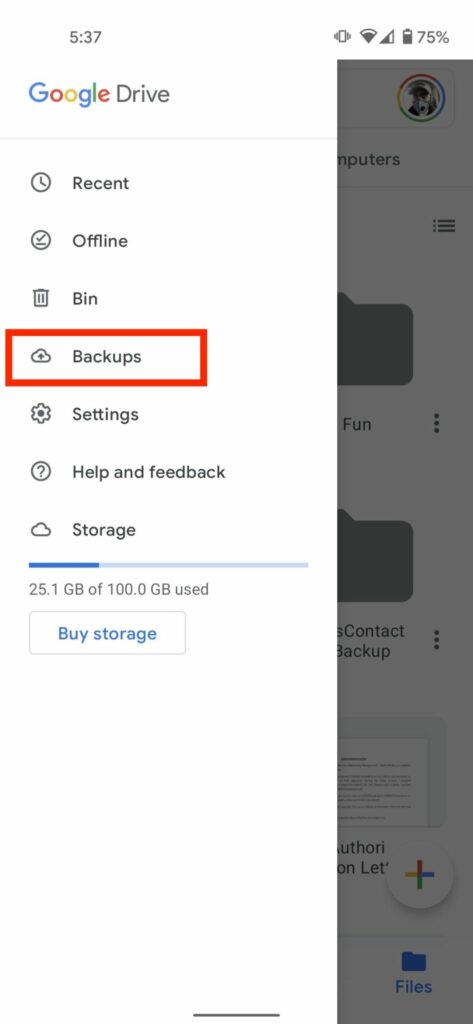
- Once the backup is complete, you will find it in the “Backups” of Google Drive.
Please note that you cannot restore SMS backup until you factory reset your device. Therefore, use Google backup if you are setting up a new Android device and want to restore messages.
- Creating SMS backups using a third-party tool
Another way to backup messages on Android is through a third-party tool . SMS Backup and Restore is a great option and is often recommended . One good option is Microsoft 's SMS Organizer . This is because it's not just an SMS backup tool on Android. It's primarily an SMS app known for its intuitive message organization.
Of course, if you are satisfied with the default Google Messages app or any other SMS app, you can always use SMS Backup and Restore Android app to save messages.
Suggestion: iPhone/iPad: How to automatically delete old text messages
However, now we will see how you can backup messages using SMS Organizer:
- Go to the SMS Organizer application
- Tap on the menu icon in the top right corner
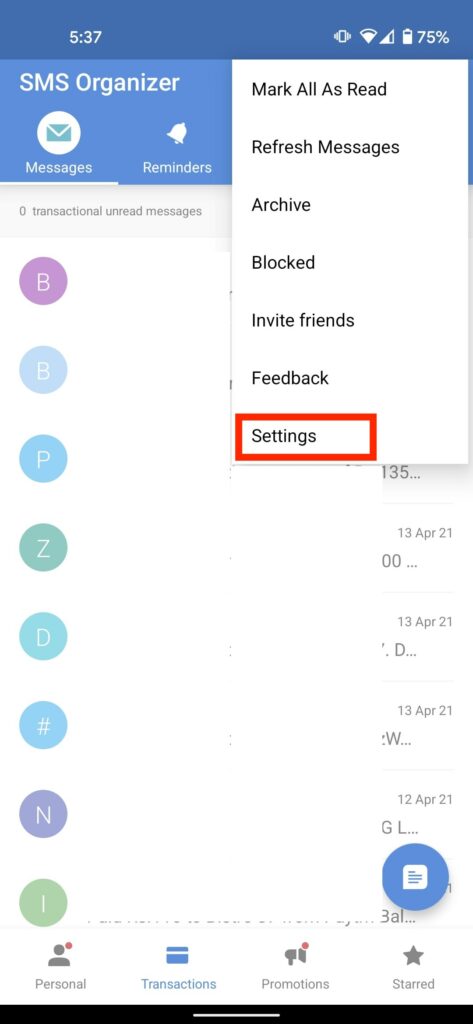
- Select “Settings”
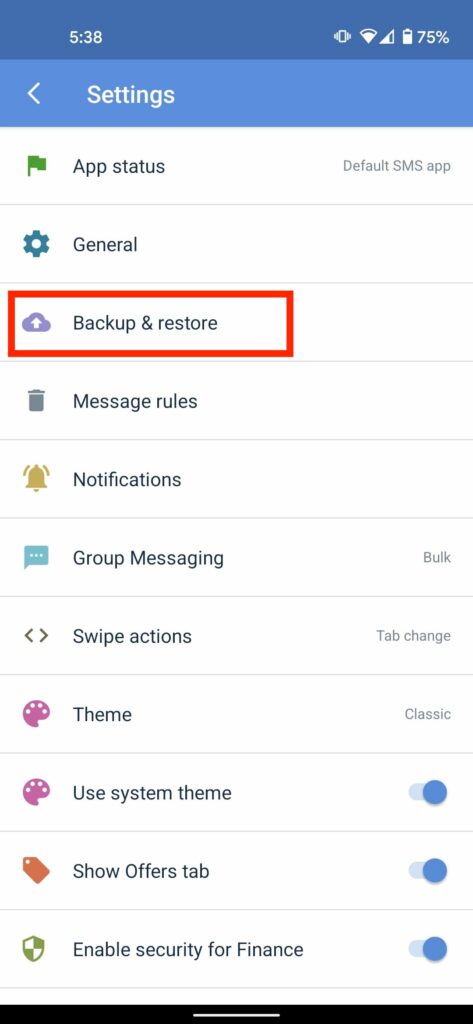
- Click on “Backup & restore”
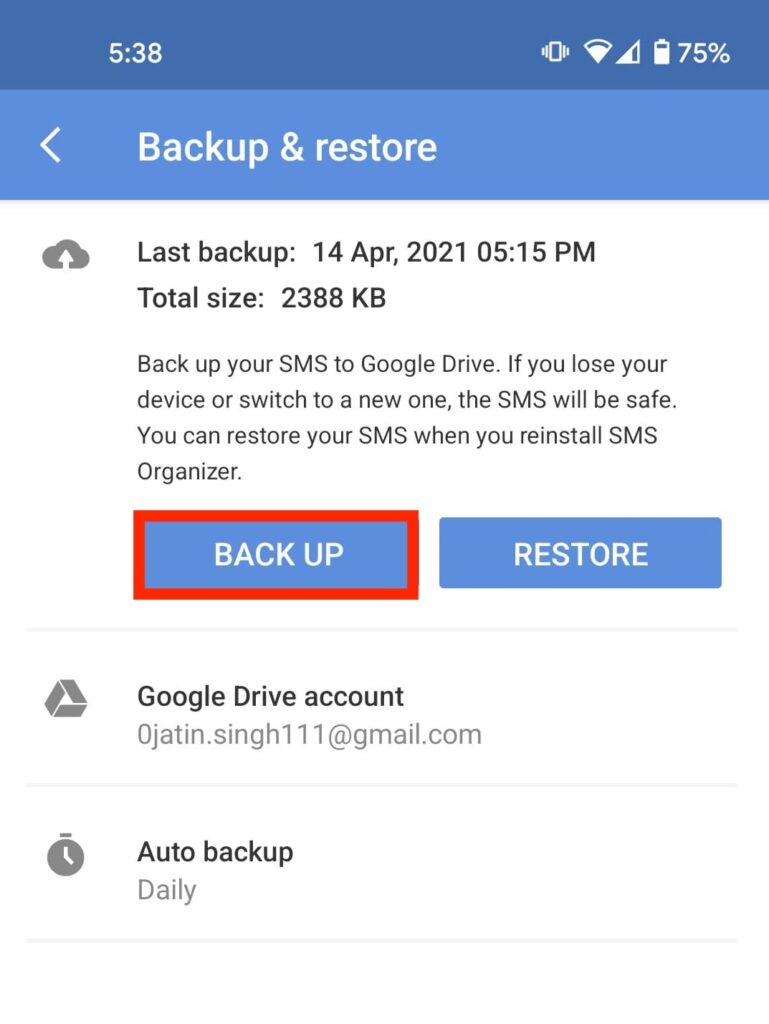
- Select “Back Up”
- Tap on “Auto Backup” and set the SMS backup to run daily, weekly, or monthly.
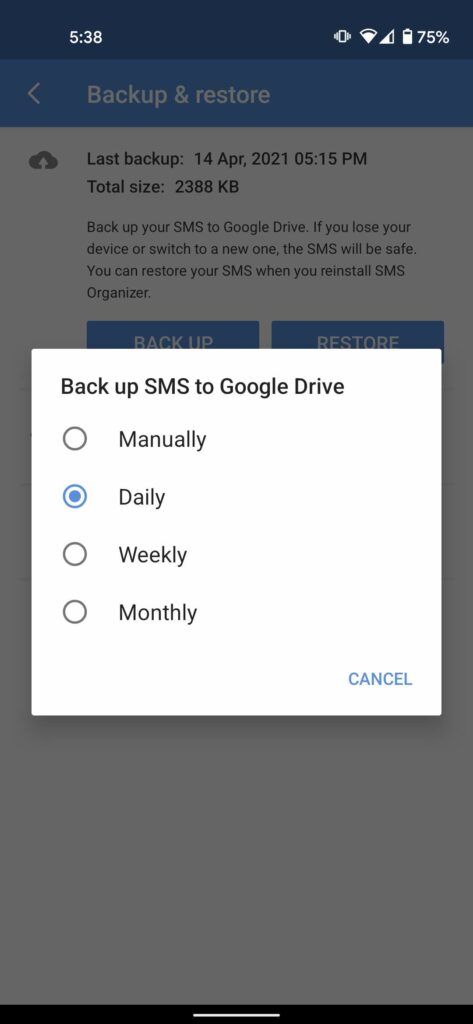
If you want to restore messages to a new Android device, simply install the app > Log in to your account and select “Restore”. Unlike SMS Backup and Restore, SMS Organizer does not have the option to backup SMS by the hour or set a specific time for automatic backup. Both apps are effective for backing up your SMS on Android.
Information source: fossbytes.com
