

By default, your iPhone and iPad store every iMessage and SMS text message you receive. As a result, you could end up storing your messages in iCloud, which would take up valuable space. Fortunately, there is a way to automatically delete old text messages. See how.

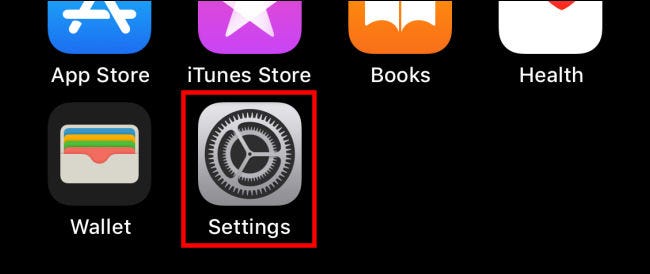
First, open “Settings” on your iPhone or iPad.
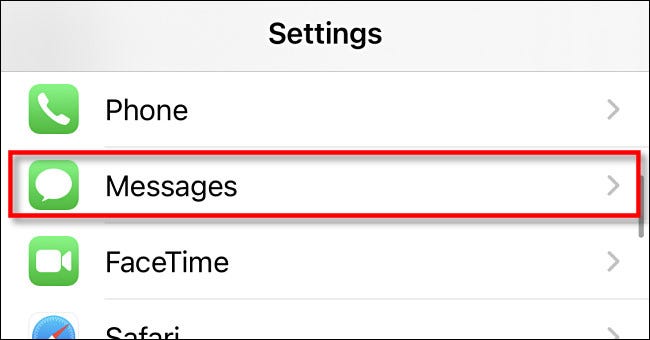
In “Settings”, tap “Messages”.
In the “Messages” section, scroll down and tap “Keep Messages”.
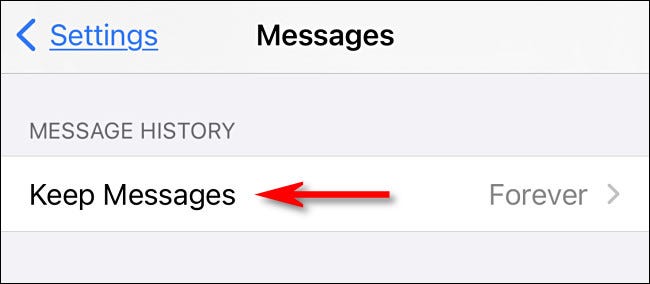
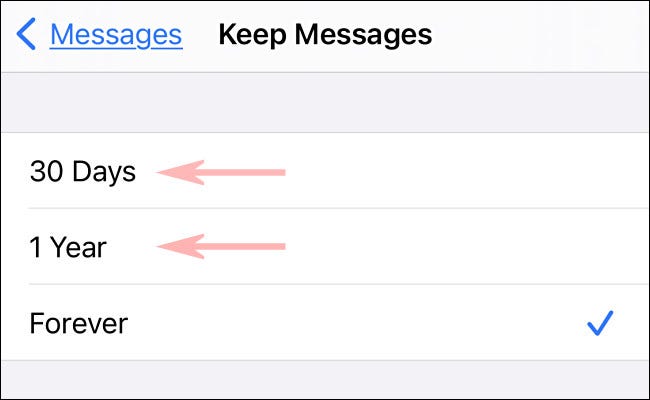
By default, Messages is set to keep SMS text messages and iMessages forever. Tap “30 Days” or “1 Year” depending on how long you want to keep your old messages.
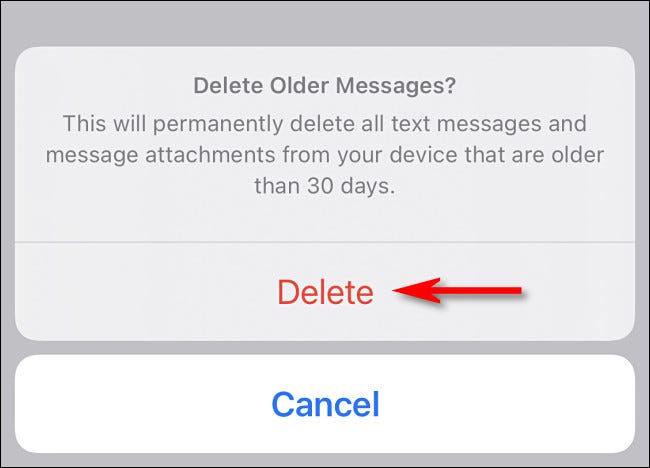
After you tap “30 Days” or “1 Year,” a pop-up dialog box asking if you want to delete all messages older than the time period you selected. If you are sure, tap “Delete.”
Warning: After you tap Delete, your iPhone will automatically delete all text messages older than 1 year or 30 days, whichever you choose. You won't be able to restore them.
After this, exit Settings. From now on, Messages will automatically delete any messages once they reach 30 days or 1 year, depending on the option you have selected.
Information source: howtogeek.com
