

By default, when you use the Search feature in the Finder, it has a habit of searching your entire Mac instead of just the current folder. Fortunately, you can make the Finder always search the current folder by changing a setting on your Mac.

When Finder uses the default setting, you have to navigate to the current folder from the top toolbar every time. This can be quite annoying.
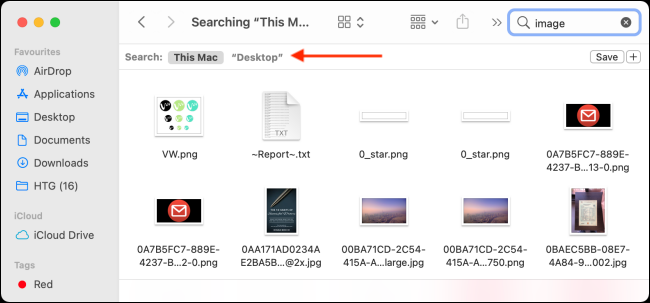
You can change this behavior from Finder preferences.
See also: Mac: How to take a screenshot without a keyboard
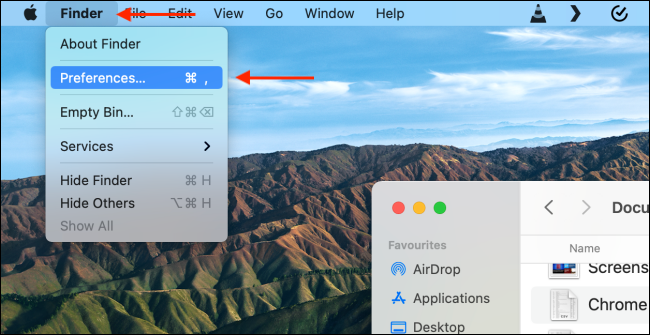
First, open the Finder app. You can click the Finder icon from the Dock, or you can use the Spotlight Search feature.

Then, from the top left corner of the screen, select the “Finder” button from the menu bar. Then, select the “Preferences” option.
Go to the “Advanced” tab from the top.
See also: Mac: How to take a screenshot with the mouse cursor visible

Here, click the drop-down menu under the “When Performing a Search” setting and select “Search The Current Folder”.
See also: How to delete the hidden download log on your Mac

And you're good to go. The next time you go to a folder in the Finder and start searching, the current folder will be searched by default.
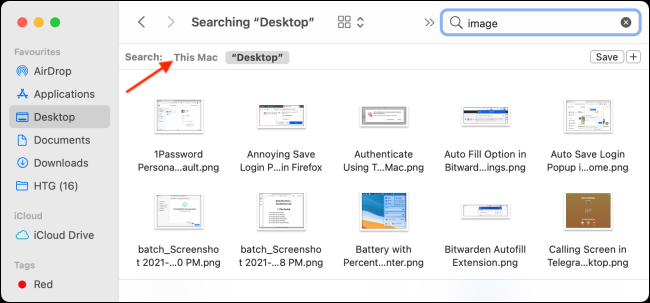
If you want to search all directories, simply select the “This Mac” option from the search toolbar.
Information source: howtogeek.com
