

Microsoft released Windows Terminal Preview v1.5 this week which comes with some useful improvements, such as full support for clickable hyperlinks, command palette improvements, emoji icon support, and more.
If you're not familiar with Windows Terminal, it's an open-source application developed by Microsoft that allows you to open multiple console tabs in the same Windows. Each of these console tabs can be for different shells, such as the Windows Command Prompt, PowerShell, Linux shells installed in the Windows Subsystem, or custom shells installed by the user.
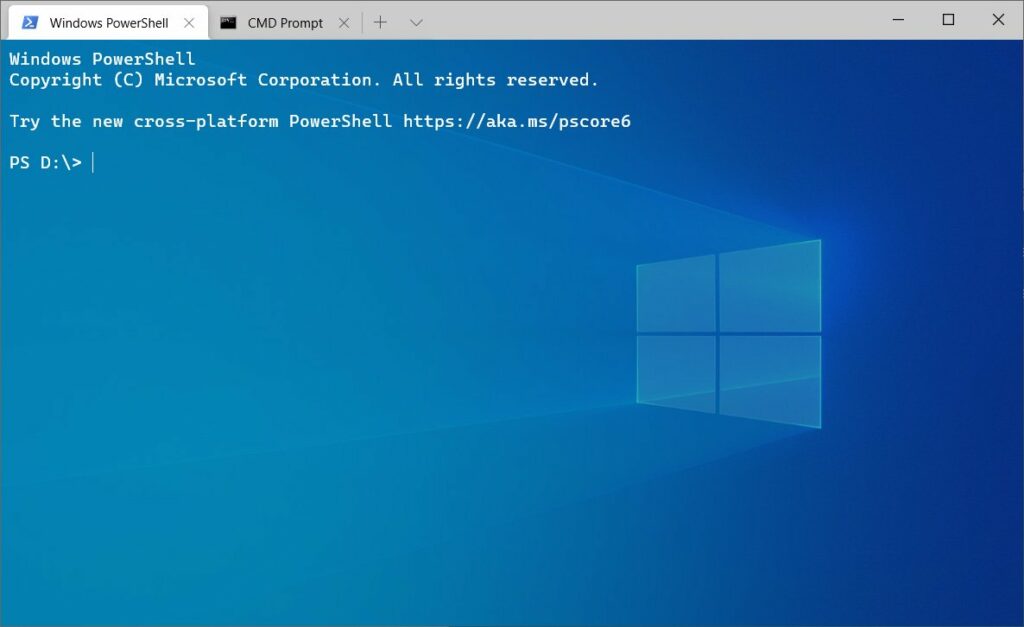
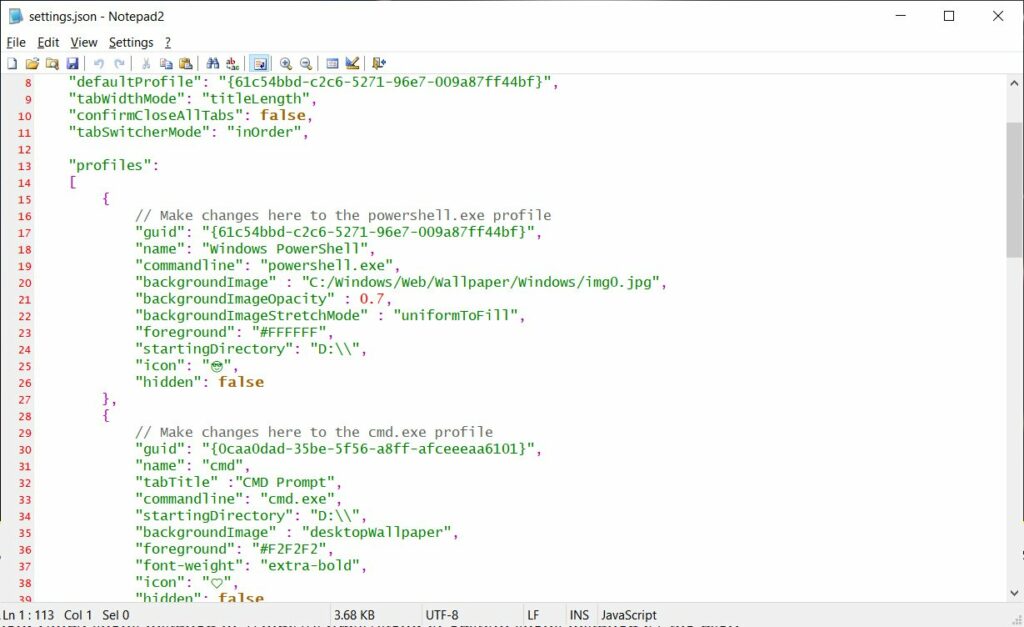
In the current version of Windows Terminal 1.5, you need to modify a settings.json file with a text editor to change any of the application's settings.
Microsoft starts testing a new GUI in Settings
Starting with Windows Terminal Preview 1.6, which was released two weeks ago, Microsoft is testing a feature that lets you configure the application's settings using a hidden graphical user interface.
To open this hidden “Settings” GUI interface, you need to add a shortcut for the “openSettings” command like the one mentioned below. While we chose to use the Ctrl+Shift+S combination, you can use any combination you want.

When you're done, the keybinding section of settings.json should look like the one below depending on what other keys you've added.

When you save the settings.json file, Windows Terminal Preview will automatically start using the changes.
Now you can press Ctrl+Shift+S to launch a Settings GUI that allows to configure all general application settings for Windows Terminal.
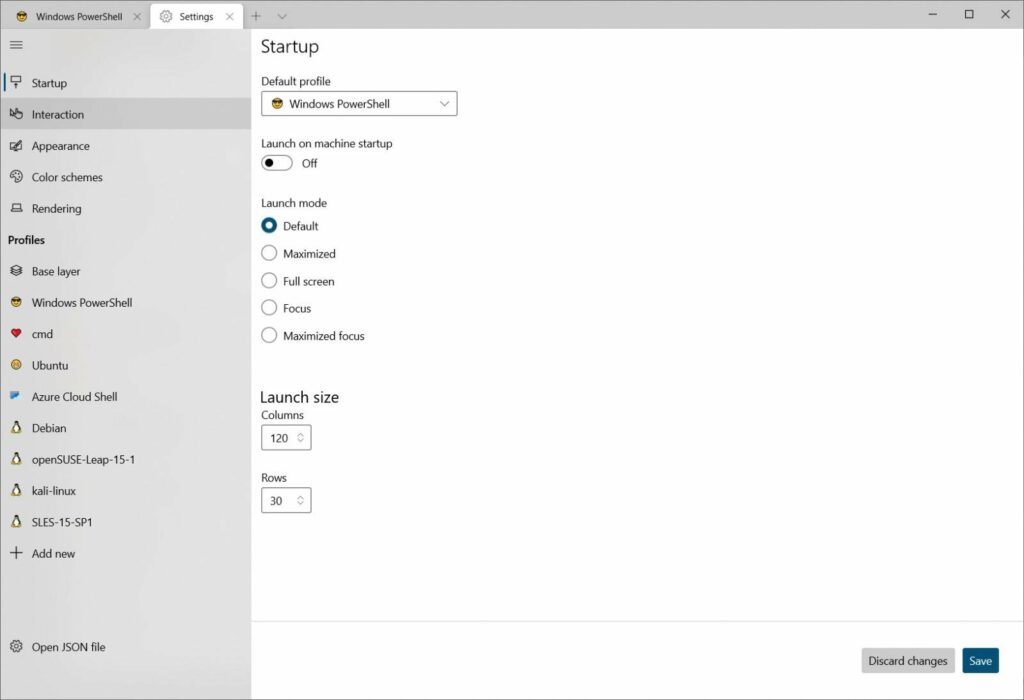
You can also add new profiles or configure existing ones, including appearance and advanced settings.
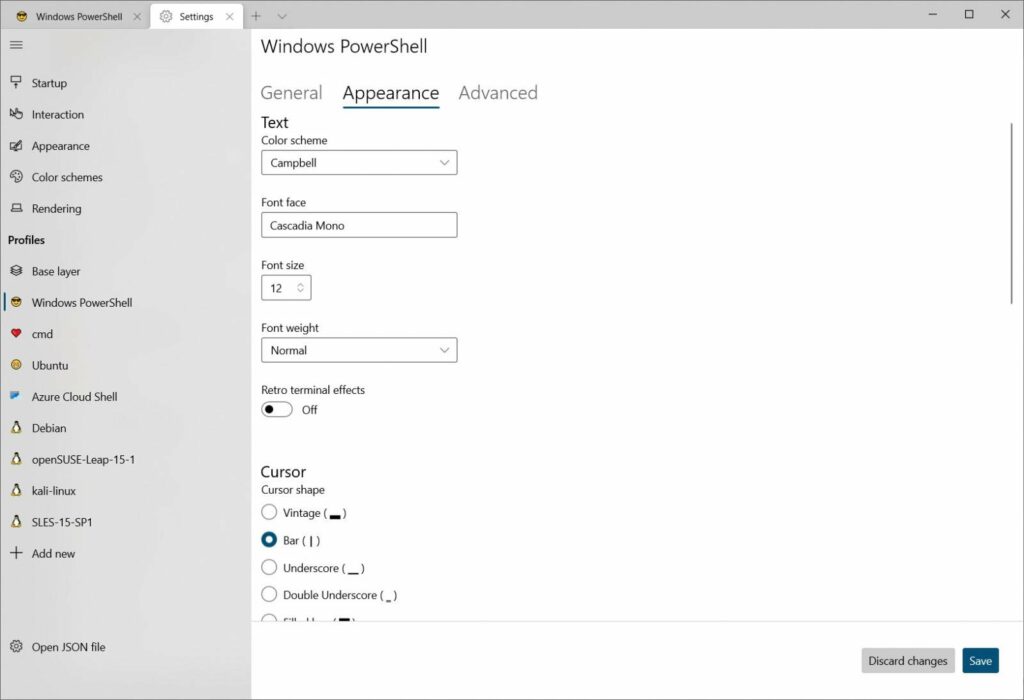
In the past, configuring Windows Terminal required a bit of fiddling by the user to see what worked and hoping that a saved settings.json file wouldn't cause errors.
With the new Settings GUI, it's much easier to configure Windows Terminal and configured profiles . It also opens up the utility to less experienced users who don't necessarily want to "play" with a JSON file.
Information source: bleepingcomputer.com
