

Transferring files from computer to computer can be done quickly and safely without losing any data in the process. There's nothing more exciting than getting a powerful new computer that lets you do your work with ease, run new applications, and play games with incredible speed. However, there's nothing more daunting than realizing you have to transfer all your files from your old computer to your new one.
There are several ways you can transfer your data. Let's look at some of them below:
Manual file transfer
If you're a hands-on type, one of the simplest ways to load up your new computer with all your files is to transfer them manually. There are two ways to do this.
For starters, connect your old computer to a USB flash drive or external hard drive, which can typically cost anywhere from $30 to a few hundred dollars depending on the storage space, speed, and functionality you need. Simply copy your files to the external drive ,remove the storage device, connect the storage device to your new computer, and then reverse the process to load the files onto it. Tip: Some computers have eSATA ports that are designed specifically for external hard drives and transfer data even faster than USB ports.
If you don't want to buy an external hard drive, you can also move and store your files in the cloud — using an internet-like Microsoft OneDrive, Google Drive, or Dropbox. Again, just upload files from your old computer to the cloud service, then download them to your new computer. These services are often free for a small amount of storage, then charge a monthly subscription as your storage increases.
Use a transfer cable
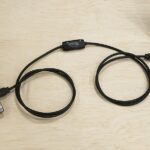
If you find that using your cloud storage is taking longer than you expected, or if you want to avoid a monthly cloud service subscription, an alternative option is to move your files with a transfer. The cable plugs into a port on both your new and old computer. The cables come with software that automates the file transfer when upgrading from an older Windows 10, 8.1, 8, 7, Vista, or XP computer to a newer computer. A transfer cable works faster than an external hard drive, as the old computer is connected directly to the new one, eliminating the middleman (the external drive).
Use Do-It-All Software
Older versions of Windows offered a service called Easy Transfer that allowed users to easily move files between computers. Unfortunately, this was discontinued with Windows 10.But fear not: Microsoft has partnered with vendor Laplink PC Mover to offer the functionality that Easy Transfer offers. PCMover Express transfers data and settings from computers running Windows XP to computers running Windows 8.1 or later. The service costs around $15. PC Mover Professional costs more, but it lets you transfer your applications too.
This approach can be expensive, but it automates processes and can guide you to ensure you don't overlook files that may be in unknown folders on your old computer.
Other operating systems: Transfer files from Mac to PC or PC to Mac
You can manually transfer files between your Mac and PC in the same way you move them between computers with external drives, cloud services, or home networks. Or, you can let Mac OS X Lion do the transferring for you.
Keep your old data protected
After you transfer your files, you should keep your old computer in your possession for at least two weeks in case you missed any files and remember later. However, if you want to sell or give away your old computer, make sure you remove all data and personal information. Simply transferring the files won't do it. Even deleting files or formatting the drive can still allow experts to recover information you don't want them to have, like your banking information or old emails. Fortunately, free data destruction programs, like Darik's Boot And Nuke (DBAN), can erase everything on your old computer, ensuring that you leave no trace (of data) behind.
Stay protected: Back up new material
Now that you've gotten used to moving files from your old computer, it's a good time to keep a backup in case you need to restore those files again. Windows 8 and above provide a handy feature called File History that allows you to automatically back up files to an external hard drive.
If you have a Mac, you have a variety of options and platforms for backing up your data, from iCloud to programs like Time Machine, depending on the version of OS X you're using.
Remember: While there are many easy ways to transfer and share data, you can only move the data you have access to, so make sure your documents, photos , and other valuable data remain protected even if your computer is lost or damaged.
