


Google Chrome Password Manager lets you save usernames and passwords and automatically use them to log in to sites you visit. But how do you take your saved passwords with you when you switch to and from Chrome? The following guide can help you with the process of importing, exporting, and backing up your passwords in Google Chrome.
With increased breaches data and credential stuffing attacks on the rise, it is more important than ever to use unique and strong passwords on every site we visit.
Many users turn to their web browser and use it as a password manager and to save passwords as they log in to sites. As Google Chrome is the most popular browser in the world, it is important to understand how you can manage the import and export of saved passwords in the browser.
Passwords should be stored in a secure location in case of an emergency.
How to import saved passwords into Google Chrome
Switching from another browser to Google Chrome: You can import saved credentials from Internet Explorer or Firefox.
To import saved passwords from these browsers, follow these steps:
1.Open Chrome, type chrome://settings/importData in the Google Chrome address bar and press enter.
2. You will see a screen asking which browser you want to import your bookmarks and settings from. From the drop-down menu, you can import saved passwords from Internet Explorer and Mozilla Firefox.
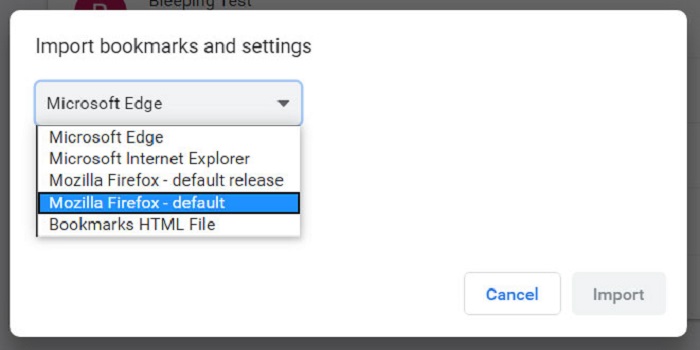
Select the browser from which you want to enter the codes.
3. A screen will now appear asking what data you want to import. Uncheck everything except “Saved Passwords”, as shown below.
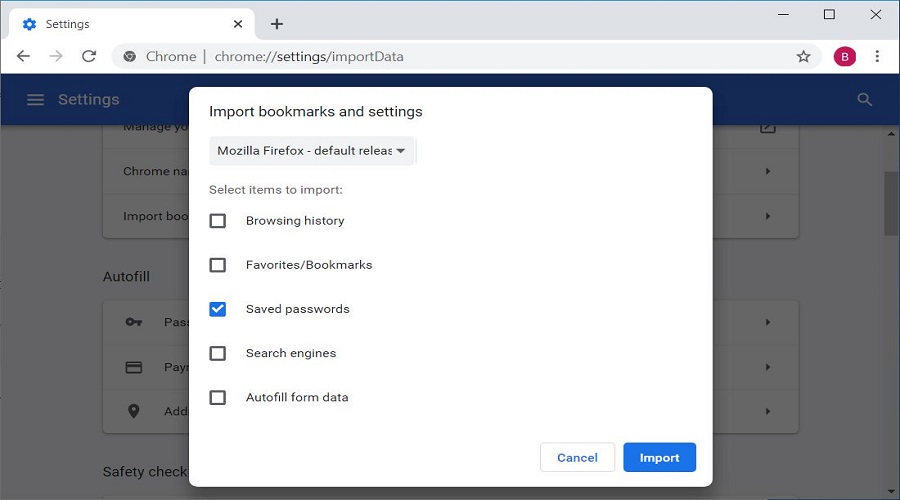
4.Now click on the “Import” button and the saved passwords will be imported. If the browser you are importing passwords from is open, you may be asked to close it.
5.To access your imported passwords, open Chrome Password Manager by typing chrome://settings/passwords in the address bar and pressing enter.
The passwords will appear in the “Saved passwords”.
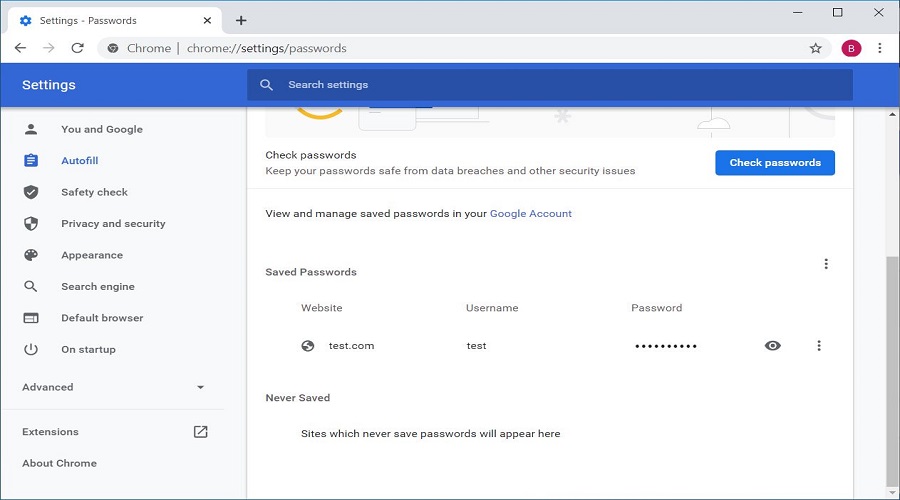
6.Now you can close Chrome or continue using it.
How to export and backup saved passwords in Google Chrome
If you want to export your saved passwords from Google to create a backup or to import them into another program, you can export them as a CSV file.
To export Google Chrome passwords, follow these steps:
1.Open Chrome, type chrome://settings/passwords in the address bar and press enter.
2.You will now be in Google Chrome Password Manager.
Above the “Saved passwords” section, click the Chrome menu and select “Export passwords…”, as shown below.
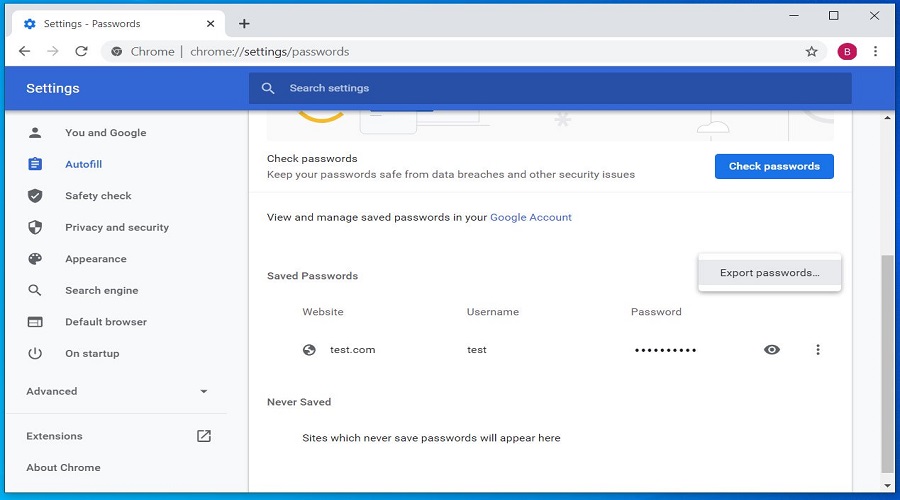
3. Now a screen will appear asking if you are sure you want to export the passwords. Click on the “Export passwords …” button to continue.
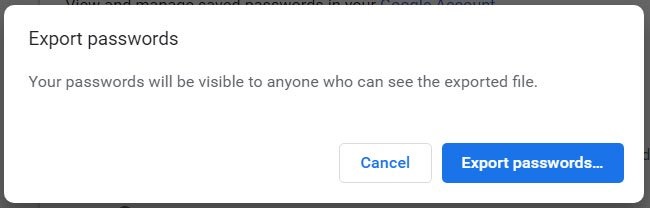
4.If you are using Windows 10, a final authentication message will appear asking you to enter your password or PIN.
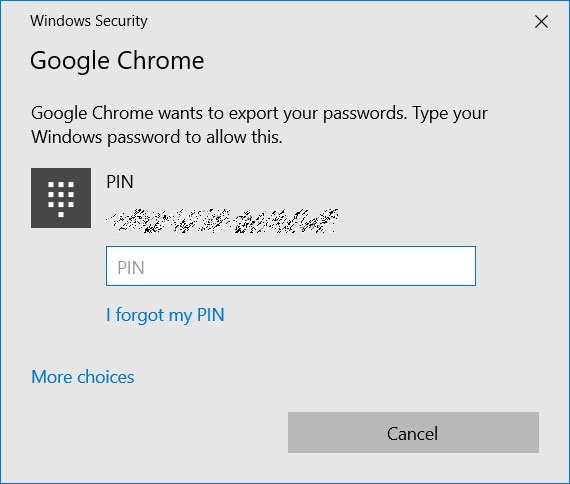
5. Once you authenticate to Windows, a “Save As” dialog box will appear. Select the folder where you want to save the “Chrome Passwords.csv” file
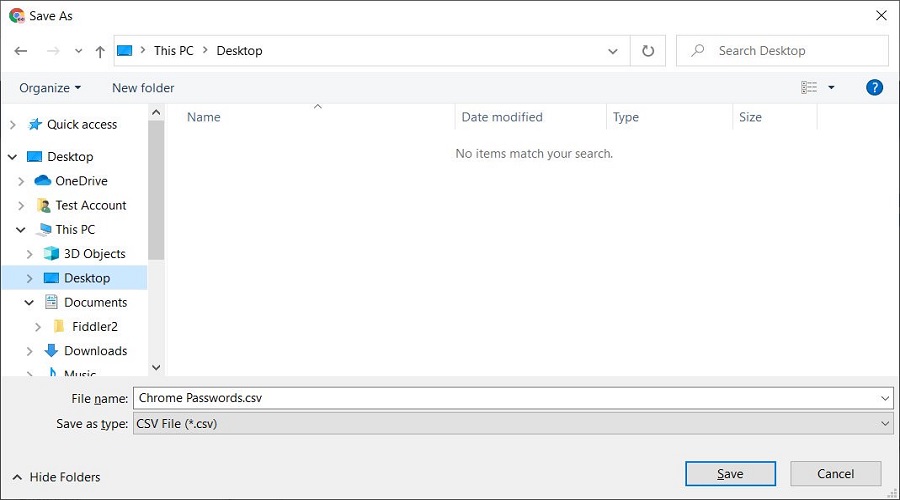
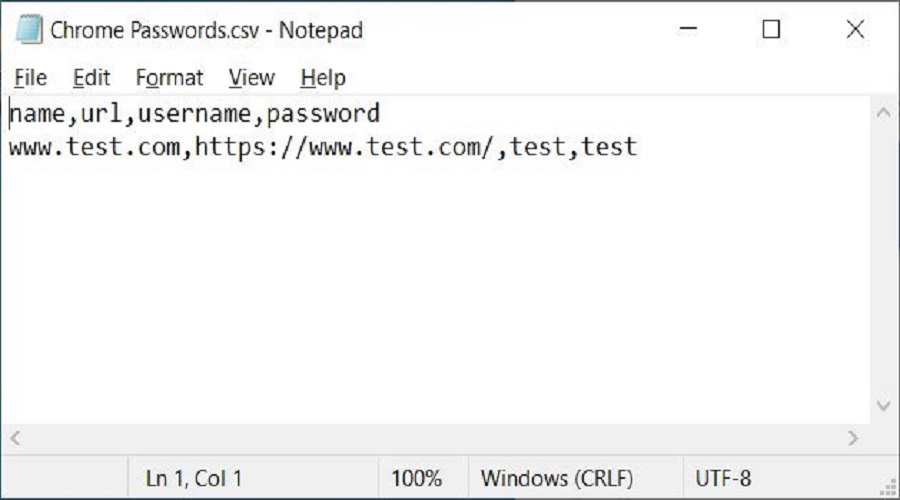
6. The passwords will be saved in the CSV file “Chrome Passwords.csv”. You can now use the file to import your passwords into another program, open the file in Notepad to view the passwords, or print them to save them in a safe location.
7.Finally, you can close Google Chrome.
