

Every month, Microsoft releases new Windows 10 updates that are designed to fix security vulnerabilities, fix bugs and performance issues, and add new features. Unfortunately, due to coding errors, the size of Windows' user base, and the diverse hardware it's installed on, there are always bugs that are addressed after new updates are released.
Some of these errors, however, are critical, as they could "break" features, drivers, Windows, or the device itself if you have incompatible software or the update itself has failed.
For example, a recent Windows 10 update for the November 2019 Update and May 2019 Update computers are causing BSOD screen and data loss.
Others reported a wide range of issues, including broken Bluetooth, internet connection problems, reduced performance, freezing and installation issues, and more.
Even worse, in February 2020, Windows 10 KB4532693 was released to fix security issues with Edge and other core components, but several users encountered a file deletion error caused by an incorrect user profile.
Fortunately, Microsoft allows Windows 10 Home, Pro, and Enterprise customers to control when and how Windows 10 installs monthly and semi-annual updates. If a driver or update is causing problems, you can delay the updates, or you can uninstall it and block Windows from downloading it again.
However, we recommend that you immediately install the updates announced by Microsoft on Patch Tuesday.
In this guide, we'll walk you through the steps to check and manage Windows updates to delay or block a specific update that doesn't suit your device or until you know the update isn't causing any problems.
Method 1: Pause updates
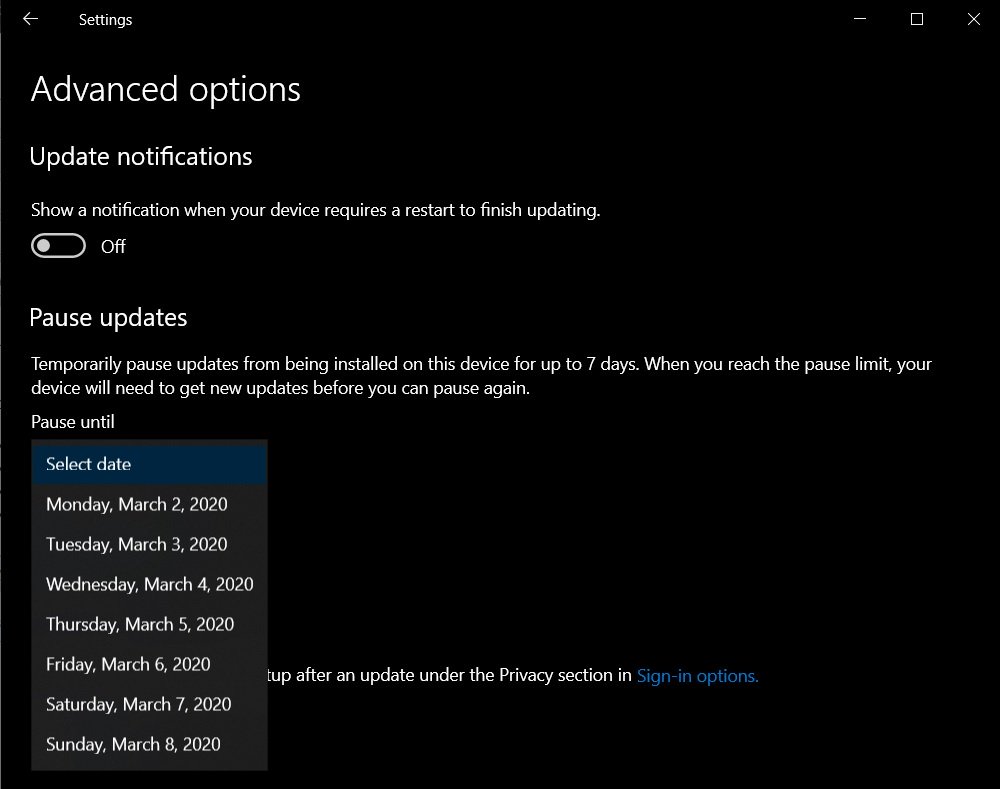
For those who want to pause new updates until you know they're not problematic, Windows 10 Home, Pro, and Enterprise users can do so through the Settings app.
For Windows 10 Home users, the pause feature only works for 28 days and 7 days in the preview build. On the other hand, Windows 10 Pro and Enterprise users can delay the update for more than 28 days via the Settings app and Group Policy.
To pause updates, follow these steps:
- Open Settings.
- Go to Update & security.
- Click 'Choose Advanced options'.
- In the "Pause updates" section, select a date in the "Pause until" section to prevent updates from being installed until that day.
Method 2: Uninstall Windows updates with Settings and Control Panel
- Open the Start menu
- Click the gear to open Settings.
- In Settings, go to Update & security.
- Click on “View Update History” or “View installed update history”.
- Click on “Uninstall updates” and a screen will appear with the list of recent Windows updates.
- After you identify the update you want to uninstall, select the update and click the "Uninstall" button.
- When prompted, click "Yes" to confirm that you want to uninstall the update.
- A restart may be required to complete the process, so be sure to save your work before restarting Windows.
Method 3: Block a specific update
If a specific update is causing problems on your device, you can pause it with Microsoft's "Show or hide updates" troubleshooter.
You can download and run the “Show or hide updates” troubleshooter. After downloading the app, launch it and hide the update you don’t want to reinstall.
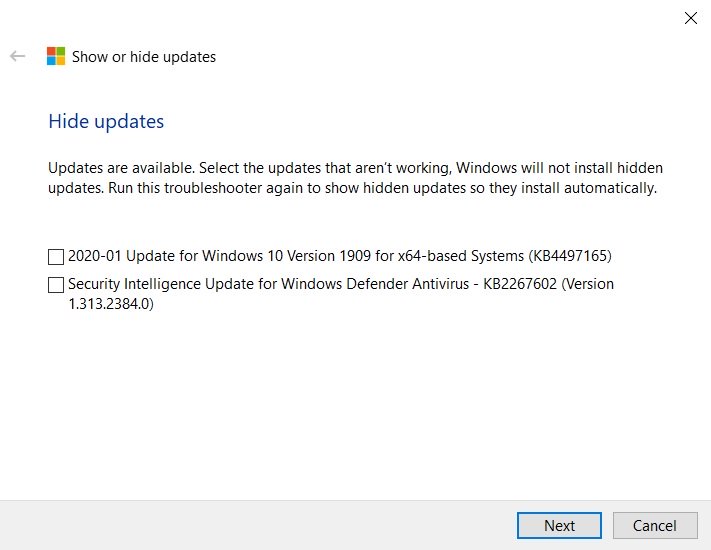
This feature only works when you have uninstalled the update, as highlighted in the third method.
