

YouTube subscriptions make it really easy to keep up with your favorite channels on your favorite video site. Notifications make sure you never miss a video, but the process of searching through your older videos can be quite tedious if you're looking for something specific. Since YouTube doesn't offer users a way to search for subscriptions, but instead allows them to search the entire site, today we're going to suggest a handy solution to make your job easier.

To search for your YouTube subscriptions, you will need to use an RSS feed and an RSS reader that has a search function. To find your RSS feed, go to the Manage Subscriptions page (click here or the Subscriptions heading in red on the left sidebar).
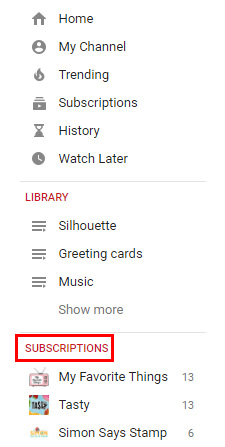
Once you reach the page in question, scroll down and click on Export Subscriptions.

This will save all your YouTube subscriptions to an XML file, which you can import into a searchable RSS reader. One RSS reader that offers this feature for free is InoReader, a fast and functional RSS reader that can really compete with Feedly.
To import an RSS feed into InoReader, go to Preferences –> Import/Export –> OPML Import. Click Choose File, navigate to where you saved the RSS export file, and press the Import. As you import your feeds, you will be able to move them to an existing or new folder. A handy feature that allows you to quickly and easily keep your feeds organized.
InoReader offers a variety of viewing options, but Card View is really impressive with videos, as you can see below:
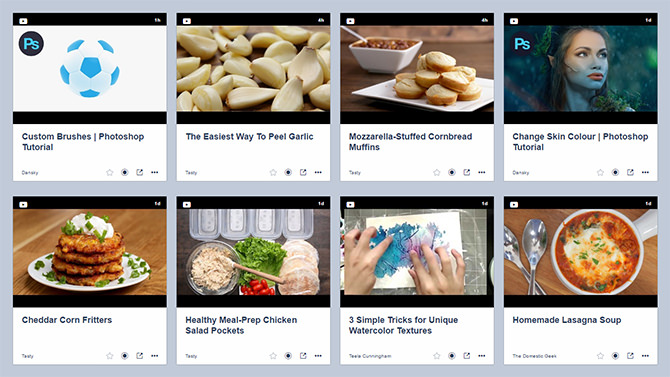
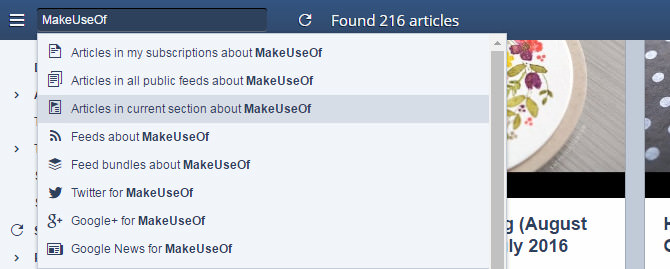
If you're using InoReader simply as a search function for your YouTube subscriptions, you can enter your search terms and select Articles in my subscriptions to limit results to articles or videos from websites or channels you've subscribed to.
If you are already using InoReader as your RSS reader, using this method means that your search results will include items from other folders, not just your YouTube subscriptions. To fix this, when performing your search, make sure you have opened the folder containing your YouTube subscriptions and selected Articles in current section.
If you already use Feedly and have the paid upgrade that comes with the search feature, you can import your YouTube subscriptions and then perform searches within your RSS folders, limiting the search to specific collections or tags.
