

Windows 10 immediately displays the login screen upon startup, requiring you to enter your password. This security feature is very useful on systems with multiple users to separate and protect each user's data.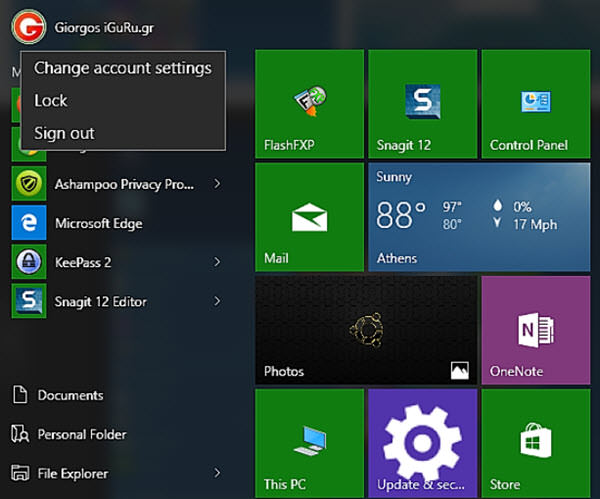
Of course, it also protects your data from any third party who gains physical (or remote) access to the computer.
However, if you only use the computer for yourself, and if there is no chance that anyone else will gain access, you may want to enable automatic log in. You may simply want to enable the feature because you find it tedious to type in your password every time your system starts.
Let's see how it goes.
Press the Win and R keys together. In the box that opens, type cmd and press enter.
The command prompt window should open.
Type the following command and press enter.
control userpasswords2
You may be asked for an administrator password.
Under “Users must enter a user name and password to use this computer”, uncheck it, and then click Apply.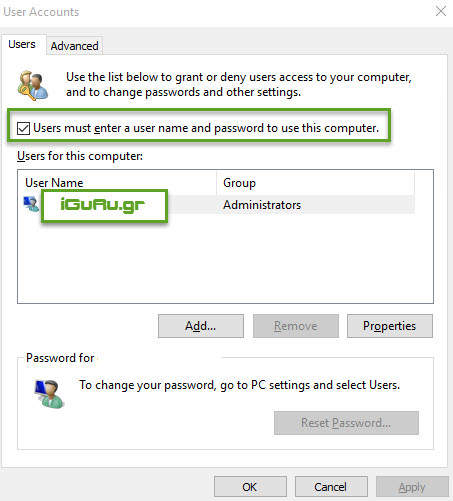
After Apply, you will be asked to re-enter the password for the user name account you just changed.
You can follow the same procedure as above for other users who have an account on the PC, if they all want to log in without a password.
Finally, restart your computer to make sure everything is correct.
If everything is correct, you will not be asked for a password again when you start your computer.
