

Upgrading the storage on your Mac isn't always easy, or even possible, so it's a good idea to know how much storage you have and how to free up more. Often, when you buy a Mac, its storage is all you'll have, although external drives and cloud are always an option.
See also: Apple expands Self Service Repair Program to M3 MacBook Pro and iMac
Luckily, checking your available storage space — and then freeing up space for the things you want to keep — is very easy to do. In this guide, we'll walk you through the process of checking your Mac's storage space.
How to check your Mac's disk storage space
Step 1: Select the Apple in the upper-left corner of your Mac screen, then select About This Mac.
Step 2: Select the Storage. This will show how much of your Mac's storage space it's taking up, divided into color-coded sections. If you hover your mouse over each one, your Mac will tell you how much space that section is taking up.
See also: Apple “Scary Fast” event: New M3 chips and Mac computers
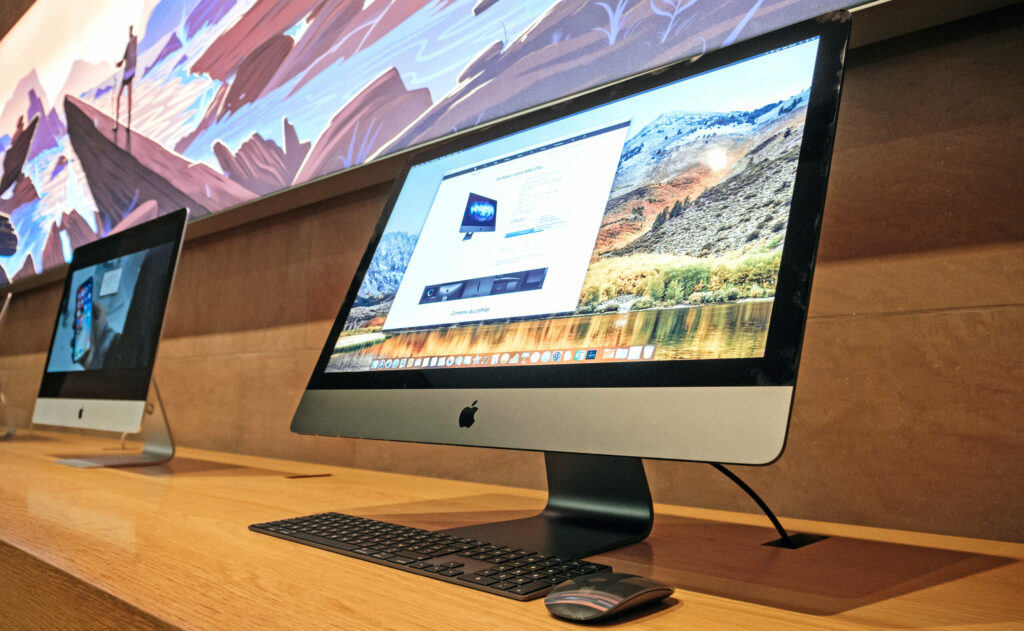
Step 3: Use it to find out what's taking up the most storage space on your Mac and whether you can delete some files from that section to free up space. For example, if your Applications is too big, you could try deleting some apps. To do this, open the Finder and select Applications in the left sidebar. Select the View by Icon at the top, then select the Size to sort your apps from largest to smallest. This way, you can figure out whether you want to keep the most demanding apps installed — the ones you don't want can be moved to the Trash.
See also: How to install WhatsApp on your Mac?
Step 4: Note: If you have divided your Mac's drive into multiple APFS or HFS+ partitions , or attached external hard drives, they will also appear in About This Mac as separate drives, each with its own storage breakdown.
Source: digitaltrends
