

Nowadays, smartphones (iPhone and Android) are used for almost all our tasks: for work, for communication, for entertainment, for taking photos and videos , and much more. In fact, phone manufacturers have put special emphasis on systems camera smartphone , resulting in them replacing cameras.
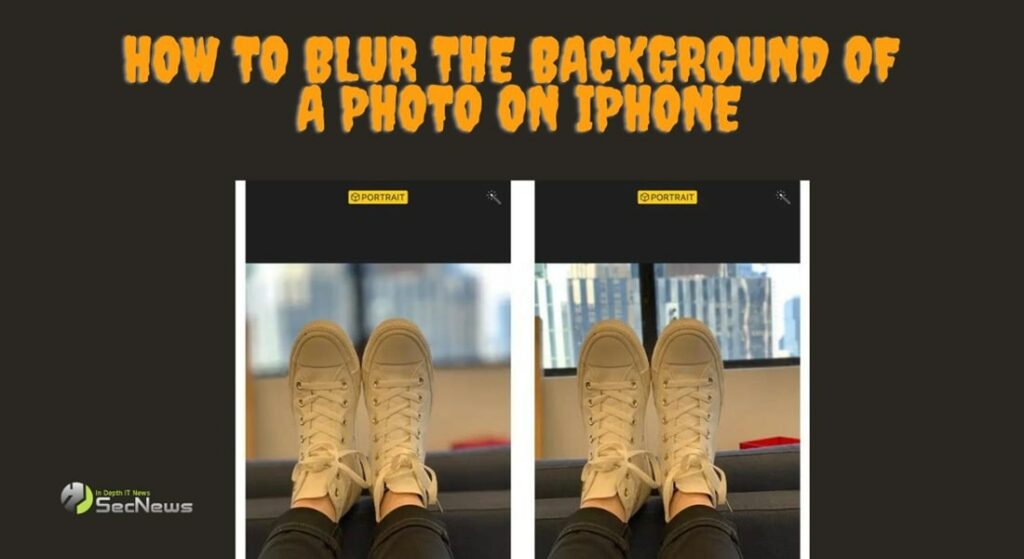
Apple and Android software developers are also taking advantage of the computing power of today's powerful smartphones to introduce new, more powerful image editing features that were once only available on computers.
See also: Stolen Device Protection: New security feature for iPhones
In 2016, Apple introduced Portrait mode with the iPhone 7 Plus. This allowed users to create an effect known as bokeh. This effect mimics the use of shallow depth of field on an SLR camera. Essentially, it blurs the background of a photo and allows the main subject of the photo to be seen more clearly. Until recently, this effect was only available for photos taken in Portrait mode on the iPhone. However, if you have one of the new models, iPhone 15, 15 Plus, 15 Pro, or 15 Pro Max, you can add the Portrait Blur effect to photos taken even in regular Photo mode.
In this guide, you will see how you can blur the background on previous iPhone generations and the new iPhone 15 series.
See also: iPhone: The Myth of 'Unlimited Battery'
Background blur in portrait and photo mode
Most recent iPhone models support Portrait mode and effects. Check website to make sure yours supports Portrait mode. If phone does, the best way to access its features is to select Portrait mode before taking the photo.
After taking a portrait, select it in the Photos and click “Edit.”
You can adjust the level of blur on the background. Lower numbers (on the left or bottom) will increase the blur. The white dot shows what the original photo looks like.
See also: Apple fixes zero-day vulnerabilities in older iPhones
If you have an iPhone 13 or later, you can tap anywhere in the photo to set a new focus point.
If you have one of the new iPhone 15 models , you can apply the bokeh effect to photos taken in regular Photo mode , provided they have a person, dog, or cat as the subject. Simply open the photo in the Photos app , tap “ Edit ,” and select “ Portrait .” You’ll then have the option to blur the background by following the instructions above.
Blurring the background gives depth to the image and makes the photo much more interesting. Follow the instructions above to edit your images on iPhone.
Source: www.slashgear.com
