

Excel makes it easy to perform basic mathematical operations, which include division. You can divide numbers in a single cell, across multiple cells, or even entire columns. Since there is no DIVIDE function in Excel, you will need to use a simple formula.
See also: How to insert today's date in Microsoft Excel

See also: How to import data from a PDF into Microsoft Excel
Divide numbers in a single cell
You can divide numbers in a single cell by entering a simple formula. Open Excel and select the cell where you want to enter the formula. Once selected, enter this formula:

Replace a and b with the numbers you want to use. So, if you want to divide 100 by 4, you would enter:

Note that you must type the equal sign (=) at the beginning of the formula, otherwise Excel will interpret your input as a date.

Press "Enter" and the result will be displayed.

Divide numbers from multiple cells
If you have data in multiple cells, you can enter a simple formula in a blank cell to get the quotient. For example, let's say you have 100 in cell B2 and 4 in cell B3, and you want the quotient of those two numbers. In a blank cell, type:

This formula will pull the data from each cell for calculation. Press "Enter" and the result will be displayed.

See also: Microsoft Excel: How to create a data entry form
Divide a column of numbers (by a fixed number)
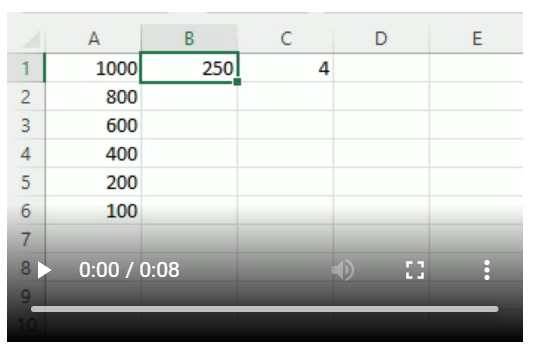
You can divide a column of numbers by a number in a different cell. For example, suppose cells A1-A6 each contain a number, and you want to divide them by the number contained in cell C1.

First, select cell B2, where the output of the first formula will be. In B2, enter this formula:

Press "Enter" and the result will be displayed.
What the $ tells Excel in this case is that the number in cell C1 is absolute. This means that if you click and drag the formula in B1 down, the A1 part of the formula will change to A2, A3, and so on, while C1 will remain the same.
To quickly get the quotient of the remaining numbers in the column, click and drag the corner of cell B1 (called the fill handle) to repeat the formula for each cell.
That's all there is to it.
This is just one of the basic calculations you can do in Excel. You can also multiply, add, subtract, and more.
Information source: howtogeek.com
