

If you're running out of storage space in Google Photos and you have an Apple device, you can transfer your photos to iCloud. iCloud lets you access all your photos, on any iCloud-supported device, using Apple ID .
See also: How to add iCloud calendar to Android
See below how you can transfer your photos from Google Photos to your iCloud account:
Download all photos from Google Photos via PC or Mac
Before you start transferring photos, you may want to review and remove unwanted screenshots, wallpapers, and other images from Google Photos. Open Google Photos in a browser on your PC or Mac to delete these unwanted photos.
See also: Google Photos: Add stuff to an album while offline
Once that's done, you can export your photos from Google Photos to your PC or Mac. To transfer them all, you need to use Google's Takeoutto get a copy of your photos from Google Photos. Here's how to do that:
- Open Google Takeout in your browser.
- Log in to Google account .
- Click the “Deselect All” button, located near the top of the list.
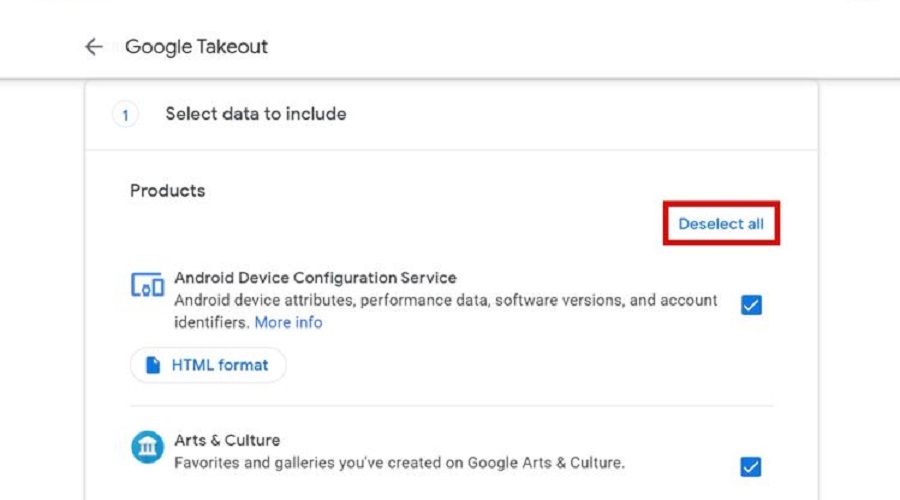
- Scroll down and check the box for Google Photos. Tap “All photo albums included” to only select specific years or months.
- Scroll down and tap Next to continue.
- You can choose how Google delivers these photos to you. Select the Delivery method drop-down menu to set an option. You can receive a link via email or add these photos to cloud storage services like Google Drive, Dropbox, OneDrive, and Box.
- When you're done, select the Create Export button.Google will email you the link once the Takeout download is complete. If you have a lot of photos, Google will split the files into 2GB batches.
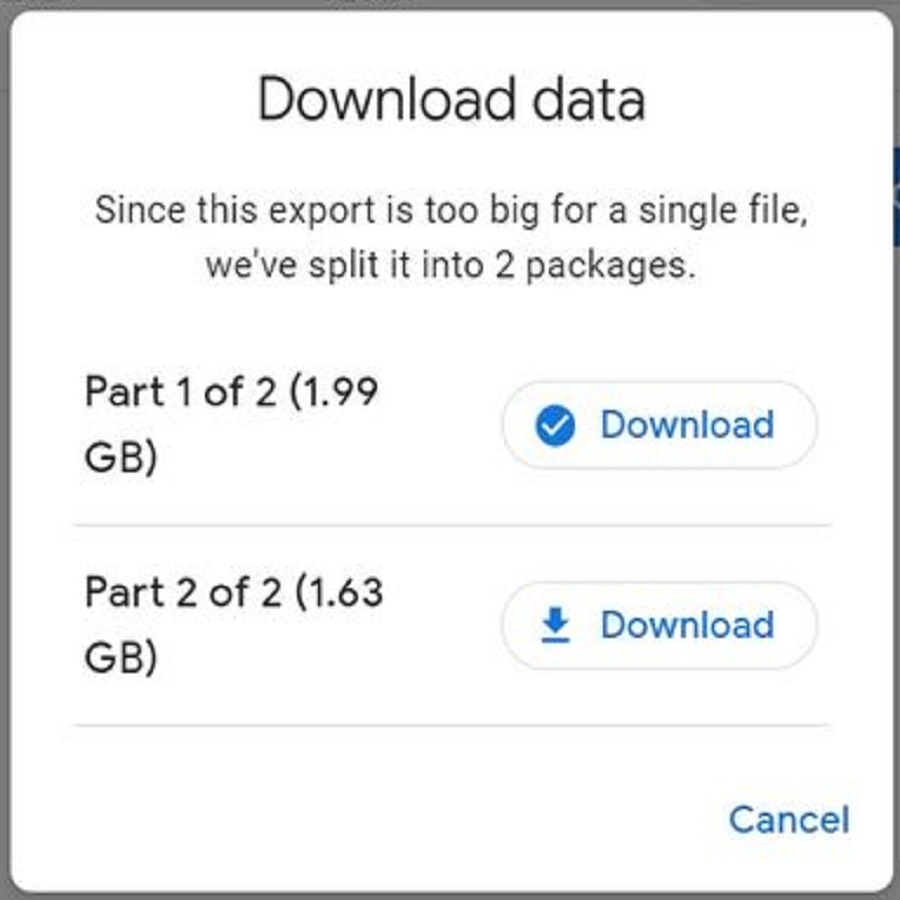
The wait time for this email depends on the number of photos. This means it could take hours or even days. You will receive download links for your images in the email. These links will allow you to download them to your computer or external storage device.
Please note that Takeout download links are only valid for seven days from the day you request them.
Transfer photos to iCloud
Uploading all those photos to iCloud Photos may seem simple. But if you try to add all the images from Google Photos to iCloud using the iCloud site in a web browser, the browser may freeze or crash.
See also: How to increase iCloud storage space?
This will of course happen if you try to transfer a large amount of photos, so it's a good idea to use a Windows 10 PC or Mac to smoothly import those photos from Google Photos to iCloud Photos.
How to import images from Google Photos to iCloud on Windows?
First, you need to get iCloud for Windows from the Microsoft Store (if you haven't already).
- Sign in with your Apple ID and verify your computer.
- Press Windows key + E to open File Explorer. Click iCloud Photos in the navigation pane. If you're opening it for the first time, iCloud Photos will take a few moments to download the photo thumbnails.
- Open another File Explorer window by pressing Windows key + E and navigate to the unzipped Google Photos folder.
- From the Google Photos folder, select all the photos you want to import to iCloud.
- Drag these selected photos to the iCloud Photos folder.
Your photos will be saved to iCloud!
How to import images from Google Photos to iCloud on Mac?
- Open the Photos app on your Mac
- Drag your photos from your Google Photos download folder to iCloud.
- With the Photos app open, go to > iCloud and make sure the iCloud Photos box is checked.
After that, you will be able to access your photos using iCloud Photo Library.
You don't have to choose just one image storage service
You can use both Google Photos and iCloud Photos to take advantage of the capabilities of both storage solutions.
Source: MakeUsOf
