

Meeting notes are most useful when written during a meeting and are easy to find after the meeting is over. Microsoft Teams allows you to take notes during a meeting and access them at any time in the future.
It's not necessary to take notes in every meeting, but if you're making decisions, assigning tasks, or working on something particularly important, taking meeting notes is just good practice. Ideally, meeting notes are written during the meeting, available to all participants for editing, and easy to find after the meeting.
See also: Microsoft Teams: How to see your browsing history
Meeting notes are a default part of any Teams meeting and are attached to the meeting itself. To find them, double-click the meeting (or click the meeting and then click “Edit”) in the Teams calendar.
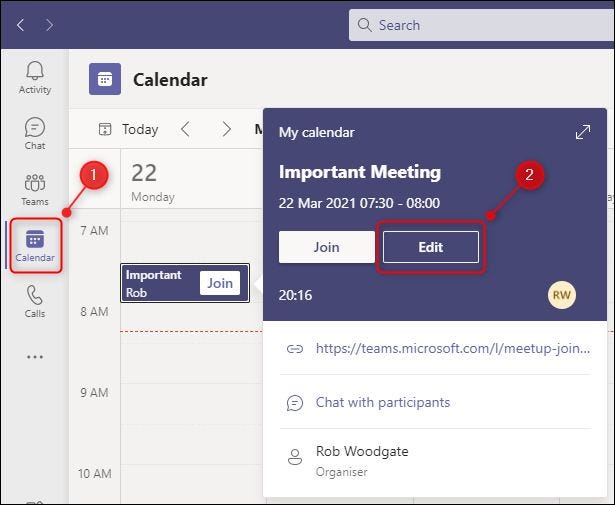
Meeting notes are located in a tab at the top of the meeting.
See also: Microsoft Teams: Disable chat in group meetings if you want

Once the meeting starts, you can access the notes by clicking the three-dot icon at the top of the meeting window and then selecting “Meeting Notes.”.
See also: Microsoft Teams: How to pin a file to the top of the list
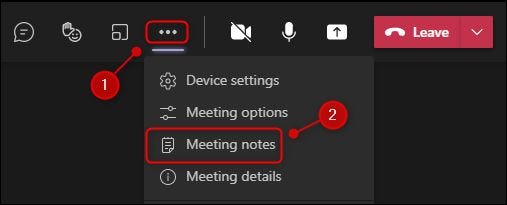
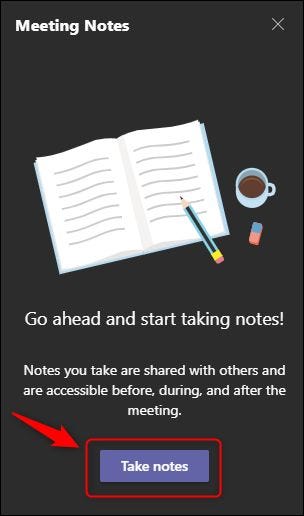
No matter how you access your notes, the functionality is the same. To start taking notes, click the “Take Notes” button.
A notification will appear in the meeting chat to inform all participants that meeting notes are being taken.
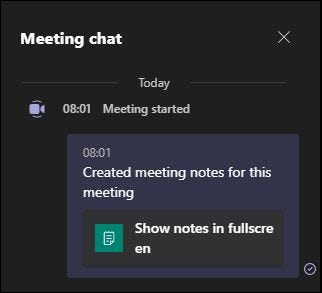
All meeting participants – including external guests – can click “Show notes in fullscreen” and read the notes in real time.
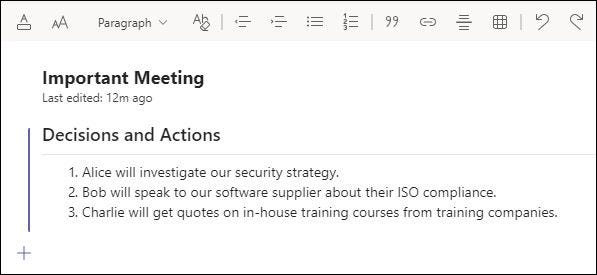
The notes (and meeting details) will be available in the meeting chat for as long as you keep the meeting on your calendar.
Information source: howtogeek.com
