

If you want to turn off the camera on your iPhone or iPad — remove it from the lock screen and also hide the Camera app — you'll need to take a quick trip to Screen Time in Settings. Here's how to make the necessary adjustments.

The secret is “Screen Time”
Every iPhone or iPad includes a special feature called Screen Time that can be used either to monitor and limit your app usage or as parental control for children who may be using the device. In our case, we will use Screen Time to restrict access to the Camera app, which will also remove the Camera app shortcut from the lock screen on iPhone and iPad.
See also: iPhone: How to convert Notes to PDF [two ways]
While Screen Time can also be used to disable other apps, by default, it only restricts what you choose, so using it won't affect the classic functions of your iPhone or iPad.
How to disable the camera app
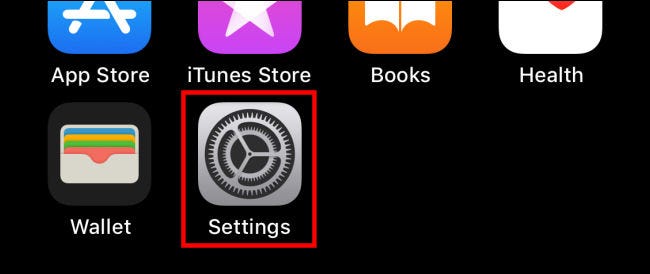
To disable the Camera on your iPhone or iPad, you'll need to use Settings. First, launch the Settings app on your iPhone or iPad.
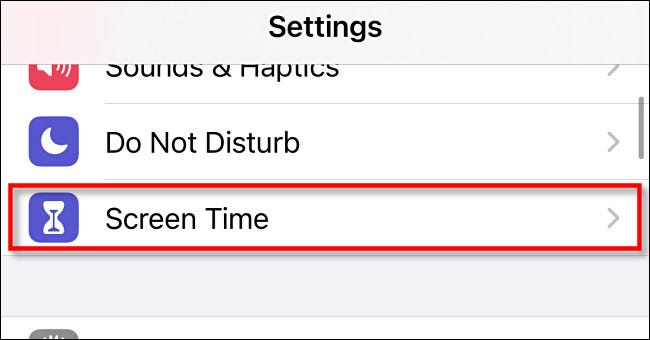
In Settings, tap “Screen Time”.
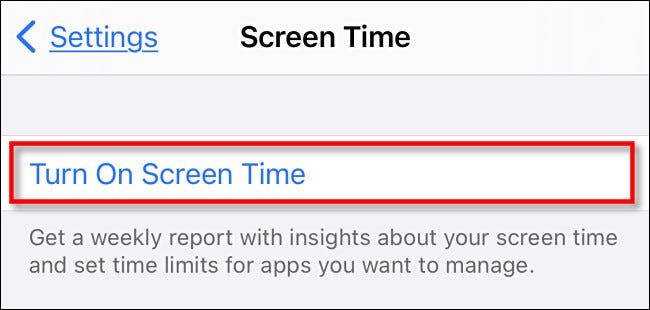
If you already have Screen Time turned on, skip to the next step. If you don't, tap “Turn on Screen Time,” then tap “Continue” and select “This is My iPhone” or “This is My Child's iPhone” based on your personal preference. Either option will work to turn off the camera.
See also: How to change your Apple ID password on your iPhone
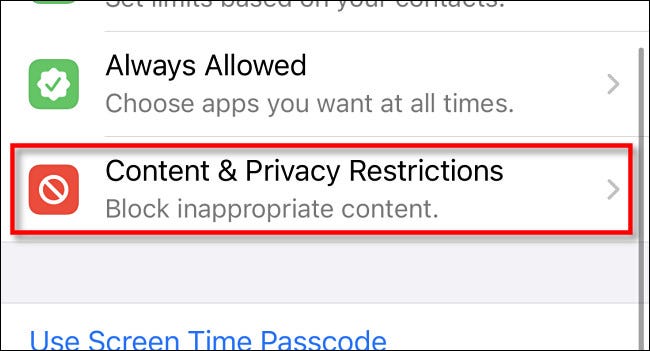
In the Screen Time settings, scroll down and tap “Content & Privacy Restrictions.”.
In the “Content & Privacy Restrictions” section, tap “Allowed Apps”.
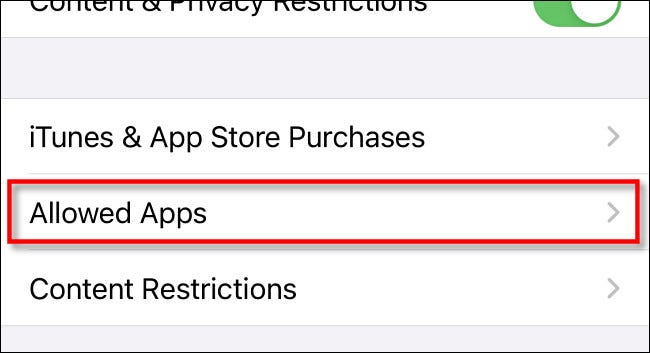
In the “Allowed Apps” section, turn the switch next to “Camera” to turn it off.
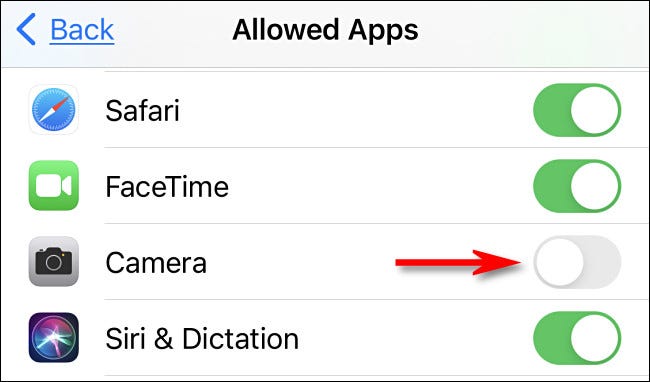
After that, you're done.
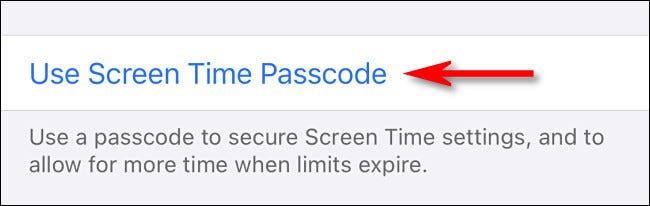
If you want to set a passcode to prevent someone from activating the camera, double-tap until you return to the main Screen Time settings page. Tap “Use Screen Time Passcode,” then follow the instructions to set one.
See also: How to personalize Google Discover Feed on iPhone
Also, if you need to turn Camera back on later, visit Settings > Screen Time > Content & Privacy Restrictions > Allowed Apps again and turn the switch next to “Camera” to “on.” You can also turn Screen Time off completely in Settings > Screen Time by selecting “Turn off Screen Time.”.
Information source: howtogeek.com
