

Google Chrome's Reading List feature debuted on the iPhone and is finally coming to the desktop. For some reason, it took a while for it to appear on Android. If you like this feature, you can enable it right away.
Chrome's Reading List feature on Android is only available via a "flag." Eventually, it will become a standard feature of the browser, but until then, this is how to enable it.
See also: How to sync Wi-Fi passwords between Chromebook and Android
How to enable Chrome's Reading List on Android
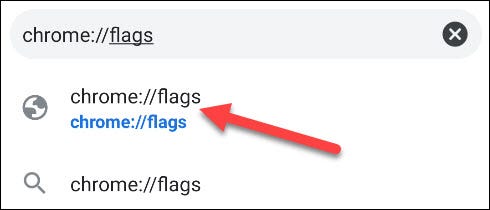
First, open the Google Chrome app on your Android phone or tablet and type chrome://flags in the address bar.
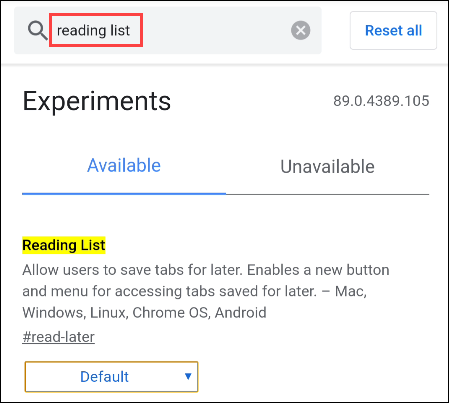
Then, type “Reading List” in the search box at the top of the page. This will bring up a flag with the same name.
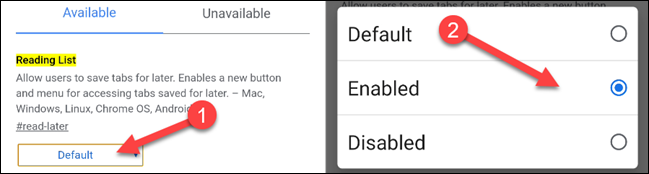
Select the drop-down menu for “Reading List” and select “Enabled” from the pop-up menu.
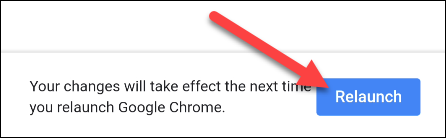
Chrome will ask you to restart the browser to apply the changes. Click the “Relaunch” button and wait for Chrome to open.
How to use Chrome's Reading List on Android
With the flag enabled, we can now use the feature. First, we'll cover adding pages to the Reading List. There are two ways to do this.
See also: How to disable the "Apps" button in Google Chrome
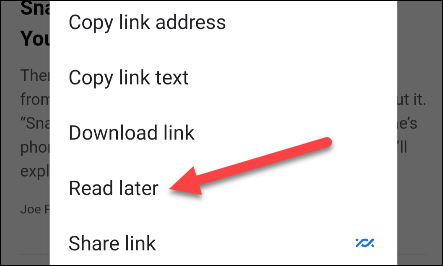
One method is to long-press any link to bring up the contextual menu. Select “Read Later” from the menu and it will be added.
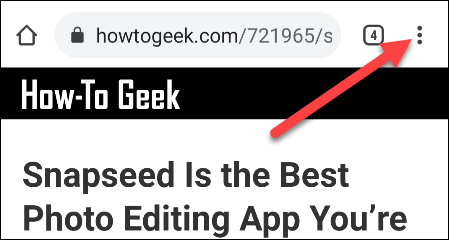
The second method is when you are already on the page you want to add. First, tap the three-dot menu icon in the top right corner.
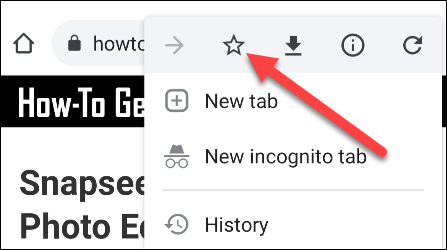
Now, select the star icon at the top of the menu.
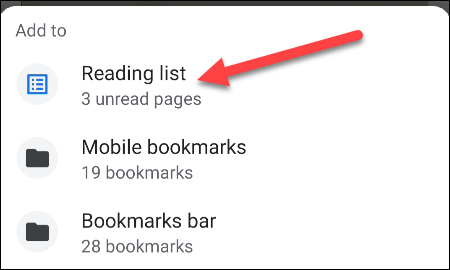
A new menu will move up from the bottom of the screen. Select “Reading List” to add the page.
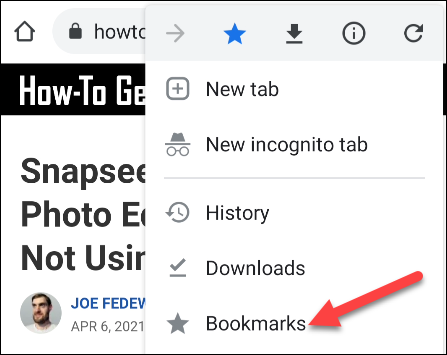
To open the Reading List, tap the three-dot menu icon in the top right corner again. This time, select “Bookmarks.”.
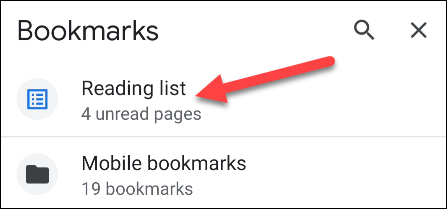
“Reading List” will appear at the top of the Bookmarks page and click on it.
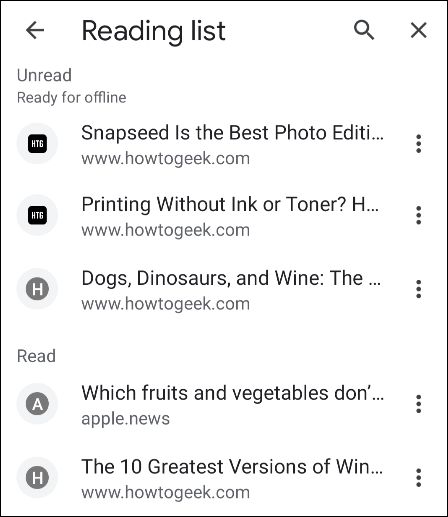
The Reading List is organized with unread pages at the top and read pages at the bottom. Unread pages are downloaded for offline reading.
See also: How to connect a Bluetooth mouse to a Chromebook
That's it! Again, this is a feature that will eventually be default in the browser, but until then, this is the only way to get it on Android.
Information source: howtogeek.com
