

Many of you will use the Microsoft Edge browser to connect to the Internet via your computer. However, you can set this browser as the default on your Android device.
See also: Internet and child: What are the risks that lurk?
As you may have noticed, Android devices come with Google Chrome pre-installed. However, that doesn't necessarily mean you have to use it if you don't want to. If you use the Microsoft Edge browser on your computer, you'll probably want to use it on your phone or tablet as well. We'll show you how to set Microsoft Edge as your default browser.
Read also: Chrome vs. Firefox: Which web browser is better?

Setting Microsoft Edge as your “default” browser means that the Android operating system will always use it when a browser is required. For example, if you select a link in an email, it will automatically open in Microsoft Edge. This makes it much easier to use.
Proposal: Bill Gates says he prefers Android smartphones over iPhones
To set Microsoft Edge as the default browser on your Android device you need to follow these steps:
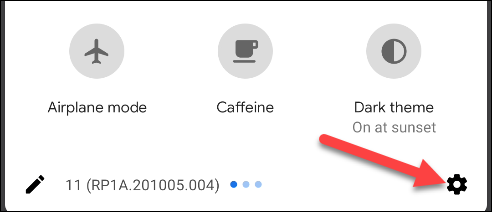
- First, open the “Settings” on your Android smartphone or tablet by swiping down from the top of the screen (once or twice depending on your device manufacturer) to open the notification shade. From there, tap the gear icon.
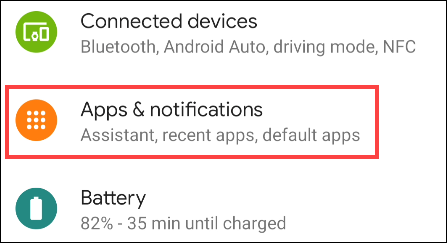
- Then, select “Apps & notifications” or “Apps”.
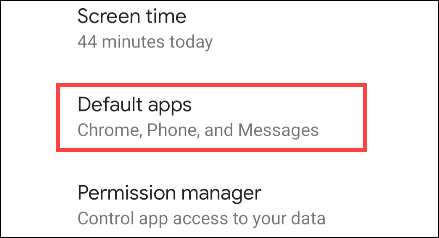
- Look for “Default apps.” You may need to expand an “Advanced” section to see it.
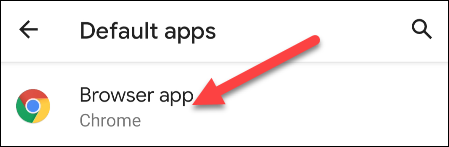
- This lists all the different actions that default apps can have associated with them. Select “Browser app” to continue.
- You will see all the apps on your phone or tablet that can be used as browsers. Select “Edge”.

This is. You can go back and Microsoft Edge will now be the default browser on your Android device. Every action that requires a browser will go through Edge.
Source: howtogeek.com
