

You can set Chrome as the default web browser on your iPhone and iPad and use it as your only browser across all your Apple devices. But just like Safari, you can move your open Chrome tabs between your iPhone, iPad, and Mac. Here's how.
How to transfer Chrome tabs between iPhone, iPad, and Mac
As long as you're signed in to the same Google Account on the Chrome browser for iPhone, iPad, and Mac, you can easily transfer tabs between all your devices. Just make sure the "Sync" feature is turned on.
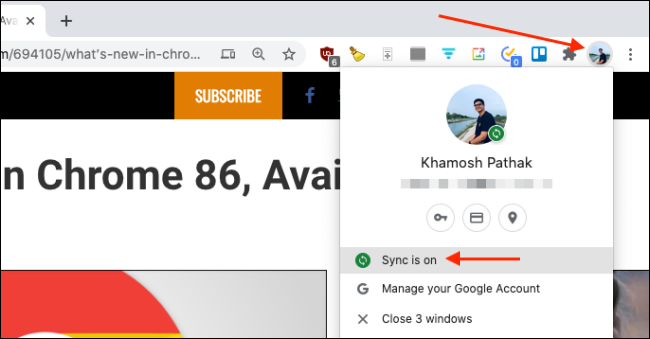
In Chrome for Mac, click the “Profile” button and make sure it says “Sync Is On.”.
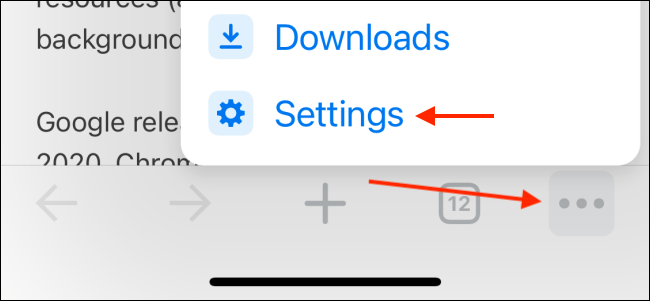
On an iPhone or iPad, press the “Menu” button and select “Settings”.
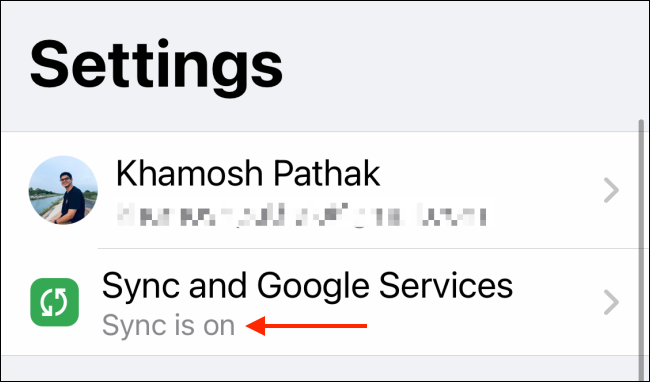
Here, under “Sync And Google Services”, make sure it says “Sync Is On”.
This will automatically show all open tabs and devices in Google account. The process for transferring tabs between iPhone, iPad, and Mac varies depending on your device.
Transferring tabs from Chrome on Mac to your iPhone and iPad is pretty simple.
Open the page you want to “send” and then click on the URL bar. Here, select the “Transfer” button. From the drop-down menu, select one of your devices.
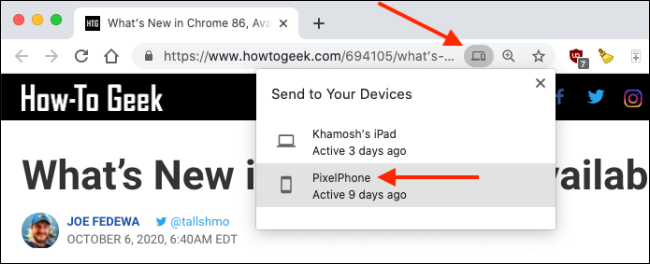
The tab will be transferred to the device. Now, open the “Chrome” app on your iPhone or iPad.
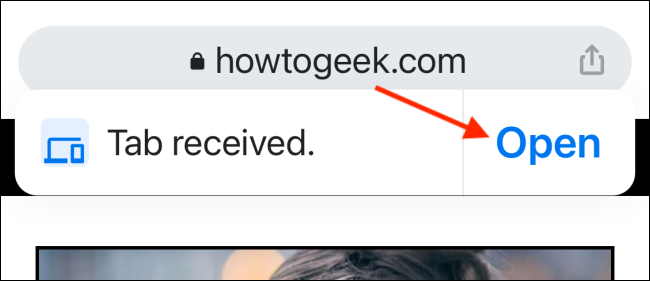
You will see a banner stating that you have received a tab from another device. The banner will only appear for a few seconds and once it is gone, there is no way to get it back. Then, tap the “Open” button to open the tab.
Transferring a tab from iPhone or iPad to Mac (or another iPhone or iPad) is a more time-consuming process.
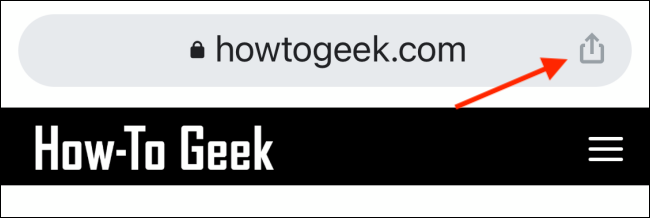
Open the website you want to transfer to another device and press the “Share” button from the URL bar.
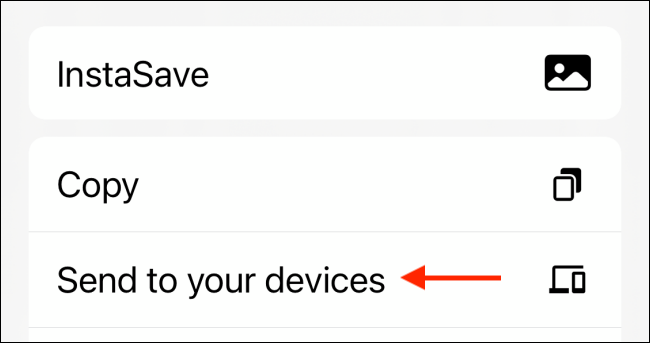
Here, select “Send To Your Devices”.
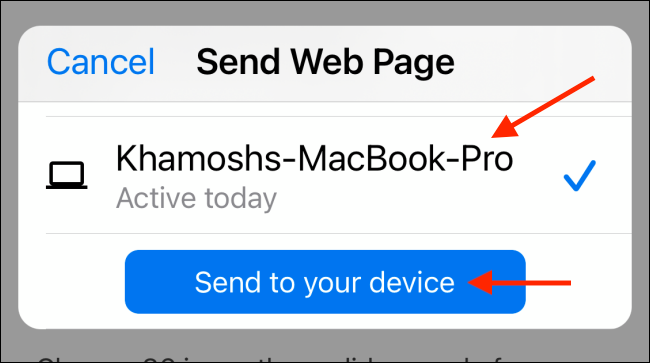
You will see all available devices. Select your device, scroll down and tap the “Send To Your Device” option.
If you “sent” the tab to your Mac, you’ll see a notification about it. If you click the notification, the website will open in a new tab.
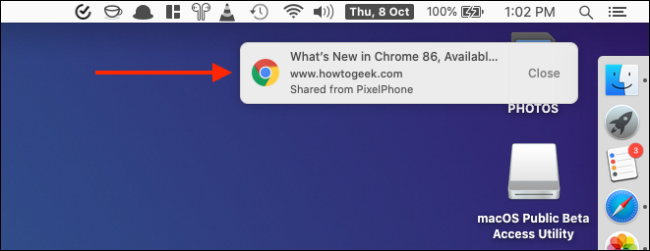
If you sent the tab to your iPad, you'll see a "Tab Received" banner in the Chrome app. Tap the "Open" button to open the website in a new page.

How to open Chrome tabs from other Apple devices
Tab transfer is great if you have both devices open and running the Chrome app. If you use the “Open Tabs” feature in Chrome’s History section, you can open tabs from your iPhone or iPad without touching them.
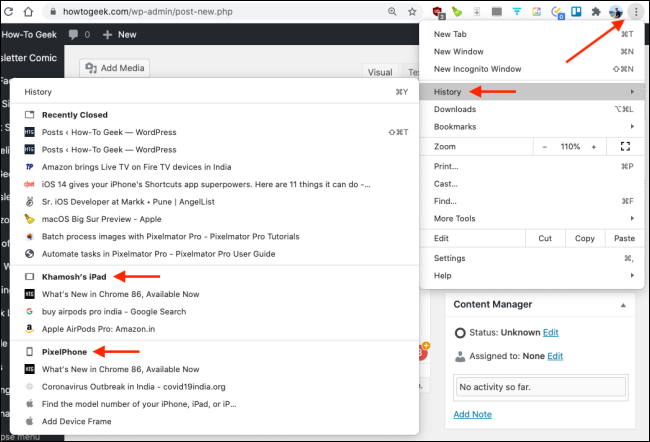
To use it from the Mac app, open the Chrome browser and click the “Menu” button. Here, go to the “History” section. Here you will see tabs from all your other devices. Click on a website to open it.
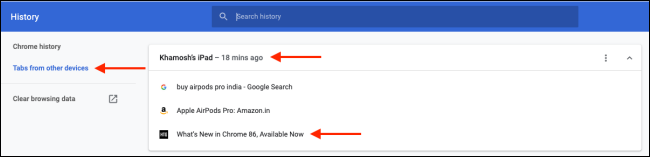
You can also see all open tabs from a specific device from the History section in the menu. Here, you can select “Tabs From Other Devices” from the side menu.
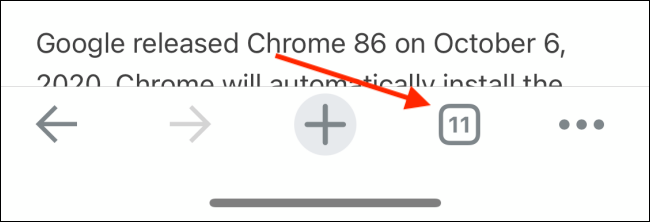
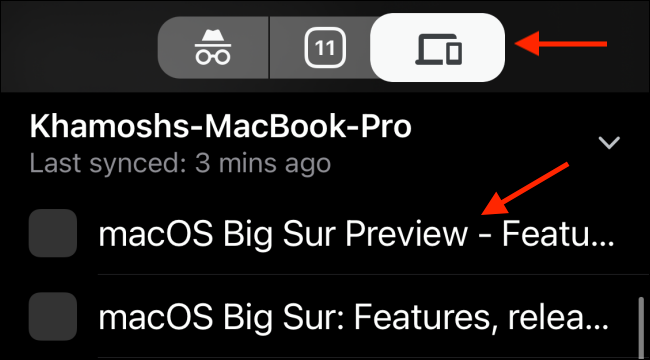
On an iPhone or iPad, you can access this feature from other devices using the “tab switcher.” Open the “Chrome” app on your iPhone or iPad and tap the “Tabs” button.
From the top of the screen, go to the “Devices” tab. Scroll down to see open tabs from all your other devices . Select a webpage to open it on your iPhone or iPad.
We hope you found all the above tips useful!
Source: howtogeek.com
